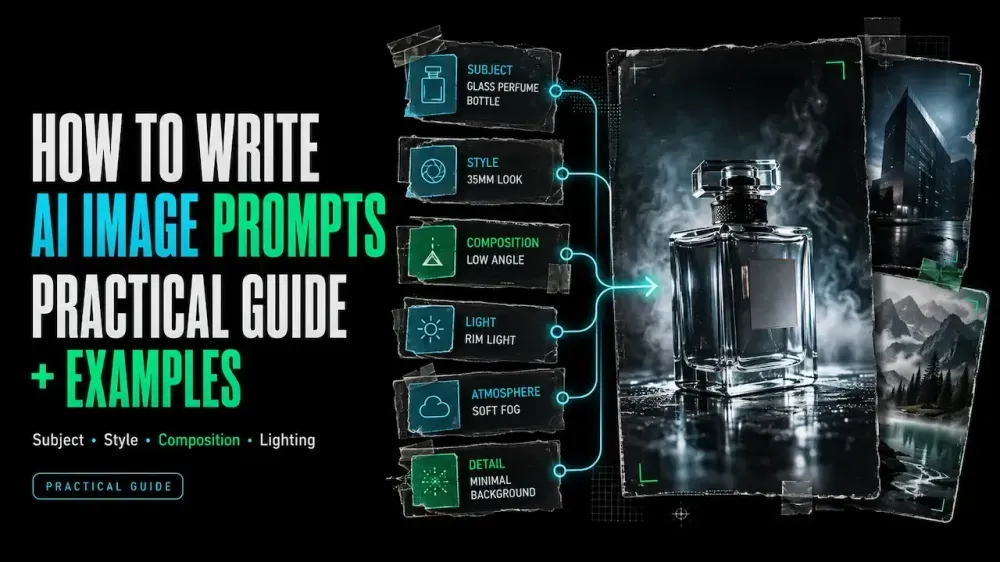
How to Write AI Image Prompts: A Practical Guide with Examples
On this page
“Leave the right third empty for a headline” is a small instruction with a large job. It turns a decorative scene into a usable layout. Effective AI image prompts connect what should appear with where the image will be used.
When I save a prompt structure, I want its subject, composition, light, and constraints easy to replace—not buried in style adjectives. This guide provides that structure, a refinement workflow, and two complete examples.
What Makes an AI Image Prompt Effective
An effective prompt names the subject, its action or condition, the composition, the visual treatment, and must-keep details. It also identifies the intended use because a social ad, ecommerce thumbnail, and website hero need different layouts.
Specific does not mean exhaustive. “A ceramic mug” is vague, but unrelated camera, texture, era, and mood terms create competing directions. Give every phrase one job.
A Practical AI Image Prompt Structure
Use this flexible image prompt structure:
Intended use + subject + setting + composition + style and lighting + constraints + aspect ratio
The order is an editing aid: find one layer, replace it, and understand what changed.
Subject and Intended Use
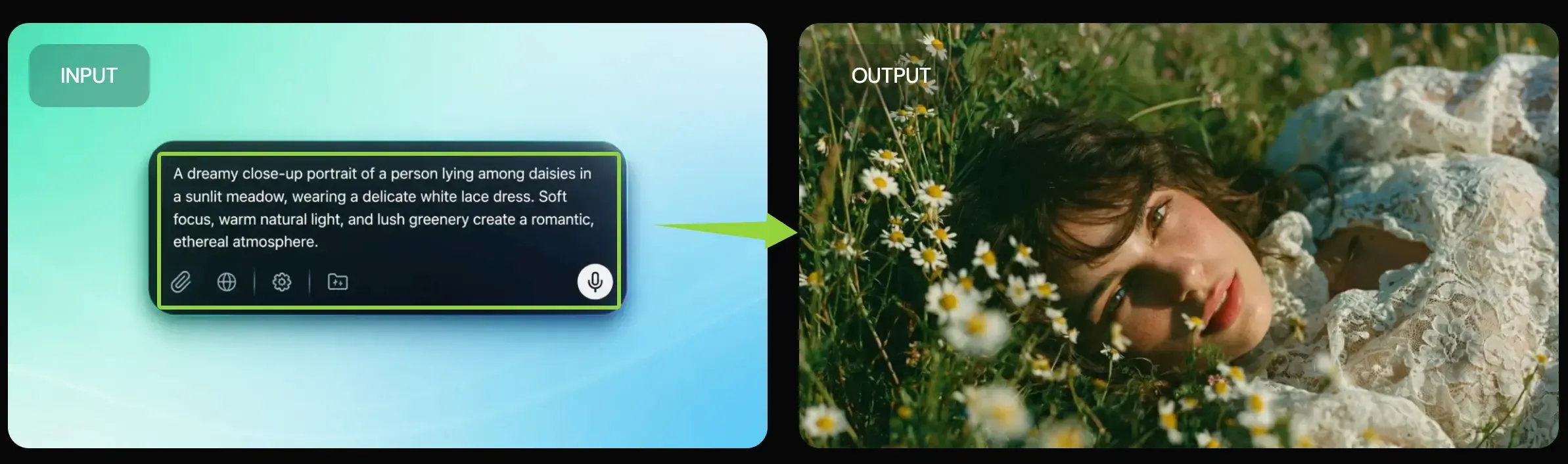
Start with the deliverable and subject. Replace “a perfume bottle” with “a square ecommerce hero image of one frosted-glass perfume bottle.” Add only material, color, pose, action, or identity details that matter.
Name the destination—product card, landing-page hero, vertical social post, or presentation cover—and reserve functional space for copy or interface elements.
Composition and Camera Direction
Composition tells the generator where elements belong. Specify framing, viewing angle, focal point, and any required negative space. For products, add the surface, orientation, and relative scale.
Use camera language only when it changes the image. “85mm portrait framing with shallow depth of field” is clearer than equipment details that do not serve the scene.
Style, Lighting and Mood
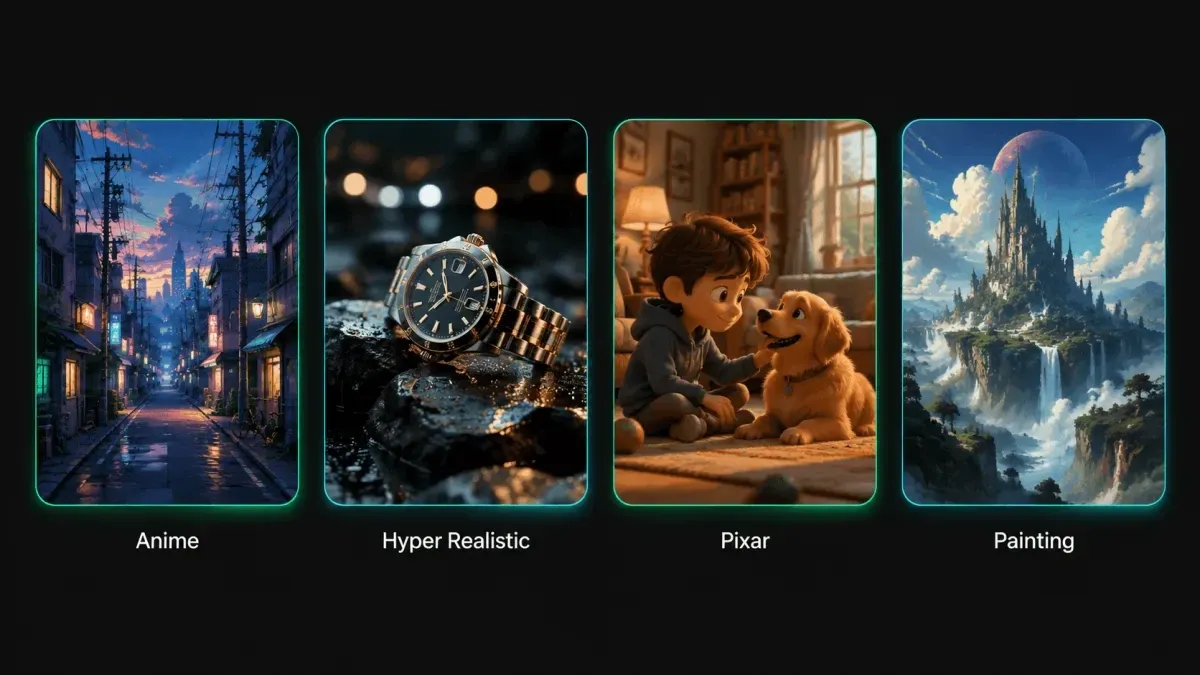
Choose one visual family—editorial photograph, vector illustration, paper collage, watercolor, or 3D render—then add compatible lighting and mood.
“Soft side light, low contrast, calm neutral palette” forms one direction. Mixing daylight, neon noir, vintage film, and glossy 3D obscures which look should lead.
Constraints and Aspect Ratio
Write constraints as visible requirements: “one bottle only,” “label facing forward,” or “keep the upper quarter uncluttered.” Put essential text in quotation marks and verify every character before publishing.
Set aspect ratio for the destination. A 1:1 product card, 4:5 feed image, and 16:9 hero allocate space differently.
A Step-by-Step Prompt Workflow
Start with the Core Scene
Write the smallest prompt that can establish the subject, setting, and purpose:
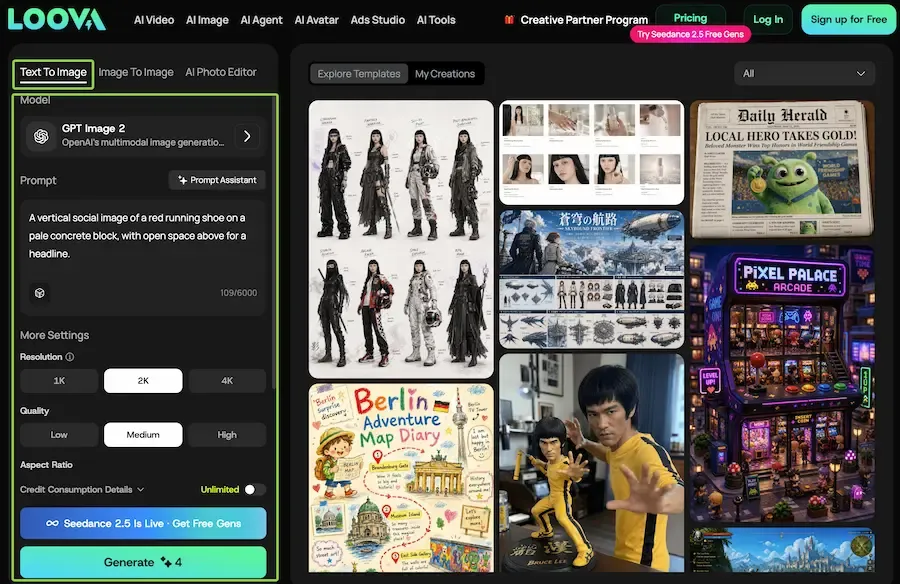
A vertical social image of a red running shoe on a pale concrete block, with open space above for a headline.
Generate this foundation before adding style language. You can draft the first image in Loova AI’s Text to Image workspace by choosing a current model, entering the prompt, and matching available settings to the destination.
Add One High-Impact Variable at a Time
Choose one high-impact variable: camera angle, lighting, background, palette, or medium. Add it while keeping the subject and layout fixed.
If the new version loses its headline space, the latest composition or styling instruction needs revision. That conclusion disappears when every layer changes together.
Compare, Diagnose and Refine
Judge the output against the brief. Check subject accuracy, focal point, empty space, material, color, text, and aspect ratio. Name the first failed condition and edit its prompt layer.
Keep both prompts beside their images. You can compare two prompt revisions in the same Text to Image workspace while holding the model and other available settings steady. Identify which phrase changed the frame.
Two Complete AI Image Prompt Examples
Product Image Prompt
This example uses a fictional brand and separates product accuracy from atmosphere:
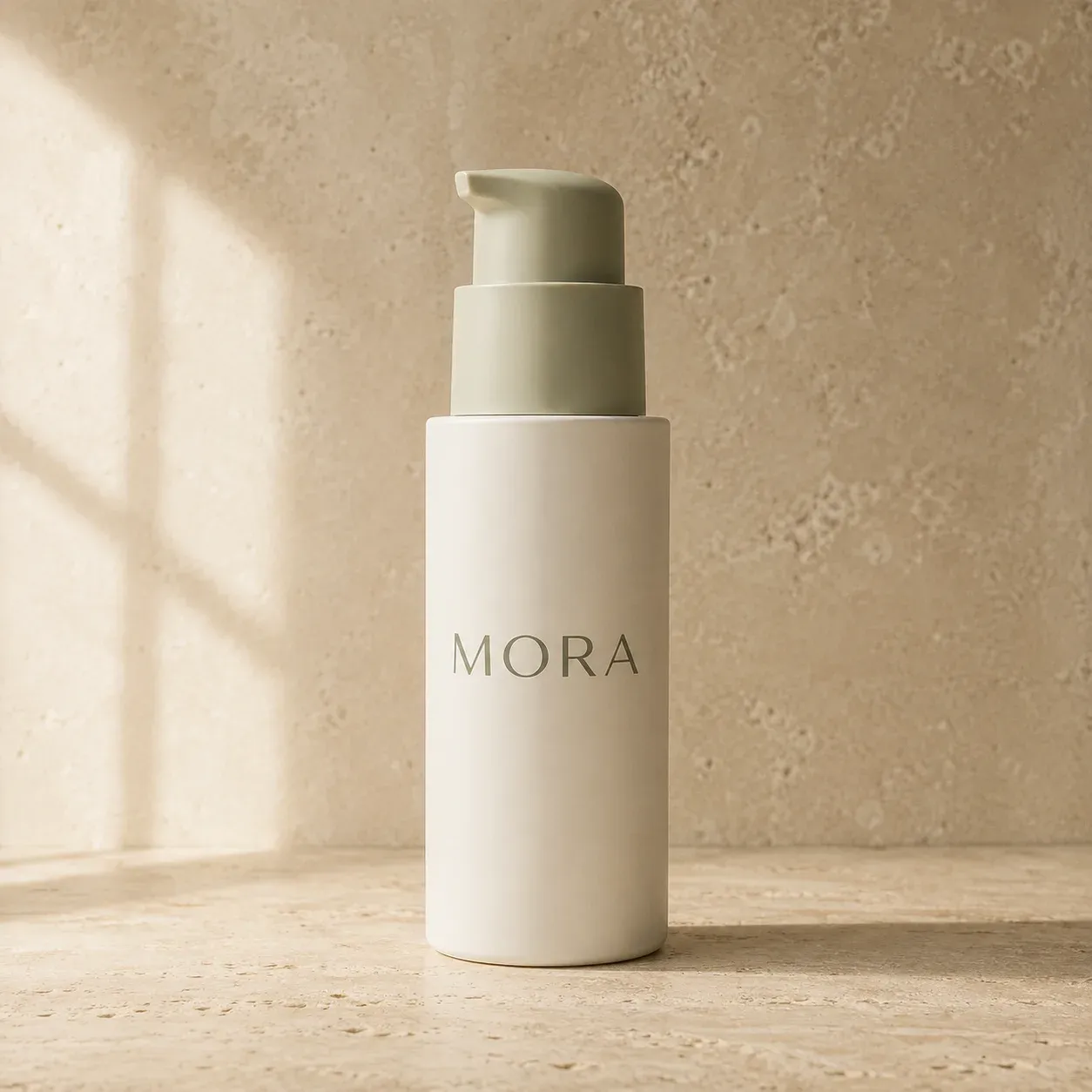
Square ecommerce hero image for the fictional skincare brand MORA. One matte ivory pump bottle with a pale sage cap, centered on a warm limestone surface, viewed slightly above eye level. Soft diffused window light from the left, gentle grounded shadow, clean editorial product photography, restrained beige and sage palette. Keep the bottle upright, label facing forward, one product only, no flowers, no hands, no text outside the label. 1:1 aspect ratio.
The prompt defines use, product, camera, material, light, palette, and protected details. Treat business-critical generated lettering as a draft and add approved typography during layout.
Marketing Campaign Visual Prompt
This AI art prompt example reserves copy space before adding campaign atmosphere:
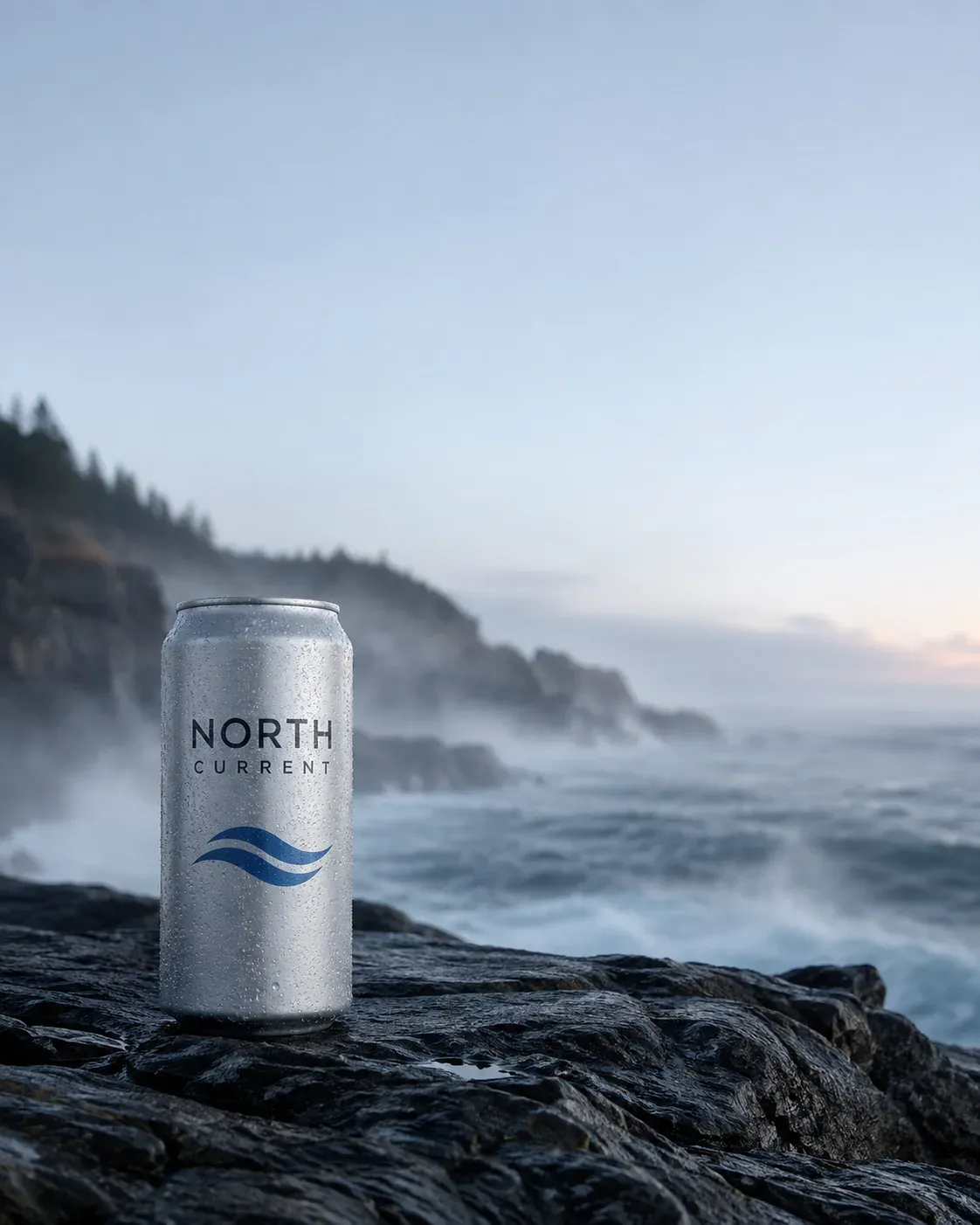
Vertical 4:5 campaign visual for the fictional sparkling-water brand North Current. A chilled silver can with a simple blue wave mark rests on dark coastal rock as sea mist passes behind it. Low eye-level framing; product in the lower-left third; upper 30% clean and low-detail for a headline. Cool dawn light, crisp commercial photography, slate blue and silver palette, fresh but restrained mood. Keep the can shape and wave mark unchanged, no people, no extra cans, no embedded slogan.
The layout instruction protects the headline area, establishes a focal path, and keeps generated copy out of the image.
Common Prompt Problems and How to Fix Them
| Problem | Likely cause | Smallest useful edit |
|---|---|---|
| The subject feels generic | The prompt names a category but no defining feature | Add material, color, shape, pose, or one identity detail |
| The frame feels crowded | Every prop has equal importance | Name one focal point and reserve explicit negative space |
| The style feels inconsistent | Several visual families compete | Keep one medium and one compatible lighting direction |
| The product changes shape | Appearance rules are too loose | State the must-keep silhouette, color, orientation, and count |
| Generated text is wrong | The wording is long or not protected | Quote only essential text, then replace critical copy in layout |
| An exclusion is ignored | The negative list overwhelms the scene | Describe the desired replacement and keep constraints short |
For real campaigns, use only permitted images, logos, likenesses, and references. Describe visual traits instead of using a living artist’s name as a shortcut. Verify claims, labels, and recognizable people separately from image quality.
FAQ
Does a longer prompt always produce better AI images?
No. Length helps only when new words clarify a visible decision. Start with subject, purpose, composition, and one visual direction; add detail for a specific gap. Delete repeated or conflicting instructions.
Why does the same prompt produce different images each time?
Generation includes variation, so identical text can produce different compositions. Model, version, settings, and any available seed control also matter. Hold available controls fixed and change one prompt layer.
Do AI image generators understand negative instructions?
Support varies. Some generators provide a negative-prompt field; others respond to short inline constraints. Pair “no extra objects” with “one centered bottle on an empty surface” so the desired frame stays clear.
Can I use the same prompt across different AI image generators?
Yes, as a baseline—not a promise of matching images. Preserve subject, use, layout, style, and constraints, then adapt model-specific controls. Compare outputs under the same brief.
I would reuse a structure for AI image prompts only when its visual decisions stay easy to replace. If the subject, layout, and constraint can each change without rebuilding the scene, the prompt is ready for another brief.
Create an image from your own brief
Open Loova AI Text to Image, enter the core scene, and generate one version before adding the next high-impact variable.