AI Video Extender: How to Lengthen Clips Naturally
On this page
AI video extension works best when the original clip ends on a simple shot with an obvious next move. A steady camera and a clearly visible subject give the model less to guess.
This guide shows how an AI video extender continues a clip and how to smooth out a visible seam. Some tools add new frames to the original video, while others generate a separate continuation shot. In either case, the transition feels more natural when motion, framing, lighting, and sound stay consistent.
What Is an AI Video Extender?
An AI video extender predicts what could happen beyond the frames you already have. Some tools work inside an editing timeline. Others generate a new clip from the original endpoint.
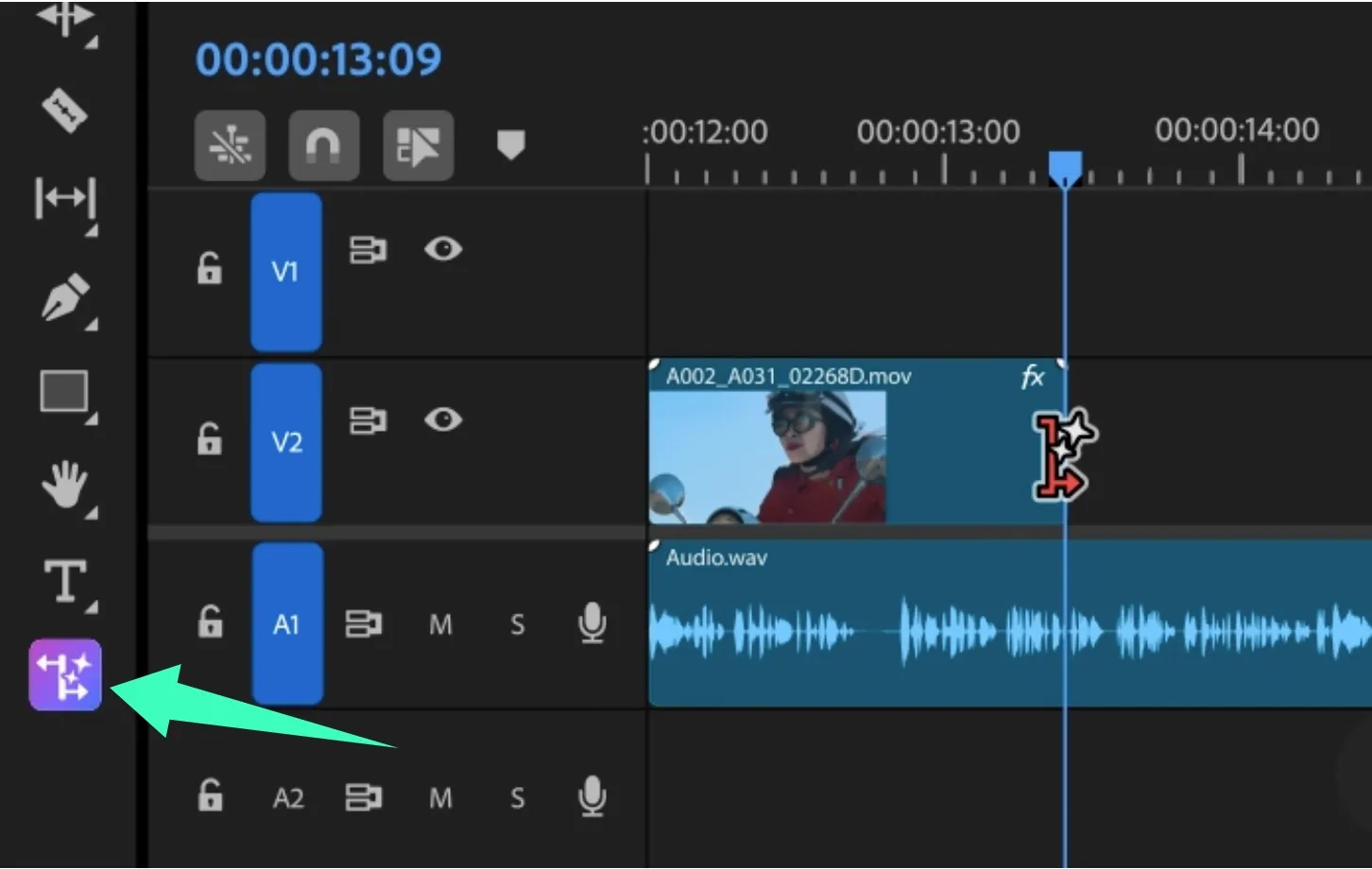
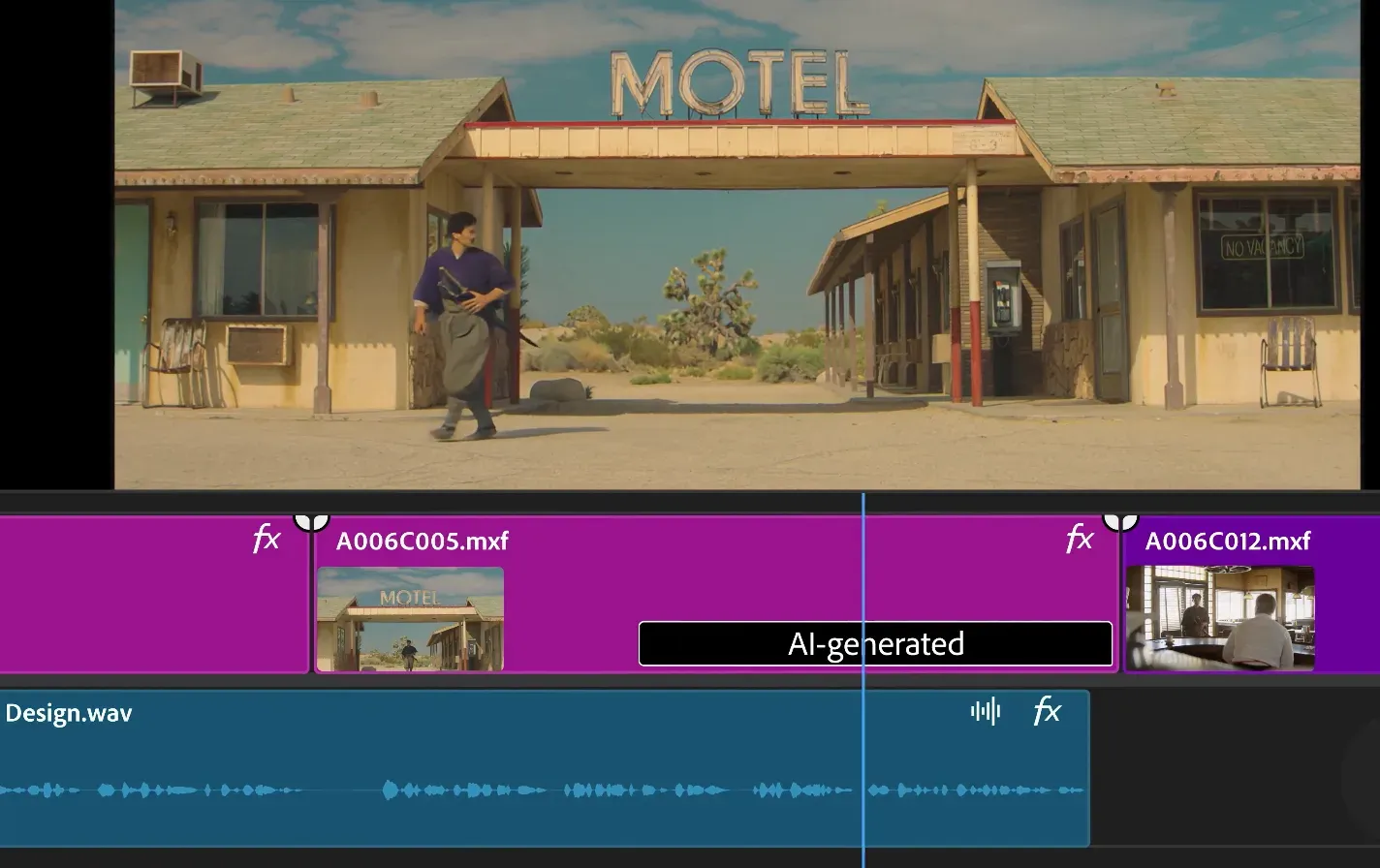
That distinction changes the workflow. Adobe Premiere’s Generative Extend adds labeled frames at a clip boundary. Adobe currently limits video extension to two seconds. A continuation generator creates another shot for later editing.
Neither method uncovers missing footage. It creates plausible new material based on the visible context and your instructions.
When Video Extension Works—and When It Does Not
Video extension works best with one clear subject and readable motion. A slow walk, gentle camera push, or product turn provides a stable pattern.
Expect more variation when the endpoint contains any of these conditions:
- A face hidden by hands or motion blur
- A fast pan, zoom, or direction change
- Several people crossing each other
- Flickering lights, reflections, or complex water
- Precise dialogue, lip movement, logos, or small text
A short bridge is safer than a new plot event. Direct extension suits an extra hold or a gesture’s end. A new narrative beat gives the model more decisions.
How to Prepare a Source Clip for Natural Extension
Use the highest-quality authorized source. Keep an untouched copy and work from a duplicate. Prefer the original export over a compressed social download.
Inspect the final second at full size. Trim past a blink, cut, or sudden exposure change. Stop where position and direction are easy to describe.
Prepare these items before generating:
- The clean source and an untouched backup
- A still image from the chosen continuation frame
- The original frame rate, aspect ratio, and resolution
- A note describing the subject, motion, camera, light, and background
- A room-tone or music tail for the edit
- One target duration for the added shot
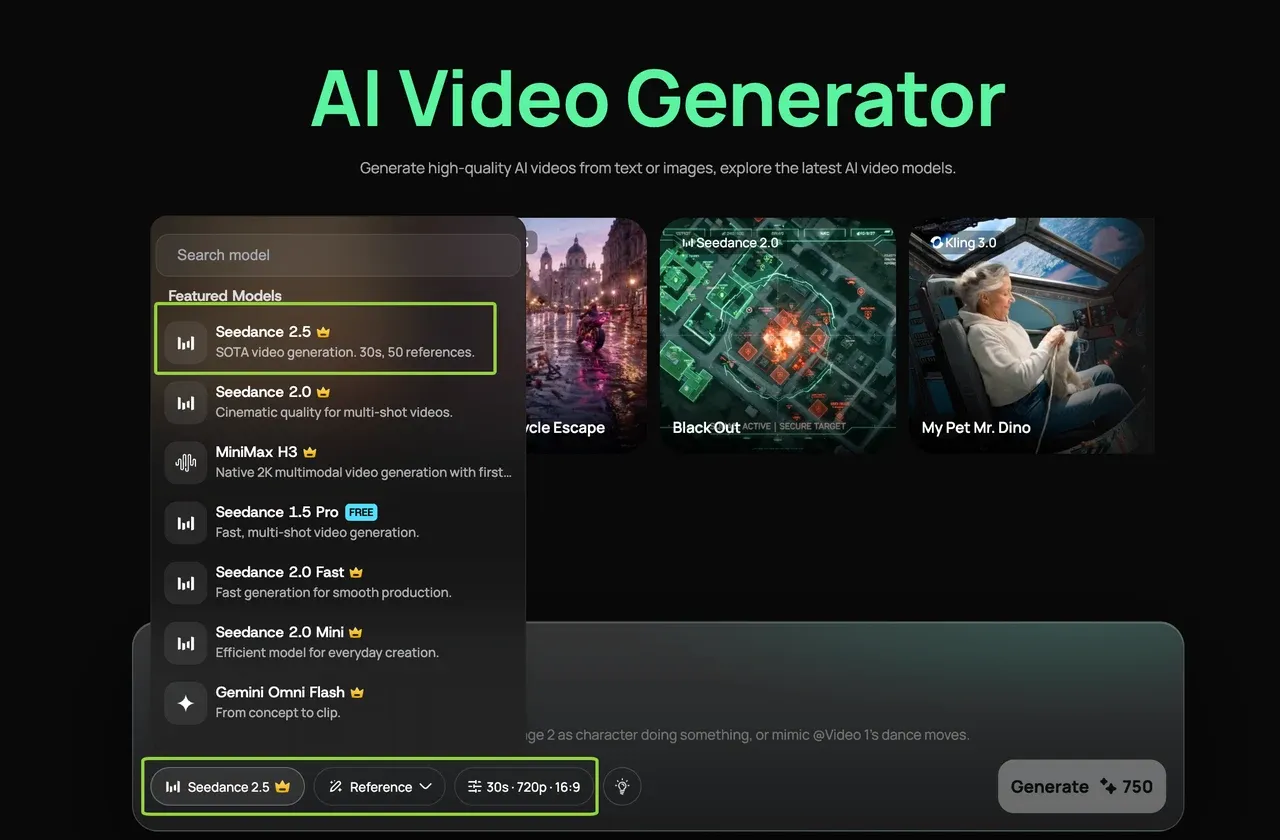
The current Loova AI Video Generator accepts prompts, images, and reference footage across available models. Use the clean endpoint as the start frame. Keep the original clip for final assembly.
How to Extend a Video Step by Step
Choose the Continuation Point
Mark two or three possible endpoints within the final second. Favor visible faces, intact hands, clear edges, and moderate motion blur. End between major actions when possible.
Export that frame without resizing or filters. It becomes the visual contract for the generated opening.
Prompt Motion, Camera, and Audio Direction
Describe what continues before describing anything new. Use this order:
Subject continuity + next visible action + camera behavior +
environment + audio direction + constraints
For example:
Continue from the supplied last frame. The woman takes two slow steps toward the window and stops. Keep the camera locked. Maintain the warm side light and quiet room tone. No cut, zoom, text, or new person.
Keep the first extension simple. One action and one camera instruction are easier to diagnose than a complete shot list.
Generate More Than One Continuation
Create several results from the same brief. Each variation tests how the model interprets the handoff. Changing the prompt too soon hides that comparison.
Keep the duration short. The official BytePlus Seedance 2.5 prompt guide treats video extension as a distinct workflow. For an extension, specify the direction, duration, and what should continue from the source clip.
Inspect the Seam Frame by Frame
Place both clips on one timeline. Compare the last original frame with the generated opening. Check normal speed, half speed, and individual frames.
Review five details in this order:
- Subject position and scale
- Movement direction and speed
- Camera angle and lens feel
- Lighting, color, and shadow direction
- Background objects, text, and reflections
Fix the first visible mismatch. Later artifacts may disappear after trimming the opening frames.
Finish the Clip in an Editor
Trim unstable generated frames before adding a transition. A straight cut often works when motion already matches. A short dissolve can soften minor texture changes, but it cannot repair reversed motion.
Use a cutaway when the handoff remains obvious. A product detail or reaction shot can hide a necessary jump. Bridge the seam with continuous audio, then preserve the original frame rate.
Common Extension Problems and Fixes
| Problem | Likely Cause | First Fix to Try |
|---|---|---|
| The subject jumps | Endpoint position changed | Trim to a steadier frame and reuse it |
| Motion reverses | Direction was unclear | State the movement direction in plain language |
| The camera lurches | Camera behavior was omitted | Add “camera locked” or one controlled move |
| A face or hand changes | The endpoint lacks detail | Choose a sharper frame with visible features |
| Light flickers | Exposure changes near the seam | Trim earlier and specify the light direction |
| The soundtrack breaks | Generated audio differs | Replace the seam with continuous room tone |
Change only the variable linked to the first visible failure, then compare again.
A Complete Video-Extension Example
Imagine coffee finishing its pour into a clear glass. The camera slowly pushes toward the drink. You need three seconds before an end card.
Trim after the stream stops but before the camera settles. Export that frame, then use this prompt:
Continue the slow camera push as the coffee surface becomes still. Keep the glass shape, reflections, and morning window light unchanged. No new objects, text, splash, or camera cut.
Generate several short versions. Reject bent glass or reversed camera motion. Trim the strongest result before its first unstable frame. Carry the original room tone underneath, then add the end card.
Ready to build the continuation? Open the Loova AI Video Generator, add the clean endpoint, and prompt one action. Compare every result against the same seam checklist.
Rights and Technical Limits
Only upload footage, faces, voices, music, and brand assets you may process. Keep confidential or sensitive material offline unless the workflow is approved.
Generated frames estimate what might happen next. They do not recover a missing event. Label altered footage when accuracy or audience expectations make the change material.
Limits vary by tool, model, plan, format, and region. Verify duration, resolution, audio support, and usage rights in the current interface. Keep source and generated files separate.
FAQ
What kind of source clips work best for natural video extension?
Use a sharp clip with one clear subject, steady light, and readable endpoint motion. Slow camera movement and uncluttered backgrounds reduce continuity demands.
Does an AI video extender continue the original audio?
It depends on the tool and mode. Some extenders generate ambience; other continuation clips arrive silent or with new audio. Preserve dialogue separately and bridge the edit with room tone.
Does repeated extension reduce quality or create more artifacts?
Repeated extension can increase drift because each pass starts from generated material. Faces, objects, motion, and light may move farther from the source. Save each stage and reuse the cleanest endpoint.
Why is there a visible jump between the original and extended clip?
The clips probably disagree on position, motion speed, camera behavior, exposure, or sound. Compare the seam frame by frame and identify the earliest difference. Repair that first mismatch before asking the AI video extender to continue farther.