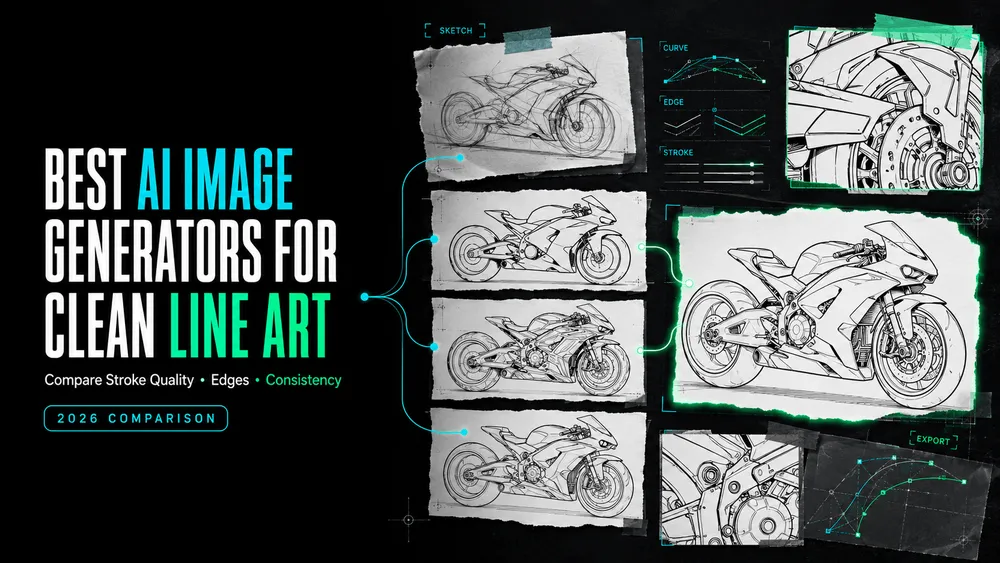
Best AI Image Generators for Clean Line Art
On this page
Line art can look clean in a large preview and fall apart once it is scaled down for a label. Thin strokes disappear, double lines become obvious, and a raster file will not give you editable vector paths. The best AI image generator for line art depends on what you need to do next. You may need to convert a photo, edit vectors, print the artwork, or prepare it for machine cutting.
That next step makes the shortlist easier. Loova AI and OpenArt are useful for exploring styles. Adobe Firefly and Canva make it easier to start from a photo. Recraft and Kittl offer more direct vector workflows. Whichever tool you choose, expect to clean up the final output before production.
What Counts as Clean, Usable Line Art?
Clean line art uses clear contours and deliberate spacing. Important edges remain visible at the final size, without stray marks, doubled lines, broken curves, or unwanted shading.
A PNG can work for a social graphic or reference sheet. Logos, icons, and cutting patterns may need editable vector paths. An SVG still needs inspection.
How We Compared AI Line Art Tools
This comparison appears on Loova AI’s blog, and the platform is one of the products covered. It uses current public documentation, not a controlled image-quality test. Vendor pages describe intended features rather than guaranteed results.
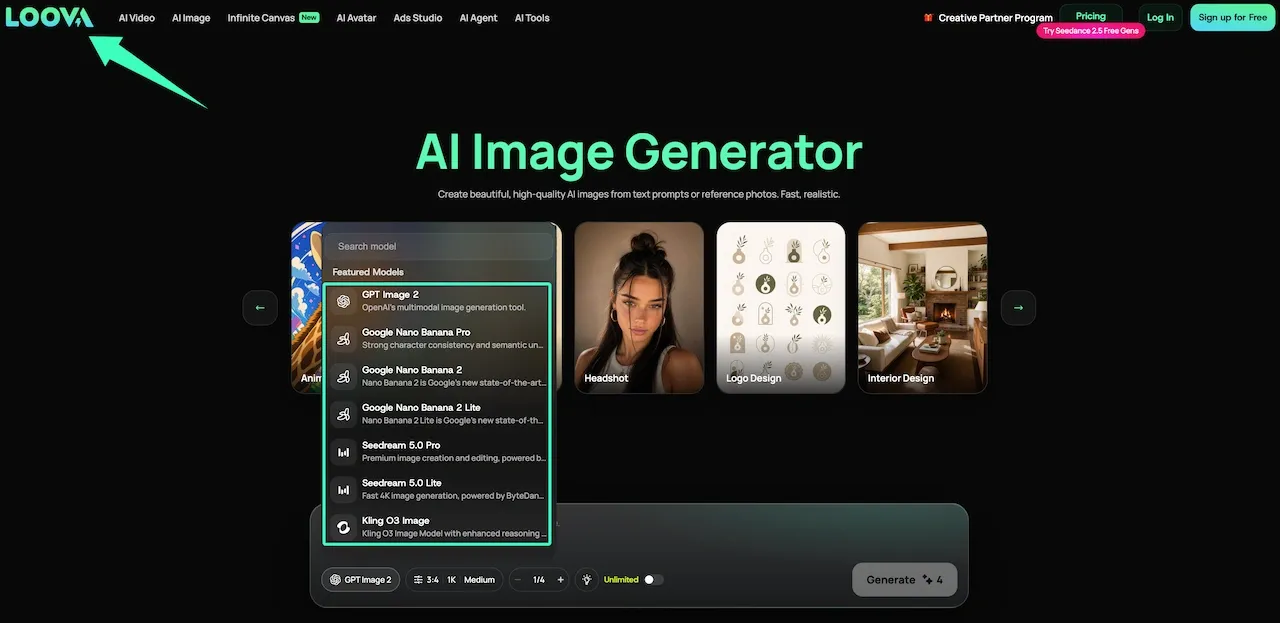
Our reference brief was a black desk lamp in three-quarter view, with even strokes and no shading. We mapped each documented workflow to that brief. The criteria were input, line controls, vector support, editing handoff, and cleanup. The current Loova AI Image Generator provides several models in one workspace for reusing the same brief.
Best AI Image Generators by Line-Art Task
Loova AI for Flexible Multi-Model Generation
The Loova AI multi-model image workspace accepts text prompts or reference photos. Its model selection helps readers compare interpretations of the same contour, background, and line-weight instructions.
Its public page does not document native SVG output. Loova AI therefore fits early exploration before a separate vector cleanup route.
Adobe Firefly for Prompt and Photo-Based Line Art
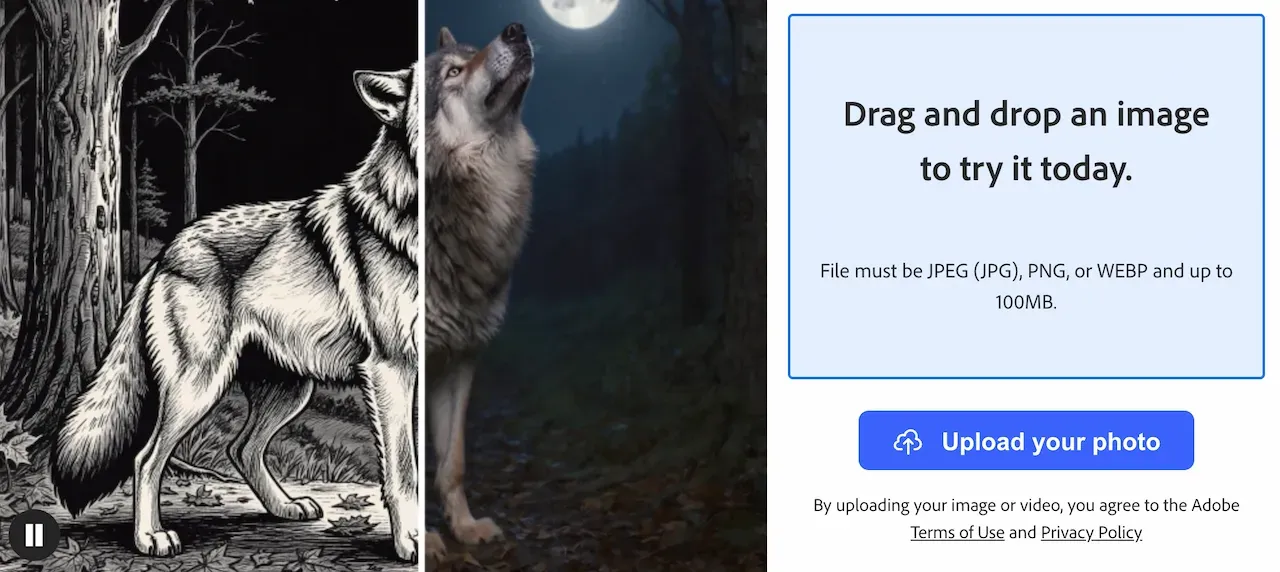
Adobe Firefly’s line-art generator starts from text or an uploaded photo. Documented options include Bold Lines, Ink, reference-based generation, and canvas editing.
It suits photo-to-sketch conversion and prompt-based illustration. Confirm the downloaded format before planning an editable-vector handoff.
Recraft for Design and Vector-Oriented Workflows
Recraft is a clear fit when editable vectors are part of the brief. Its documentation supports raster and vector generation, vectorization, and SVG or PDF export for vector images.
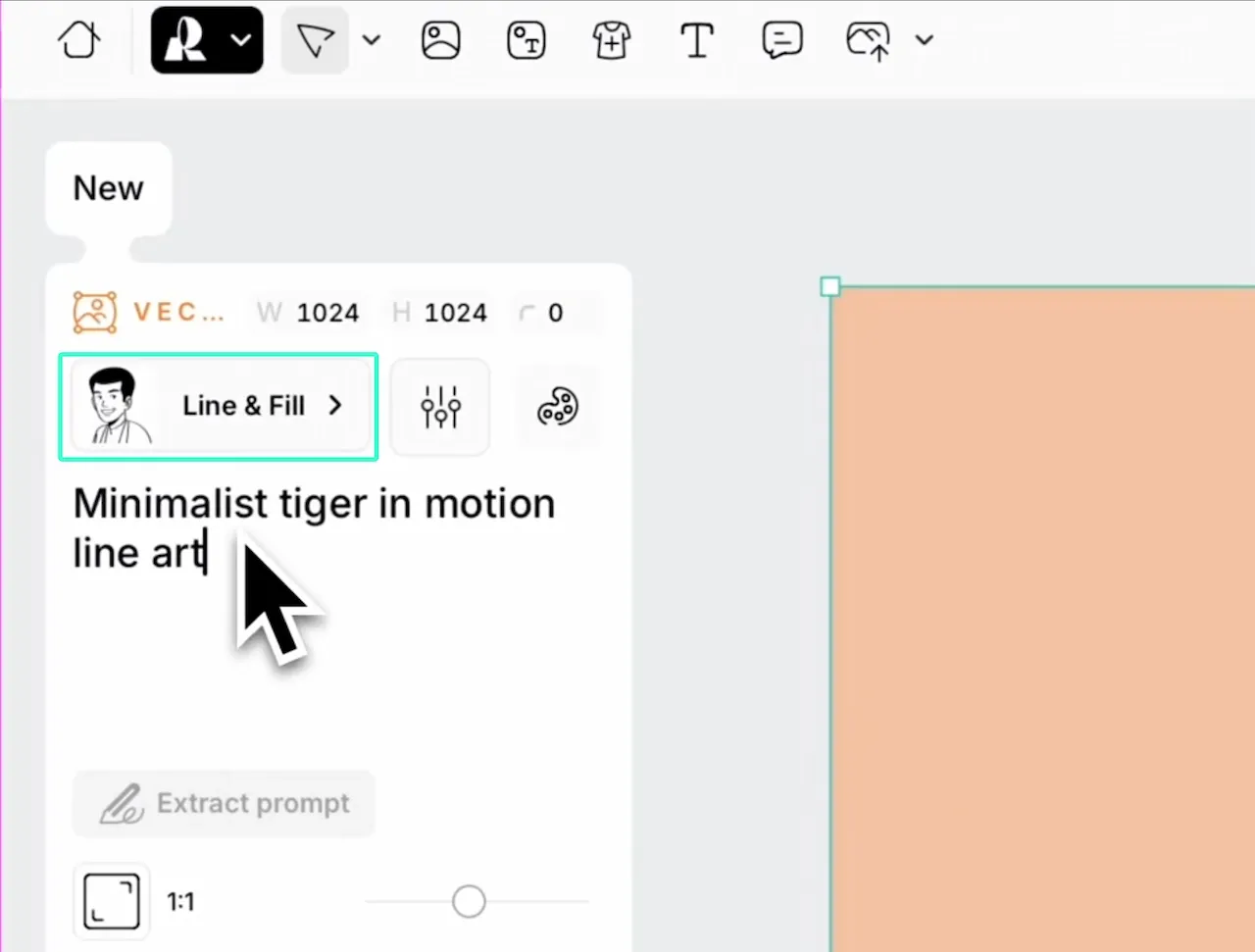
The supplied Recraft minimalist line-art guide covers text, image, style, aspect ratio, and detail controls. Choose a vector model when paths matter. A raster result still needs vectorization before it becomes editable paths.
OpenArt for Style Exploration
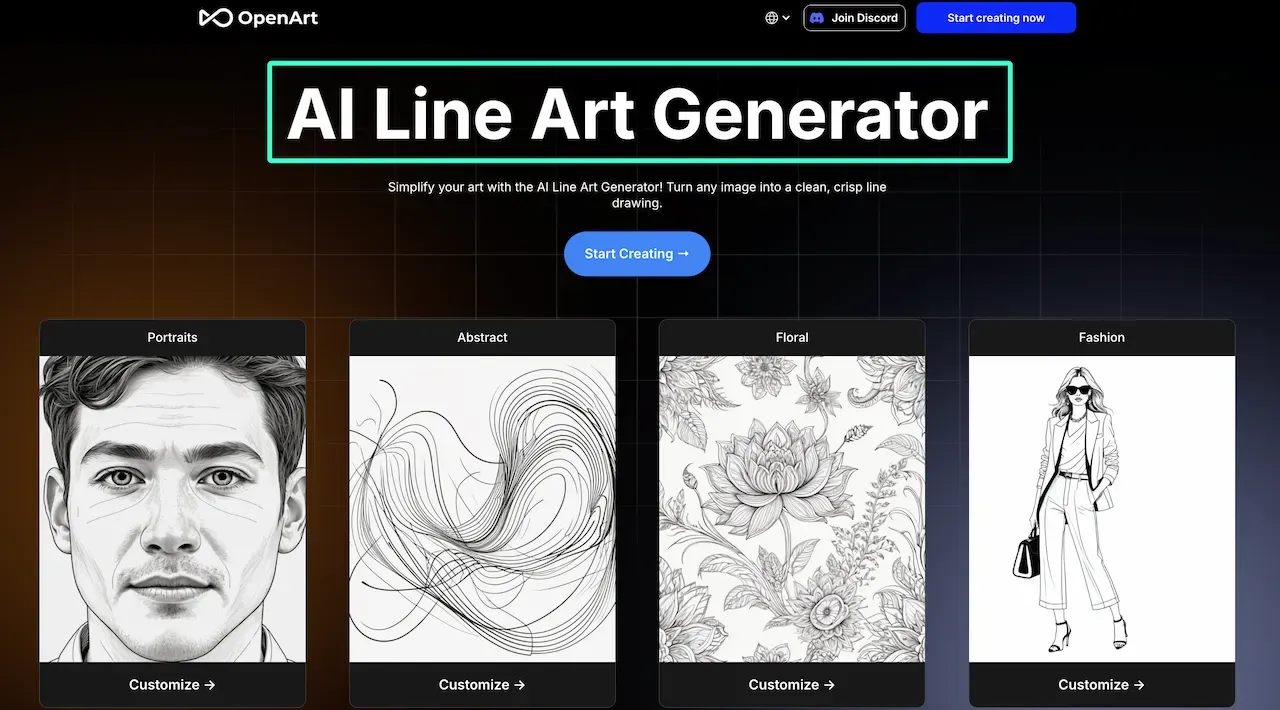
OpenArt’s line-art generator provides templates plus controls for line thickness, complexity, and color. Its photo-to-line workflow covers portraits, objects, and scenes.
OpenArt fits projects that still need style exploration. Its photo-to-line page describes image output, so vector work requires another conversion and inspection step.
Kittl for Design-Led Illustration Work
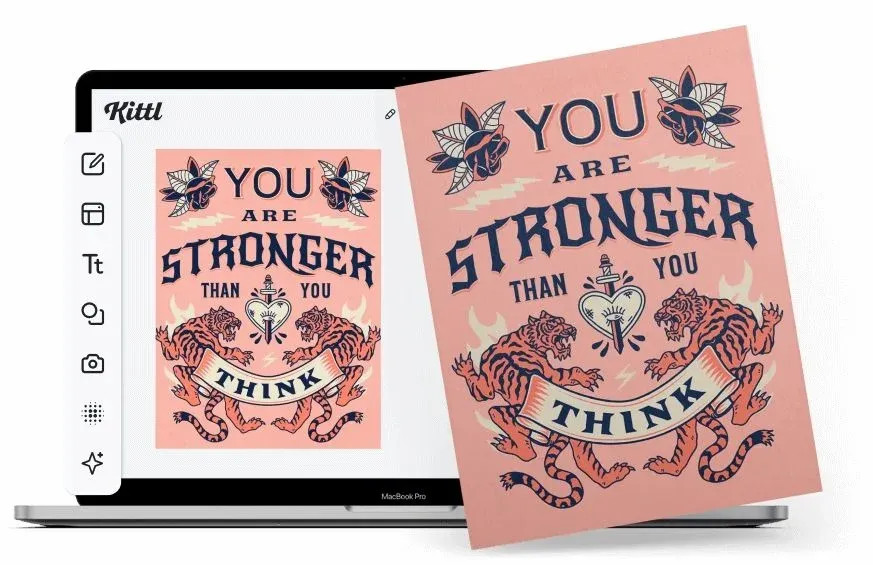
Kittl’s AI Vector Generator creates editable vectors from text prompts. Its vectorizer converts JPG or PNG images, followed by design editing on the Kittl canvas.
This workflow suits packaging, stickers, labels, and merchandise. Kittl documents SVG export, but its paths still need a production check.
Canva for Simple Photo-to-Line Conversion
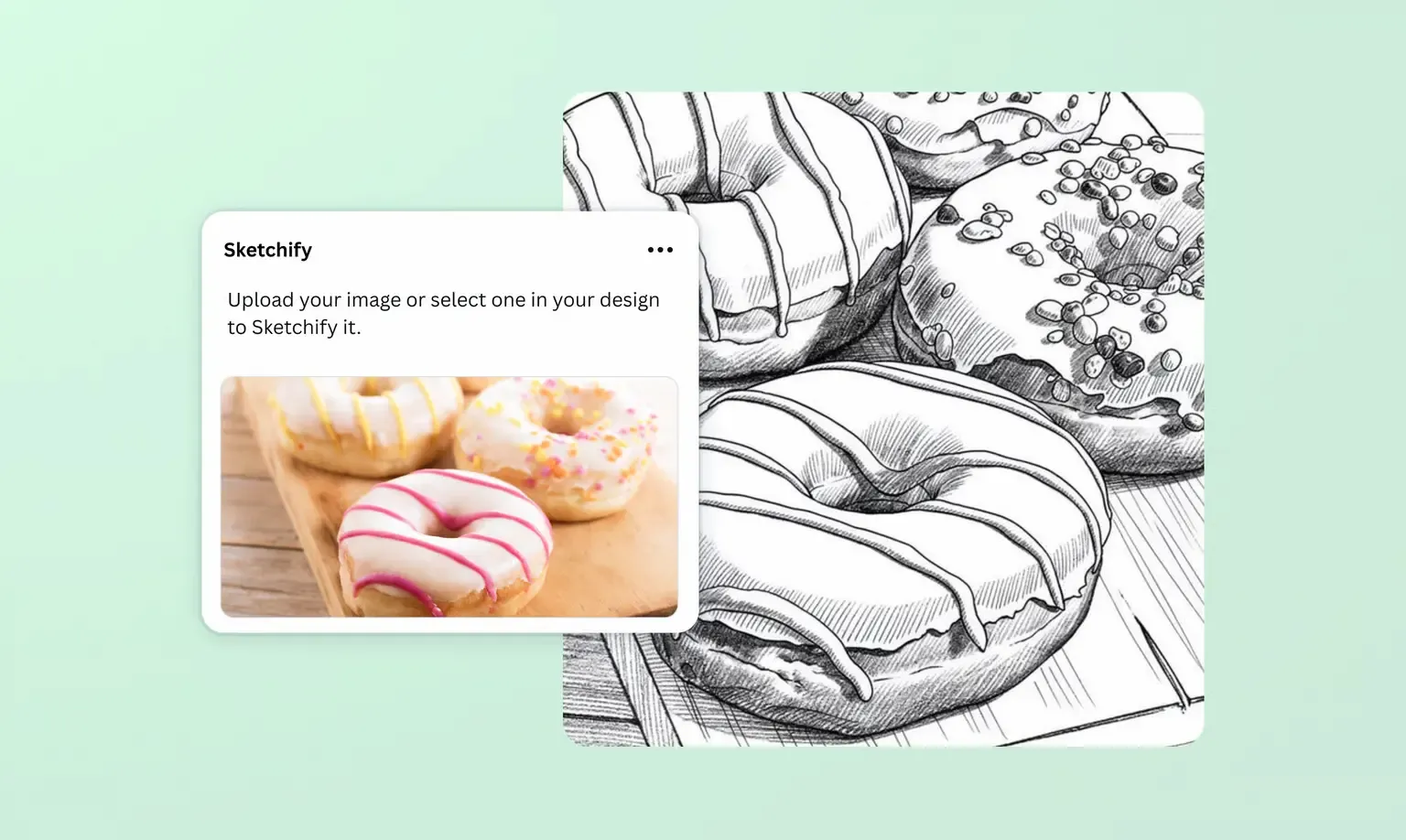
Canva’s Photo to Sketch workflow uses apps such as Sketchify to turn a photo into a drawing. The result can move into a Canva layout with text, icons, and filters.
It is a simple route for social, presentation, or printable graphics. Downloads include JPG, PNG, and PDF. SVG conversion uses a separate Canva Vectorizer.
Side-by-Side Line-Art Workflow Comparison
| Tool | Best Fit | Starting Input | Documented Vector Route | Main Check Before Delivery |
|---|---|---|---|---|
| Loova AI | Comparing model interpretations | Text or reference image | No SVG route documented on the image-generator page | Contour consistency and raster cleanup |
| Adobe Firefly | Prompt or photo-based line drawing | Text or photo | Confirm the downloaded file and editing route | Broken lines, shading, and background detail |
| Recraft | Vector-first illustration | Text or image | Vector models with SVG/PDF export | Model type, layers, and path simplicity |
| OpenArt | Exploring line styles | Text, template, or photo | Separate vectorization may be needed | Line weight and unwanted texture |
| Kittl | Editable design assets | Text or raster image | Native vector generation or vectorization to SVG | Anchor points, overlaps, and layout fit |
| Canva | Fast photo-to-sketch design | Photo | Separate Vectorizer can create SVG | Sketch effect versus true paths |
To compare one brief, open the Loova AI Image Generator and select two available models. Keep both first outputs unchanged. Inspect the same contours, spacing, and background marks before refining either result.
How to Clean and Prepare the Final Output
View the line art at its delivery size. Repair broken contours and remove duplicate strokes, specks, shading, and background texture. Zoom out after each change because a fine line may disappear on a label.
For raster output, set the pixels for the final print size. Adobe uses 300 ppi as a standard for close-viewed prints, unless the printer requires another value. Vector paths and strokes still need review.
For SVG, inspect open ends, hidden shapes, compound paths, and excess anchor points. Adobe Illustrator’s path-simplification controls can reduce unnecessary points. Keep an untouched export before simplifying.
Comparison Limitations
Features, models, exports, plans, and third-party apps can change. No controlled outputs were generated, so this article does not rank quality, speed, or consistency. Test your fixed brief before choosing a production workflow.
Only upload photos or design assets you have permission to use. AI can also omit, duplicate, or invent product details, so a generated outline is not an engineering drawing. Logos, technical diagrams, packaging marks, and machine paths need human verification.
FAQ
Can AI line art be exported as SVG?
Some tools can. Recraft offers vector models and SVG export. Kittl supports editable vector generation and vectorization, while Canva provides a separate Vectorizer. For other downloads, confirm that the SVG contains editable paths rather than an embedded bitmap.
Why does my line art have broken or duplicate lines?
Busy backgrounds, shadows, texture, and vague instructions can create competing edges. Simplify the source, remove its background, and request one line weight without shading. Repair one region at a time.
Can AI turn a product photo into clean technical line art?
AI can create a simplified product outline for presentation. It may change dimensions, ports, labels, seams, or safety features. Compare every important edge with the source and redraw technical details.
Is AI line art suitable for printing or laser cutting?
It can be prepared for either use, but the requirements differ. Printing needs suitable dimensions, resolution, color, and line weight. Laser work needs paths that match the machine, material, scale, and operation. Check overlaps and open paths, then test on scrap material.
Choose the file before choosing the generator. A PNG may suit a social graphic, while a cutting pattern needs inspected paths. Let the final format set the acceptable cleanup.