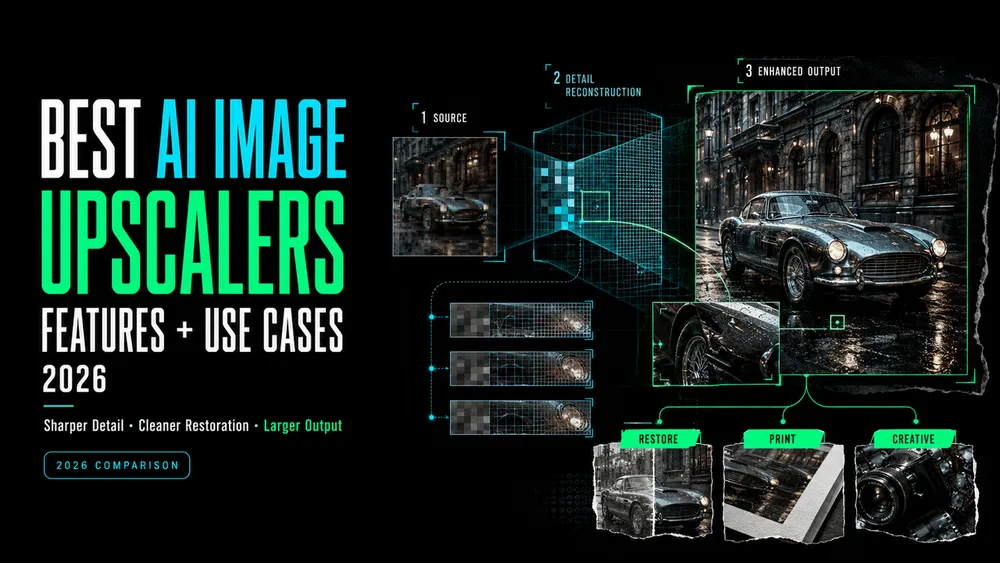
Best AI Image Upscalers in 2026 Compared
On this page
The right amount of upscaling depends on where the image will end up. An online product listing may need only a modest size boost. An 8-by-10-inch print at 300 ppi, however, needs an image that is 2,400 × 3,000 pixels before bleed or cropping.
The best AI image upscaler for your project also depends on the source image. The need to preserve faces, text, or product details matters just as much. This guide compares six options across those needs. They cover browser tools, desktop software, batch processing, local upscaling, creative reconstruction, and integrated editing.
Quick Answer: Choose an Upscaler by Asset Type
Choose by what must survive the enlargement:
| Asset or Workflow | Start With | Why It Fits |
|---|---|---|
| Occasional web, social, or marketing image | Loova AI | A direct browser workflow with common upload formats and 2K/4K output choices |
| Professional photo or print master | Topaz Gigapixel | Desktop and plugin workflows with several enhancement models |
| Product catalog or a batch of mixed assets | Let’s Enhance | Browser-based batch processing and content-specific enhancement modes |
| Files that should remain on your computer | Upscayl | Local, open-source desktop processing on macOS, Windows, and Linux |
| AI art or illustration that can accept new texture | Magnific | Separate creative and precision approaches, plus detailed reconstruction controls |
| An image already moving through a layered edit | Adobe Photoshop | Upscaling can remain inside the retouching, masking, and export workflow |
No row is a universal quality winner. A face, product label, scanned photo, and painted landscape ask an upscaler to solve different problems.
How We Compared AI Image Upscalers
This is a documented workflow comparison, not an independent image-quality test. We reviewed current official pages for scale controls, processing location, batch options, editing integration, and the separation between faithful enlargement and creative reconstruction. Because this article appears on Loova AI’s blog, its product page is treated as first-party information—not proof of repeatable output quality.
For your own comparison, keep the source file, crop, target dimensions, and review checklist identical. Check faces, lettering, logos, thin edges, repeating textures, color, and new artifacts before deciding which export is usable.
Best AI Image Upscalers by Use Case
Loova AI for a Simple Browser-Based AI Workflow
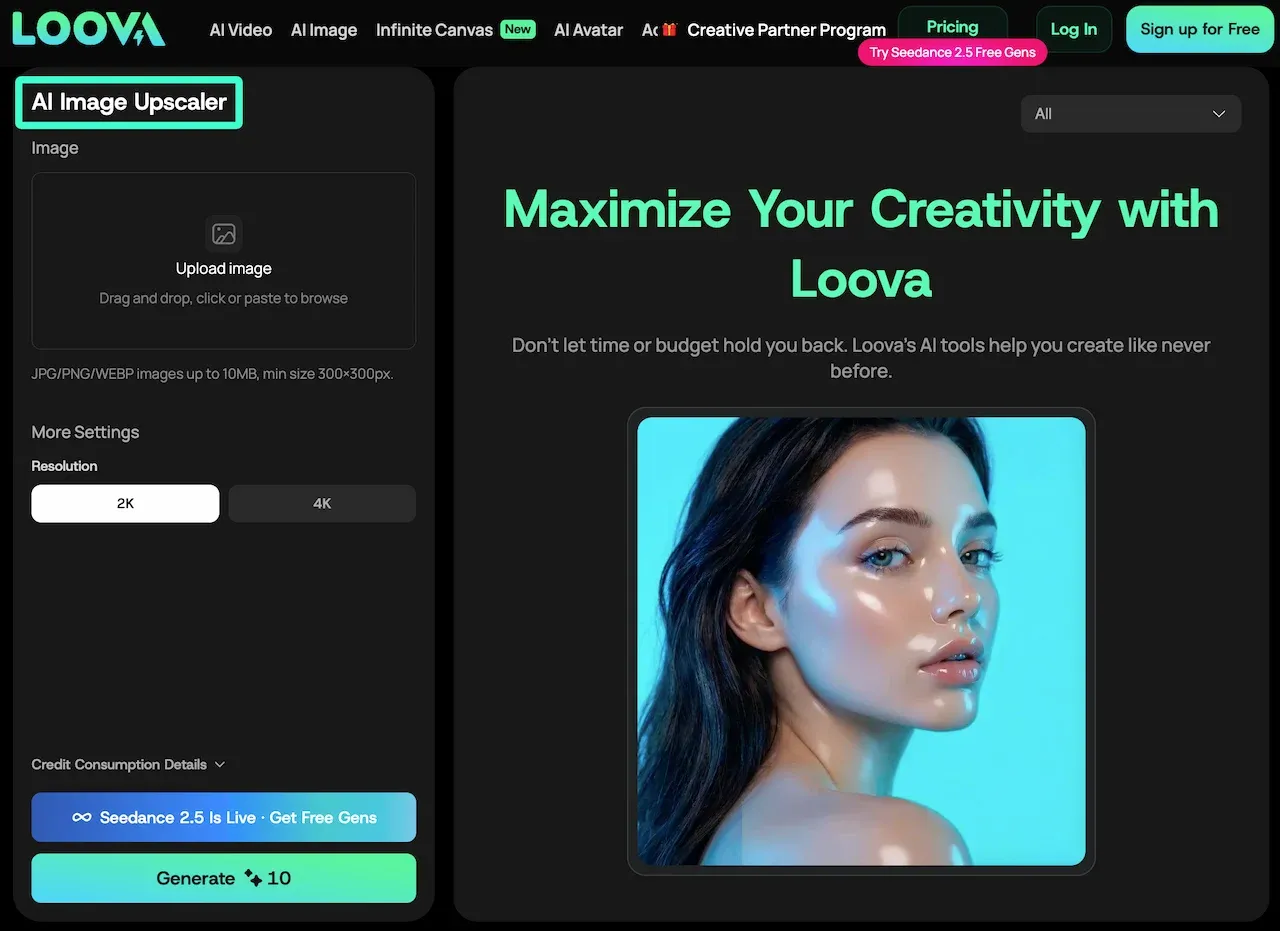
The Loova AI Image Upscaler accepts JPG, PNG, and WEBP files up to 10 MB, with a minimum size of 300 × 300 pixels. Its page describes an upload-to-download route with 2K and 4K choices, which suits a straightforward enlargement.
Treat 4K as an output size, not a promise that missing faces, text, or texture will be recovered accurately.
Topaz Gigapixel for Professional Photos and Print
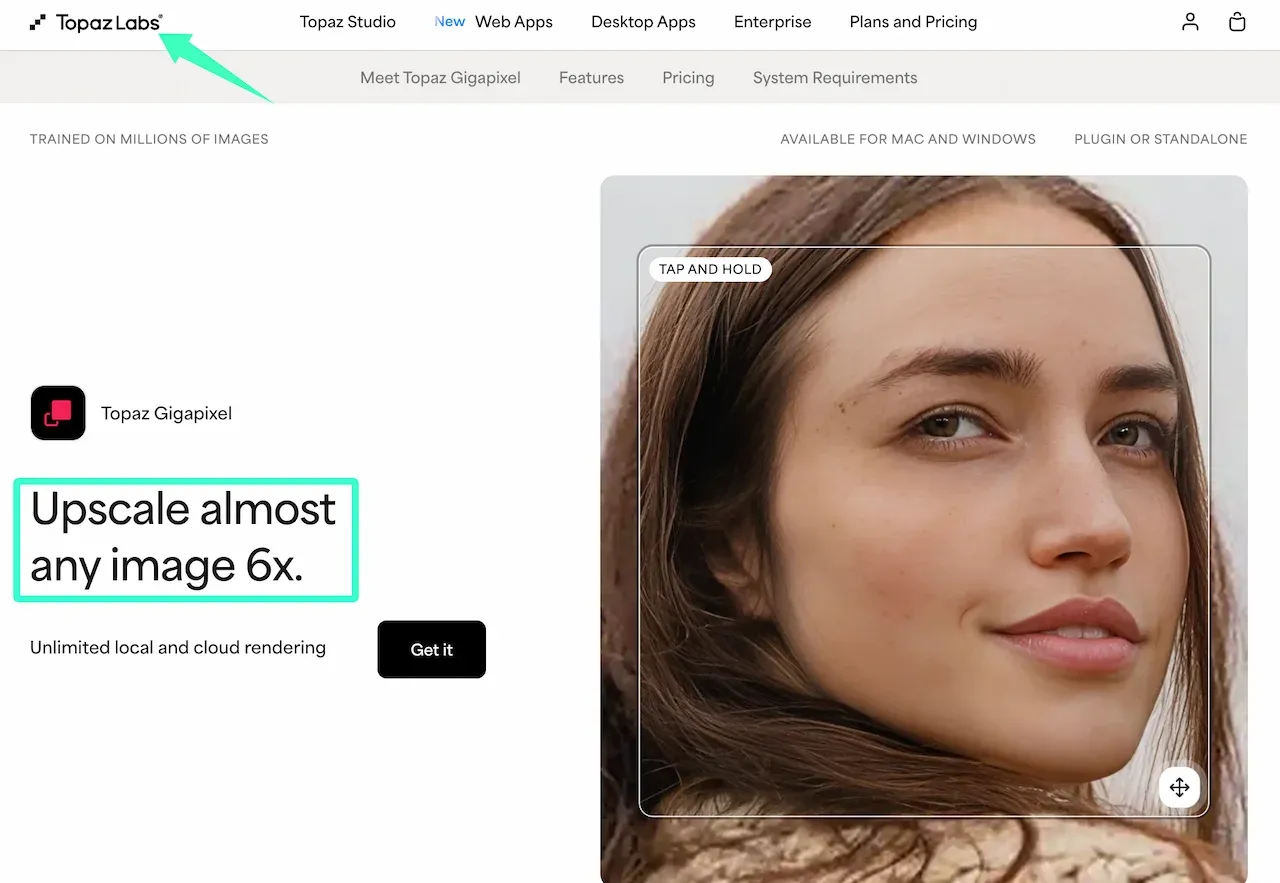
Topaz Gigapixel runs on macOS and Windows as a standalone app or Photoshop and Lightroom Classic plugin. Topaz lists up to 6x enlargement, nine models, face recovery, and local or cloud rendering.
It suits print-oriented photo workflows, but each export still needs comparison with the original around skin, hair, foliage, and repeating patterns.
Let’s Enhance for Product Images and Batch Work
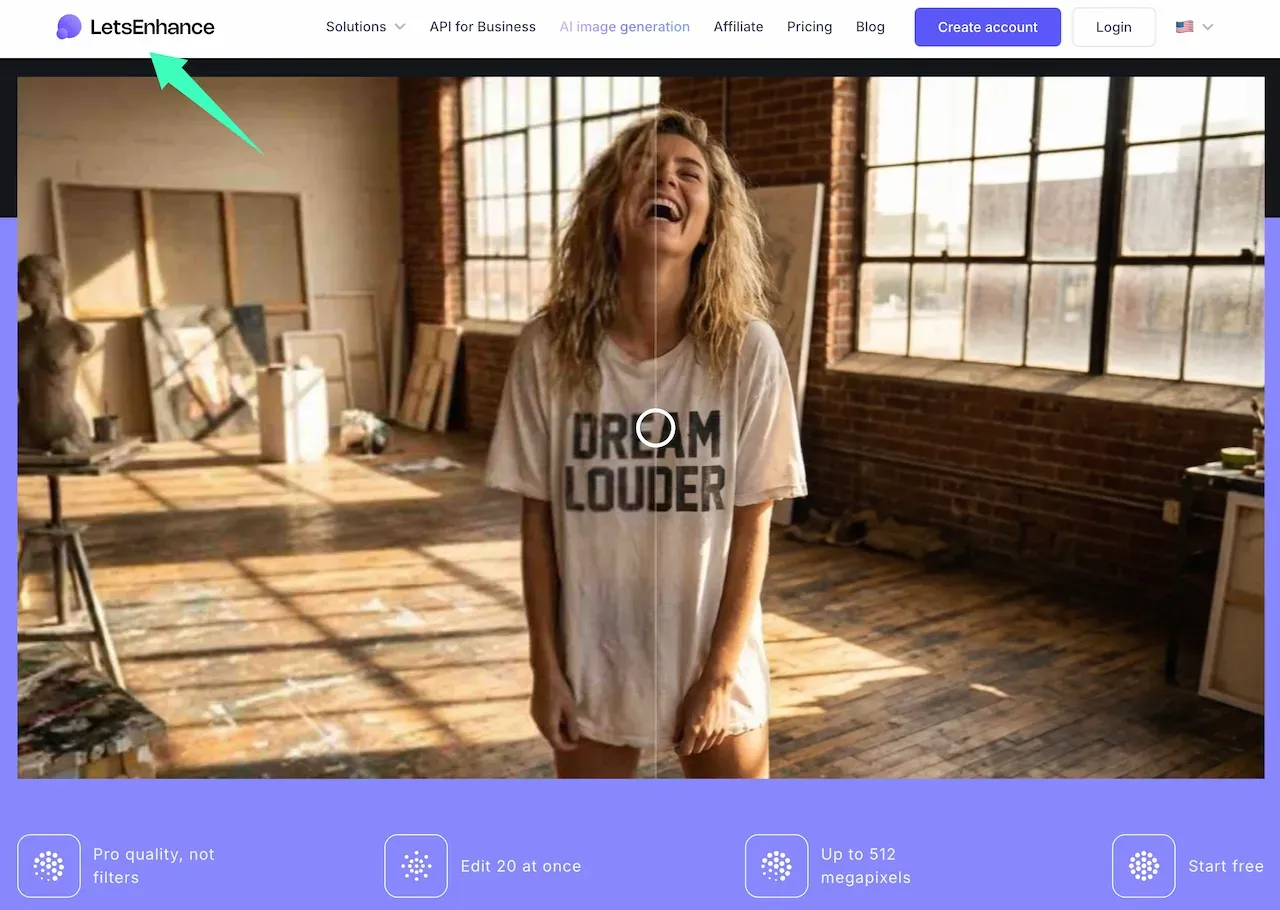
Let’s Enhance supports JPG, PNG, and WEBP, editing up to 20 images at once, and output up to 512 megapixels. Its Prime, Gentle, and restoration routes address different inputs; Gentle is intended for small text and fine detail.
For catalog batches, isolate tiny labels, reflective packaging, transparent edges, and faces instead of applying one preset to every item.
Upscayl for Local and Open-Source Upscaling
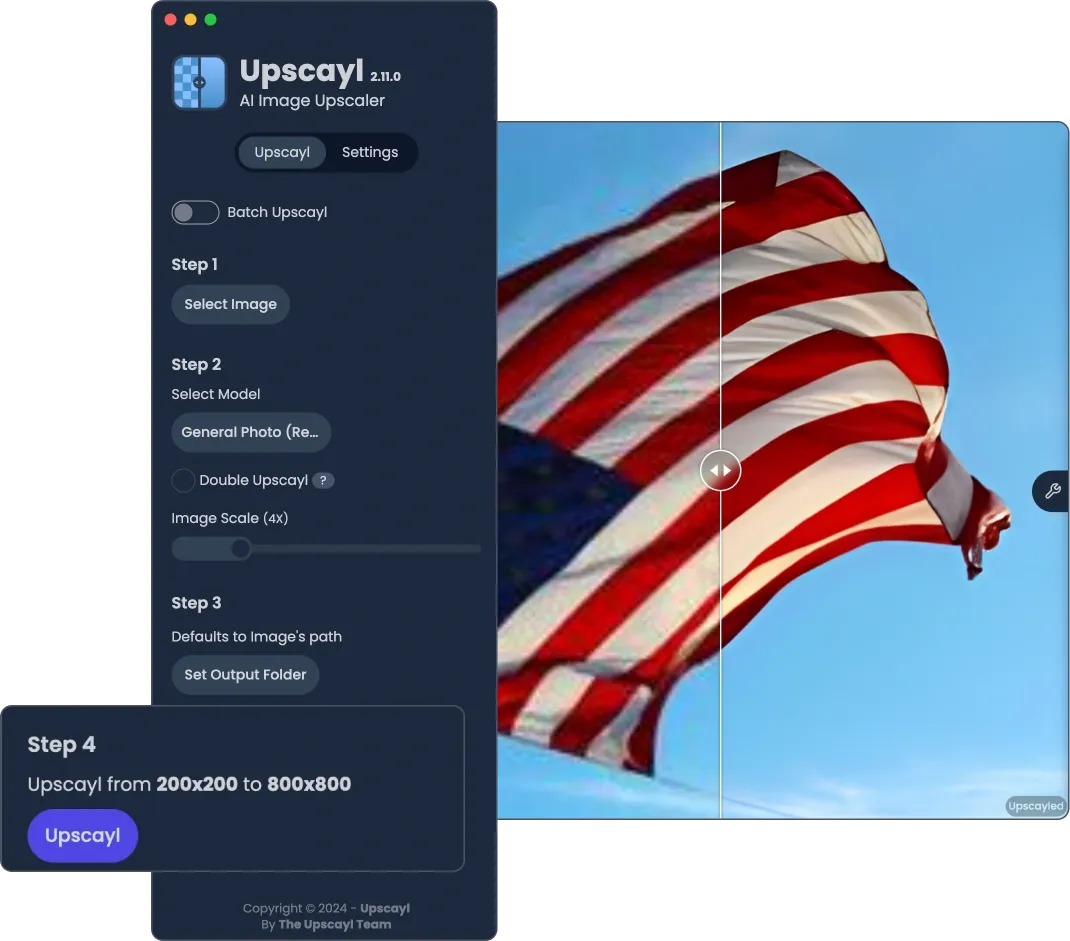
Upscayl is free and open source, runs on macOS, Windows, and Linux, and processes images locally. It offers several models and custom-model support without sending each file to a browser service.
Performance depends on the computer and compatible graphics hardware, so test one representative file before committing a folder.
Magnific for Creative Detail Reconstruction
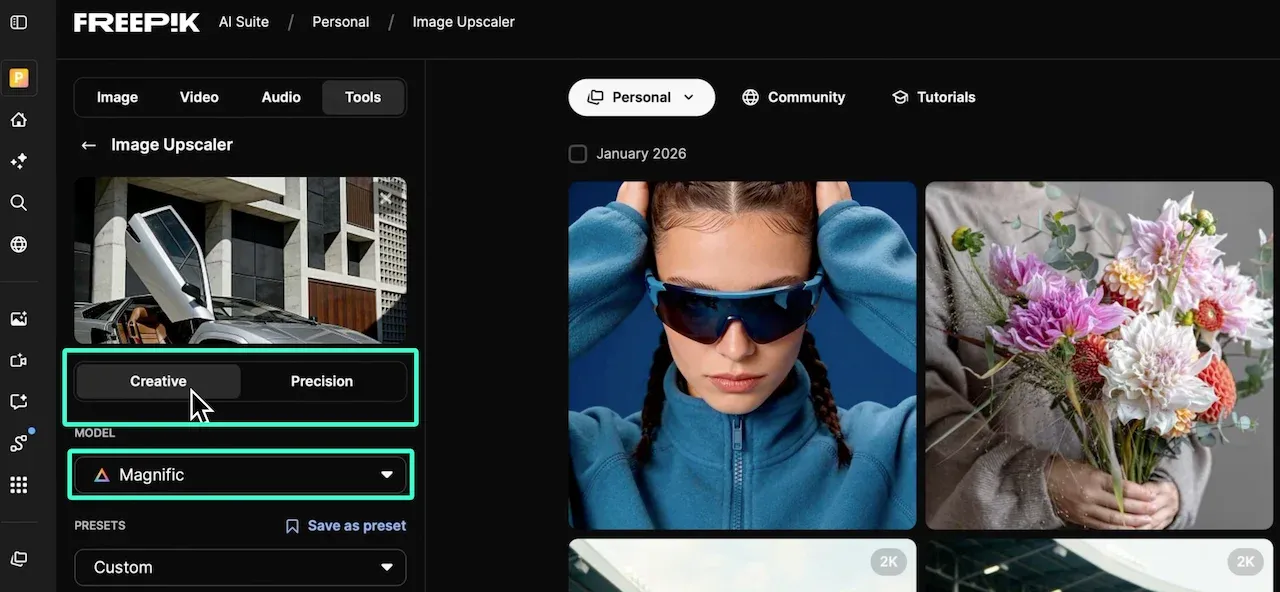
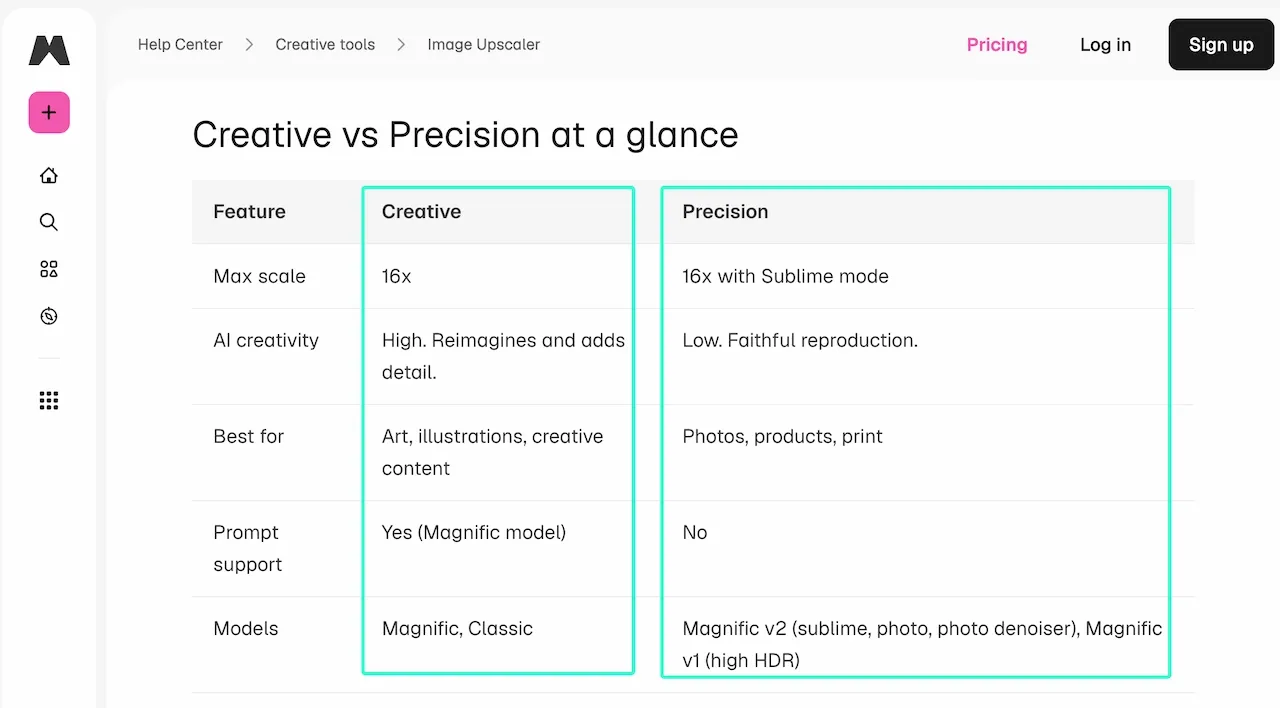
Magnific separates Creative from Precision mode. Creative can use prompts plus Creativity, HDR, and Resemblance controls to reinterpret detail; Precision stays closer to photos, products, and print inputs.
New texture may suit art or 3D renders, but labels, archival scans, and faces need the conservative route and source comparison.
Adobe Photoshop for Integrated Editing and Upscaling
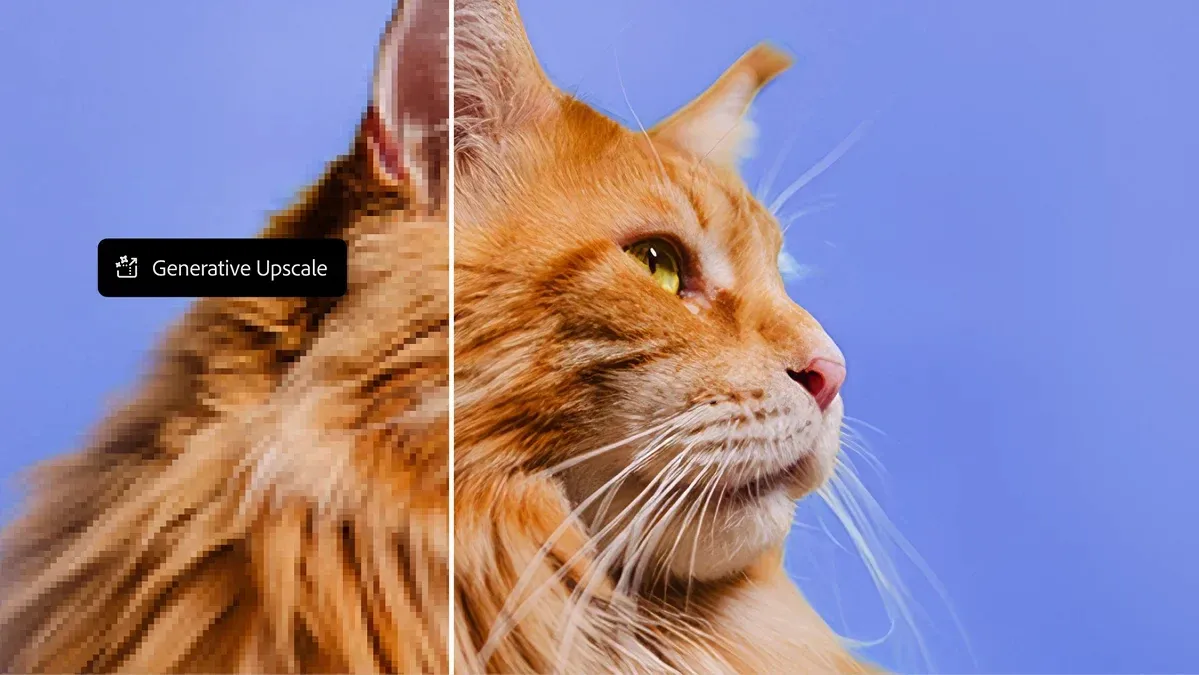
Adobe Photoshop offers 2x or 4x output with Firefly Upscaler, Topaz Gigapixel, or Topaz Bloom. Adobe positions them for restoration, detail preservation, and creative detail respectively.
Photoshop fits assets that still need masks, retouching, typography checks, or layered export. Integration, rather than automatic superiority, is the advantage.
Side-by-Side Use-Case Comparison
| Tool | Processing Route | Most Useful Control | Strong Workflow Fit | Main Review Risk |
|---|---|---|---|---|
| Loova AI | Browser | Output resolution | Quick one-image marketing workflow | Assuming 4K dimensions equal recovered truth |
| Topaz Gigapixel | Desktop, plugin, cloud | Enhancement model | Photography and print preparation | Overprocessing faces or texture |
| Let’s Enhance | Browser and batch | Content-specific mode | Product catalogs and mixed batches | Applying one mode to every SKU |
| Upscayl | Local desktop | Model selection | Privacy-sensitive or open-source workflow | Hardware limits and model mismatch |
| Magnific | Browser | Creativity and resemblance | AI art and detail reconstruction | Invented texture or altered identity |
| Photoshop | Integrated desktop editor | Upscale model plus layers | Retouch-to-export production | Choosing creative reconstruction for fidelity-critical work |
To validate the browser route with a real asset, open the Loova AI Image Upscaler, upload one approved image, choose the smallest output that meets the destination, and keep the original beside the export for a fidelity check.
How Much Should You Upscale an Image?
Calculate the target before choosing 2x, 4x, or a larger multiplier. For print, multiply the intended width and height in inches by the printer’s requested pixels per inch:
Target pixel width = Print width in inches × PPI
Target pixel height = Print height in inches × PPI
For example, an 8 × 10-inch image at 300 ppi requires:
8 × 300 = 2,400 pixels
10 × 300 = 3,000 pixels
Adobe’s guide to image resolution for printing notes that 300 ppi is a common standard for close-viewed prints, while large-format work viewed from farther away may use less.
Choose the smallest scale that clears that target after cropping and bleed. After exporting from the Loova AI Image Upscaler, verify the actual pixel dimensions, then inspect the file at its delivery size and at 100% for text, eyes, edges, texture, and halos.
Comparison Limitations
Vendor features, limits, plans, and models can change. This August 2026 comparison does not establish a stable quality or speed ranking. AI upscaling estimates missing pixels; it cannot prove what an unreadable word, blurred face, or lost texture originally contained.
Keep the source, label reconstructed detail when accuracy matters, and obtain permission for every image you process.
Cloud-based upscalers require an upload, so use only files you have permission to process and avoid confidential or sensitive material. Loova AI’s Terms of Use place responsibility for submitted content on the user, while its Privacy Policy says not to submit sensitive personal data.
FAQ
Can an AI upscaler turn a small image into true 4K?
It can create a file with 4K pixel dimensions, but that does not make every new detail historically or visually true. The model estimates missing information. Judge the export by faces, text, logos, edges, and the intended viewing size rather than the 4K label alone.
Why does upscaling sometimes change faces or text?
Faces and letters contain precise structures, but a small source may not contain enough pixels to define them. The model fills gaps with likely patterns, which can alter identity or spelling. Use a conservative mode, reduce the scale, and compare each critical area with the source.
Should I edit an image before or after upscaling?
Fix crop, perspective, major damage, color balance, and unwanted objects before upscaling so those defects are not enlarged. Perform final sharpening, text checks, masks, and export sizing afterward. Keep a lossless master so you can change the order without repeatedly compressing the file.
What resolution should I target when upscaling for print?
Use the print provider’s required dimensions and ppi. For a close-viewed print, 300 ppi is a common target, so multiply each print dimension in inches by 300. An 8 × 10-inch print requires 2,400 × 3,000 pixels. Large-format work may need less because it is viewed from farther away.
The best AI image upscaler for the job is often the one that lets you stop at the smallest useful enlargement. The file should meet the pixel target while the details that identify the subject still belong to the original image.