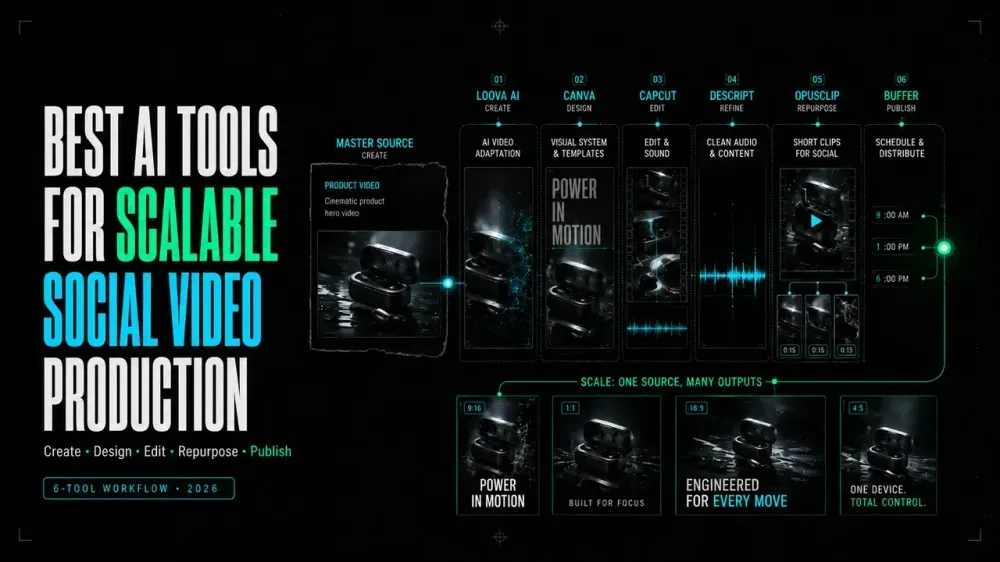
Best AI Tools for Scalable Social Media Video Production
On this page
One approved video idea can quickly become a dozen separate tasks. The vertical version needs readable captions, while the square version may need a new crop. The best AI tools for social media video make those handoffs easier to repeat, but every file still needs an owner and a deadline.
This comparison looks at six tools, from video generation and design to editing, repurposing, and scheduling. You’ll see where each one fits, what it passes to the next step, and where a person still needs to review the work.
What a Scalable Social Video Workflow Requires
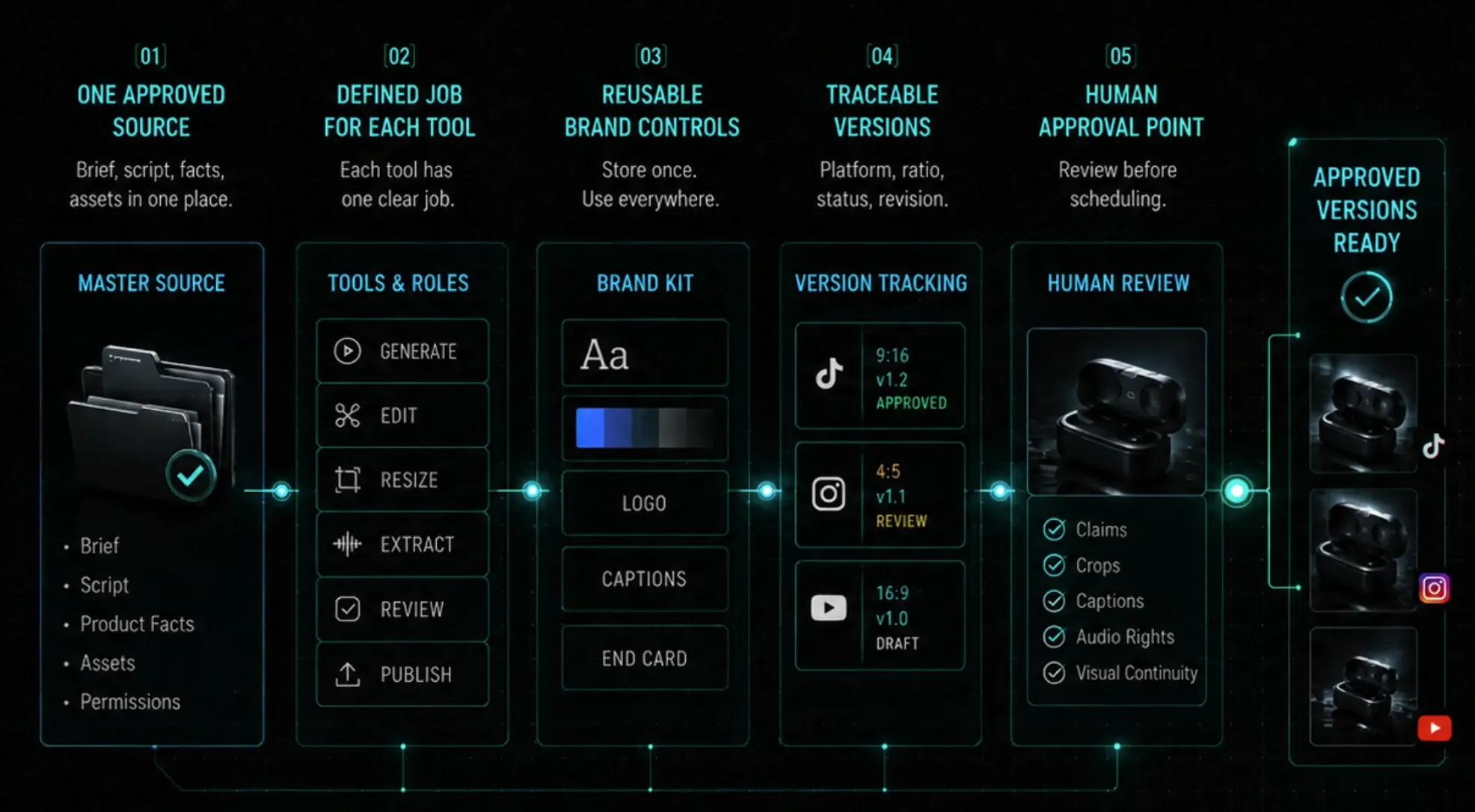
Scalable video creation is not simply faster generation. It produces more approved versions without losing the campaign idea, brand rules, or ownership history.
Five requirements matter most:
- One approved source: Keep the brief, script, product facts, and permitted assets together.
- A defined job for each tool: Decide whether a tool generates, edits, resizes, extracts, reviews, or publishes.
- Reusable brand controls: Store approved colors, fonts, logos, caption styles, and end cards.
- Traceable versions: Record the platform, ratio, status, and revision number in each filename.
- A human approval point: Review claims, crops, captions, audio rights, and visual continuity before scheduling.
The stack should reduce repeated decisions. It should not hide important ones behind automation.
How We Compared the Tools
We mapped each product to one reference package: an approved concept, source clip, script, logo, color palette, and three target platforms. We considered its documented role, inputs, output, handoff, and human checkpoint.
This is a workflow comparison based on current public product pages and help documentation. It is not a controlled benchmark of rendering quality, speed, or reliability. Loova AI publishes this article, so its inclusion should not be read as an independent endorsement.
| Production stage | Tool | Best-fit handoff | Human checkpoint |
|---|---|---|---|
| Generate source visuals | Loova AI | Prompt or approved reference to source clip | Subject, motion, brand details |
| Apply brand layouts and sizes | Canva | Approved edit to reusable platform designs | Crop, hierarchy, safe areas |
| Edit short-form video | CapCut | Raw clips to captioned social cut | Transcript, pacing, effects |
| Edit spoken content | Descript | Recorded media to transcript-led edit | Meaning, speaker context, timing |
| Extract short clips | OpusClip | Long video to candidate highlights | Context, hook, clean ending |
| Plan and distribute | Buffer | Approved files to channel calendar | Copy, account, time, native features |
Best AI Tools by Production Stage
Loova AI for Generative Video and Creative Variations
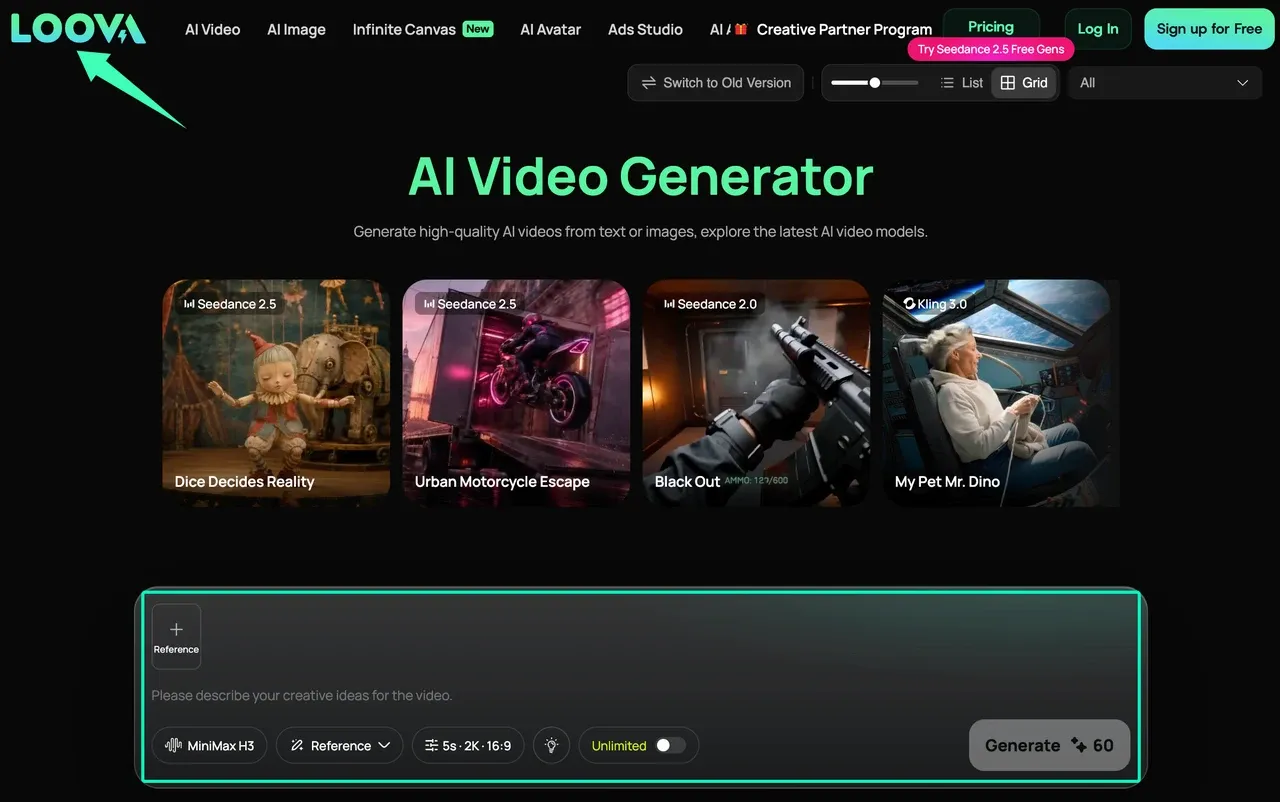
The current Loova AI Video Generator accepts text prompts, images, and reference footage across available models. It fits teams that need source scenes or visual directions from one approved concept. Record the model, prompt, references, ratio, and export because controls differ by model.
Its role here is creating material that moves into editing, branding, review, and distribution.
Canva for Branded Templates and Resizing
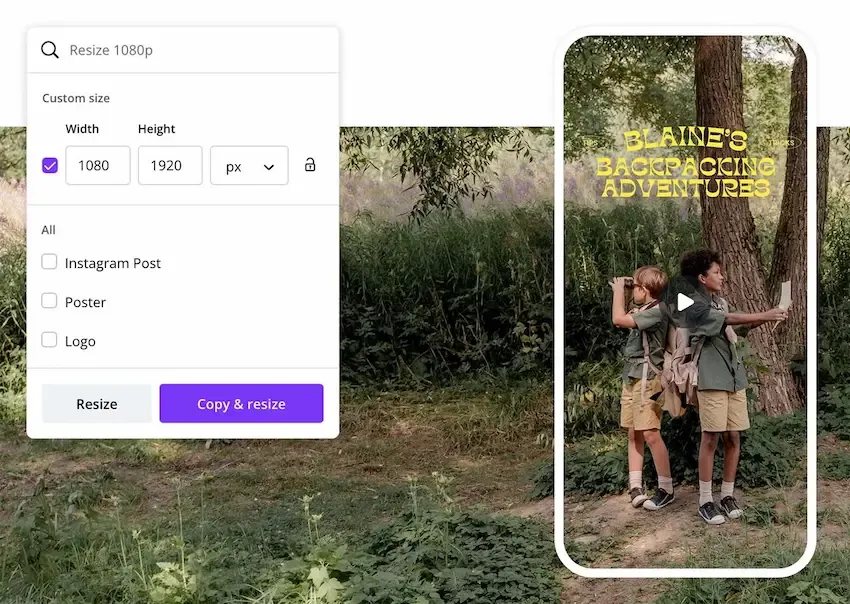
Canva’s video resizer provides presets for common social formats and allows crop adjustments. Its Brand Kit collects approved fonts, colors, logos, graphics, and templates. Together, they turn an approved edit into repeatable layouts. Review every crop, text block, and logo position.
CapCut for Short-Form Editing and Captions
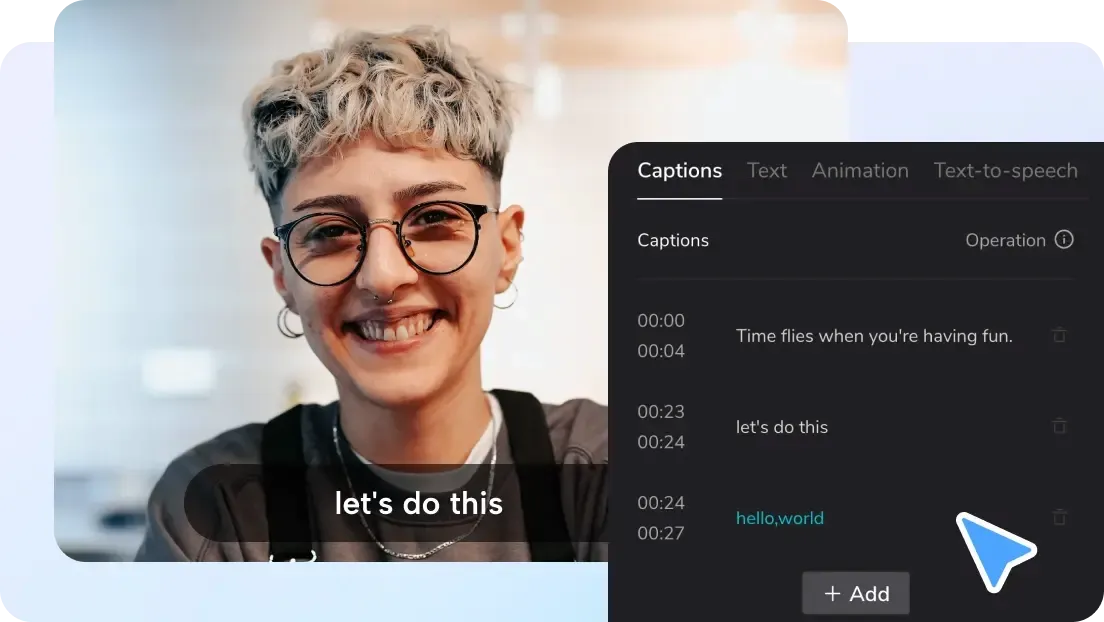
CapCut’s auto-caption workflow generates synchronized captions that editors can revise and restyle. Its editor also handles trimming and reframing. This suits short-form assembly when pacing and on-screen text matter. Verify names, product terms, line breaks, and timing before export.
Descript for Script-Based Editing and Repurposing
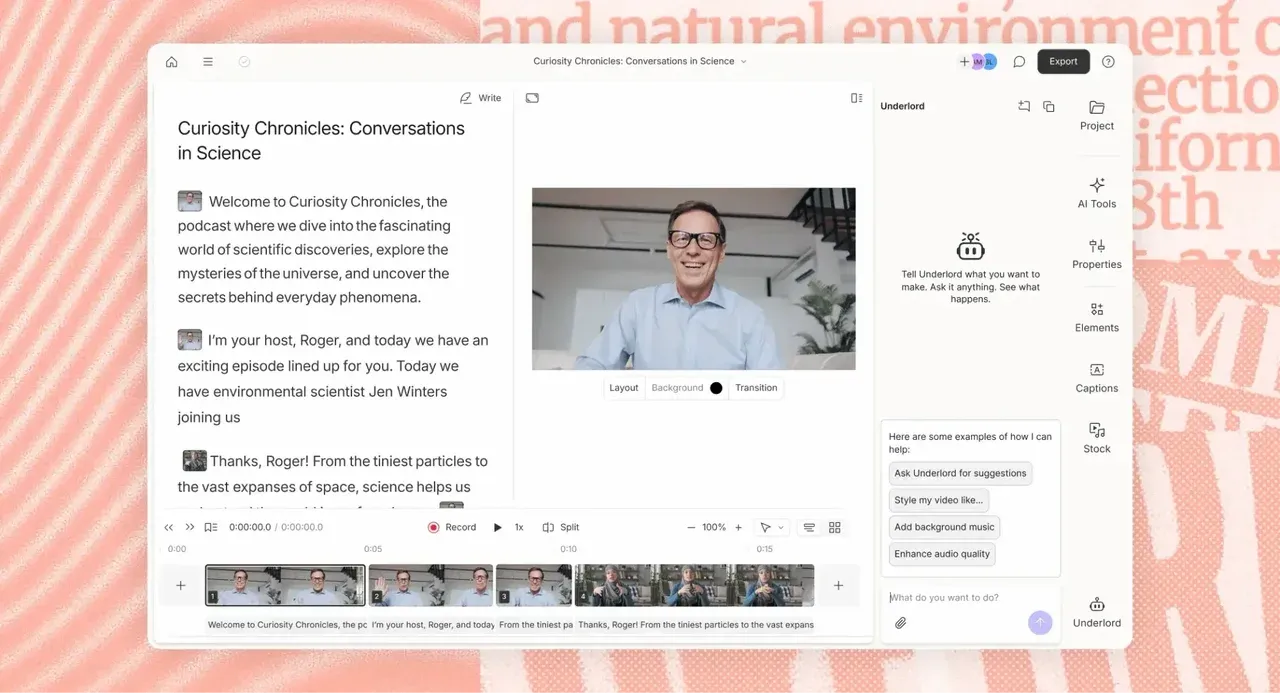
Descript’s transcript-based editor links spoken media to editable text. Changing the transcript changes the connected audio or video. It suits interviews, webinars, podcasts, and talking-head footage driven by speech. Review deletions in context so a shorter cut preserves the speaker’s meaning.
OpusClip for Long-to-Short Clip Extraction
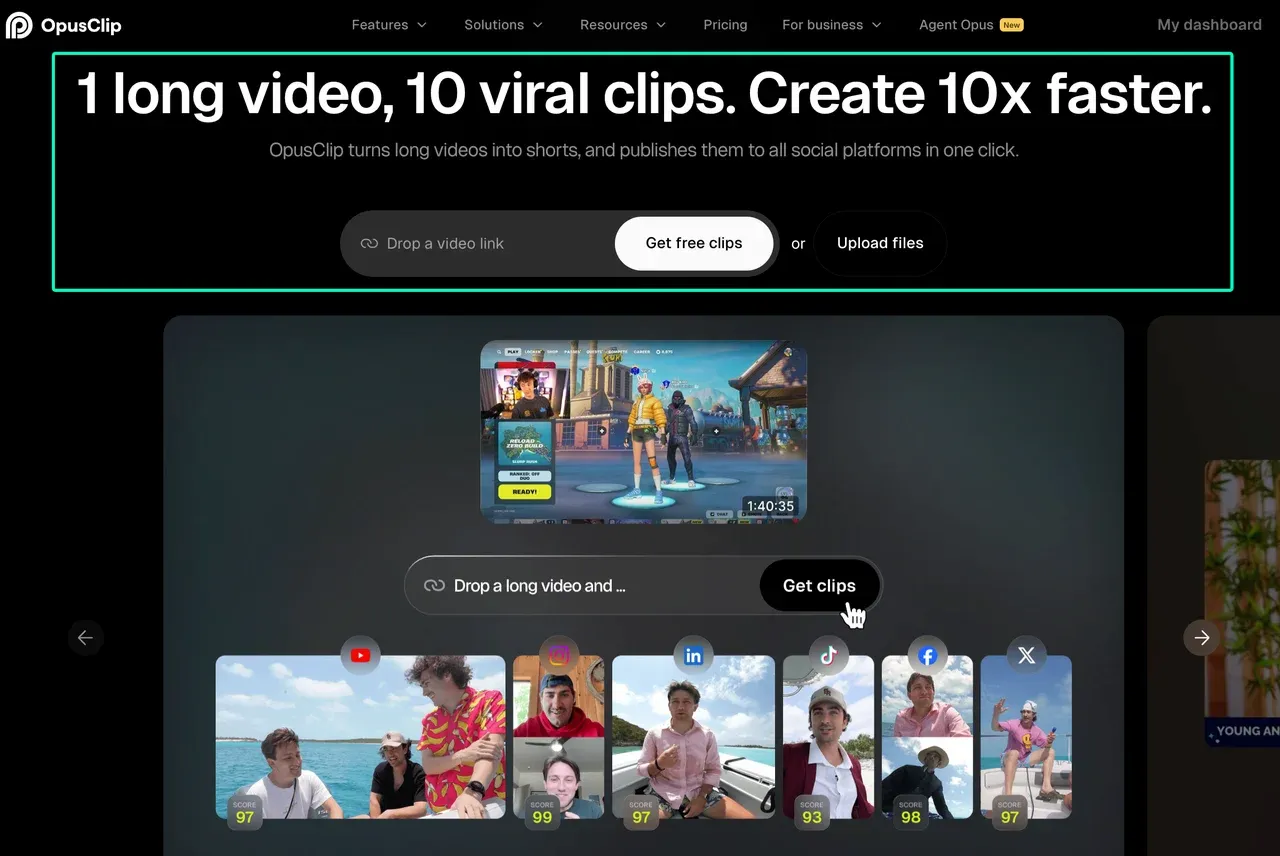
OpusClip turns longer videos into shorter social clips. It helps teams find candidate highlights in interviews, events, or educational recordings. Treat automated selections as a starting list. Each clip still needs a clear opening, enough context, accurate captions, and a deliberate ending.
Buffer for Planning and Distribution
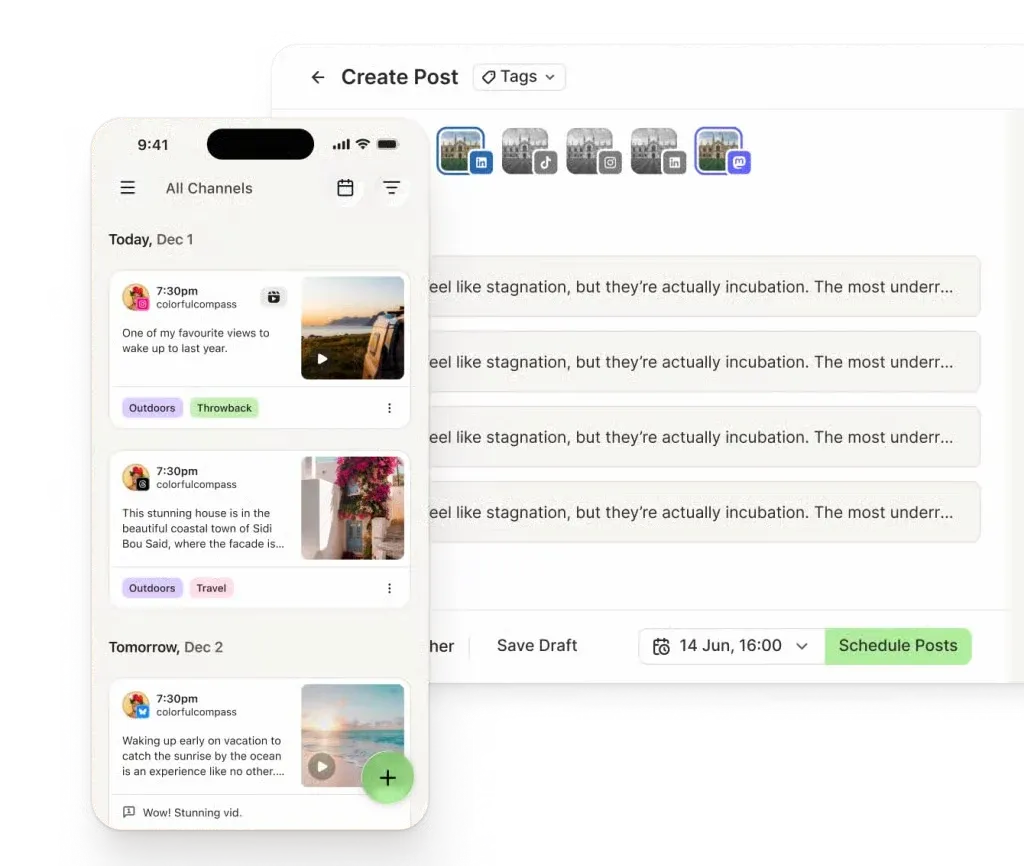
Buffer’s publishing tools organize posts in a queue or calendar. Teams can customize captions, hashtags, links, and publishing times by channel. Some native features may still require notification and manual completion. Confirm the account, file, copy, and schedule before publishing.
How to Build a Repeatable Social Video Stack
A repeatable stack moves one approved idea through named, diagnosable stages.
- Lock the brief. Approve the audience, message, product facts, visual references, and permitted audio before production begins.
- Generate source material. Use the Loova AI Video Generator for the scenes or variations the concept needs. Save the prompt and model details beside each export.
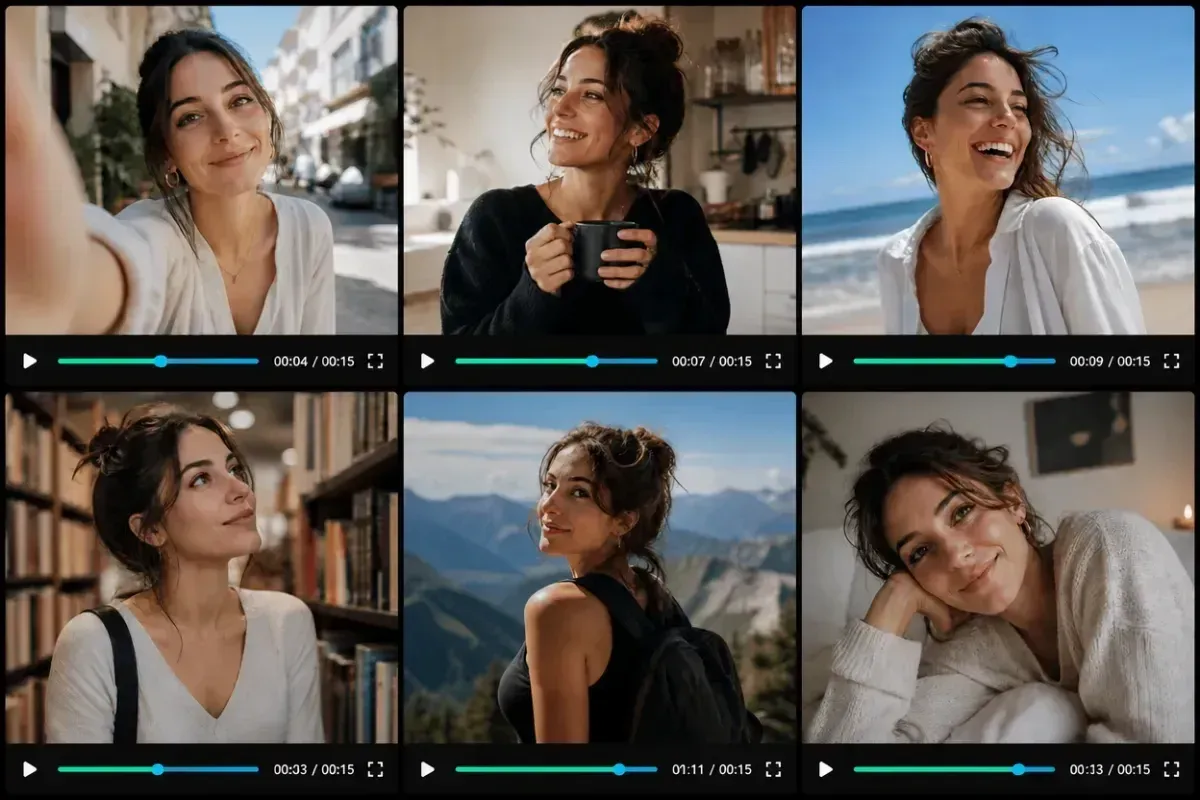
- Build the edit. Use CapCut for short-form assembly or Descript for speech-led cuts.
- Extract when useful. Send long recordings to OpusClip only when the workflow needs candidate highlights.
- Apply brand layouts. Use Canva templates to prepare platform versions and check each crop manually.
- Approve the package. Freeze the video, captions, cover, post copy, rights notes, and status together.
- Schedule distribution. Move only approved packages into Buffer and confirm any manual publishing step.
This is a starting architecture, not a required six-tool subscription. Combine stages when fewer products provide enough control.
Adapting One Concept Across Platforms
TikTok, Instagram Reels, and YouTube Shorts can share a campaign idea. They should not automatically receive identical files. Preserve the approved message while adapting the presentation around it.
| Element | Keep consistent | Adapt for the channel |
|---|---|---|
| Core idea | Approved claim and audience promise | Opening emphasis and pacing |
| Subject | Person, product, or visual identity | Framing and crop |
| Captions | Verified meaning and terminology | Line breaks, scale, and safe placement |
| Brand system | Fonts, colors, logo, and tone | Layout and end-card proportions |
| Post package | Campaign goal and destination | Cover, caption, hashtags, and publish time |
Preview every version on a phone-sized canvas. Check the subject and any text that interface elements could cover. Confirm current upload requirements before publishing.
To test the first handoff, open the Loova AI Video Generator and create one source variation from an approved prompt or reference. Save its prompt, model, inputs, ratio, and export before another tool changes the file.
Team Review, Versioning and Brand Governance
More variations create more chances to approve the wrong file. A name such as campaign-concept-platform-ratio-v03-review shows what an asset is and where it stands.
Use the statuses draft, review, approved, scheduled, and published. Let one owner change them. Record the source tool, edit notes, audio source, rights status, reviewer, and approval date beside the asset.
Templates and saved brand assets help, but they do not guarantee consistency. Review the first and last frame, product appearance, logo, captions, and claims across the series. Use only music, footage, voices, logos, and likenesses the team may publish. Keep confidential or unreleased assets offline unless the cloud workflow is approved.
Comparison Limitations
Product features, integrations, plans, and platform rules can change. This comparison does not rank output quality, generation speed, caption accuracy, or uptime because we did not run a controlled test. It also does not account for every approval system, storage provider, or enterprise security requirement.
The best AI tools for social media video are therefore the ones that solve a defined stage without weakening the next handoff. More automation is not automatically more scalable. A stack becomes useful when the team can identify the source, owner, status, and approval record for every published version.
FAQ
Can one video be adapted for TikTok, Reels and Shorts?
Yes. Start with one approved concept or master edit, then create a separate version for each channel. Recheck framing, caption placement, opening pace, cover, post copy, and current upload requirements. Sharing a source reduces rework, but each export still needs its own preview and approval.
How should teams organize multiple video variations?
Use one source-of-truth folder and a consistent filename containing the campaign, concept, platform, ratio, version, and status. Keep prompts, source files, edit notes, captions, rights records, and approvals with the matching asset. Restrict the approved status to one designated reviewer or workflow owner.
Can AI tools preserve brand style across a content series?
They can help through saved references, templates, fonts, colors, logos, and caption styles. They cannot guarantee brand consistency. Teams should lock reusable assets, limit unnecessary variables, and compare every version against the same visual and messaging checklist.
When does scalable production still need a human editor?
Human review matters when a cut changes meaning, a crop hides the subject, captions contain errors, or generated details affect the brand. It is also essential for product claims, music and likeness rights, sensitive footage, and final platform context. The editor protects the message while the tools handle repeatable production work.