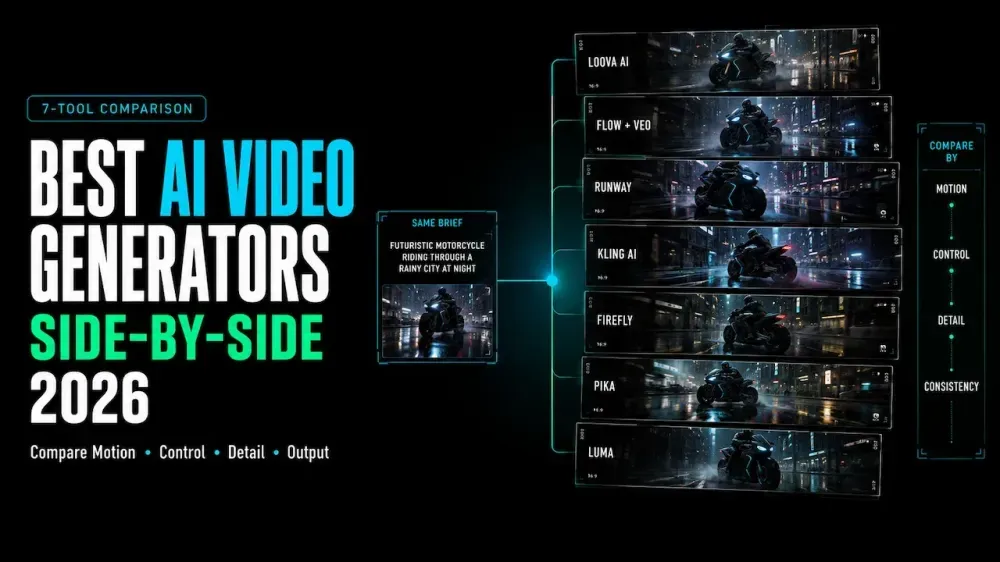
Best AI Video Generators in 2026: Side-by-Side Comparison
On this page
A portrait, a product image, and a written scene give an AI video generator three very different starting points. The best choice depends on what you already have and how much control you need over references, revisions, and finishing. This 2026 AI video generator comparison looks at seven options by task instead of forcing them into one overall ranking.
The list includes both platforms and model families. Google Flow brings several Google models into one creative workspace, while Kling 3.0 can also appear inside third-party platforms. That difference affects where your assets live, which controls you can use, and how you revise a clip.
Quick Answer: Choose an AI Video Generator by Task
The clearest starting point is the shot you need to make, not the longest feature list.
The best text to video tools are not automatically the strongest image to video models. One builds from a description; the other must interpret an existing frame.
| Production task | Start with | Check first |
|---|---|---|
| Compare model routes | Loova AI Video Generator | Inputs, settings, credits, and access by model |
| Build cinematic scenes with audio | Google Flow and Veo | Region, plan, and feature availability |
| Direct and iterate individual shots | Runway | Model, resolution, duration, and credits |
| Anchor subjects or motion to references | Kling AI | Version, mode, and reference requirements |
| Continue into Creative Cloud | Adobe Firefly | Released, beta, or preview status |
| Make stylized creator effects | Pika | Duration, resolution, credits, and watermark |
| Explore from frames or footage | Luma Dream Machine | Ray version and supported reference mode |
How We Compared the Platforms and Models
This AI video generator comparison uses current public documentation, not a same-input quality test. It checks starting assets, shot controls, revision routes, production handoffs, and account limits.
It appears on the Loova AI blog, so it is not an independent editorial review. The platform is assessed with the same questions as every other entry. Vendor quality claims remain first-party positioning.
A speaking character, a product camera move, and a surreal effect expose different failure points. No single test clip settles every production need.
Best AI Video Generators by Production Need
Loova AI for Multi-Model Access and Workflow Flexibility
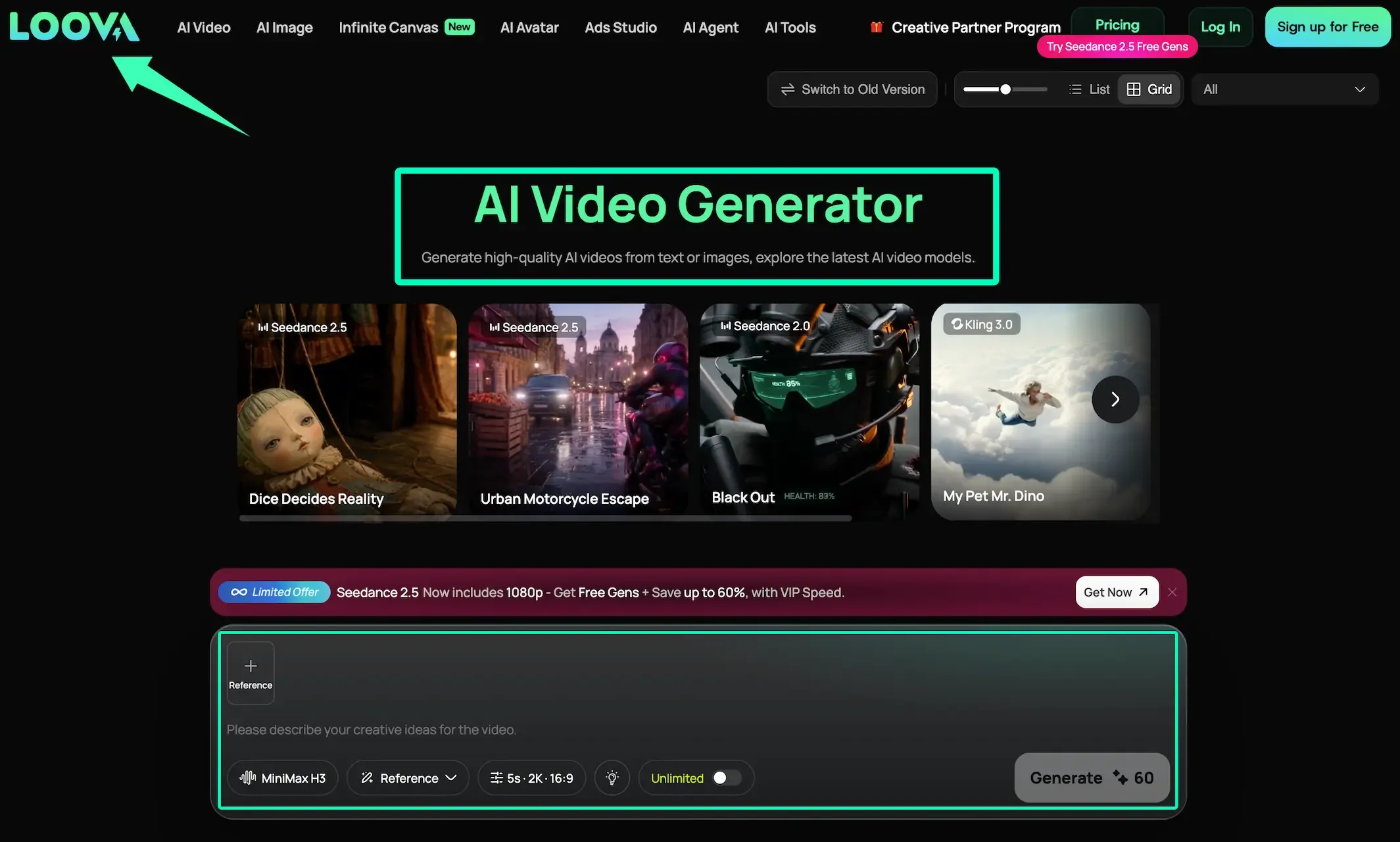
Loova AI is an all-in-one AI creative platform that brings leading video models from several providers into one workspace. Its current AI video generator supports text, image, reference, and video-based routes. Teams can move between model families without managing a separate provider workflow for each one.
Loova AI supplies the workspace and access layer; the selected model supplies its generation behavior. Inputs, settings, prices, and access can differ by model.
Google Flow and Veo for Cinematic Generation
Google’s Veo 3.1 update for Flow documents audio across Ingredients to Video, Frames to Video, and Extend. Ingredients guide characters, objects, and style; frames shape a shot’s beginning or end.
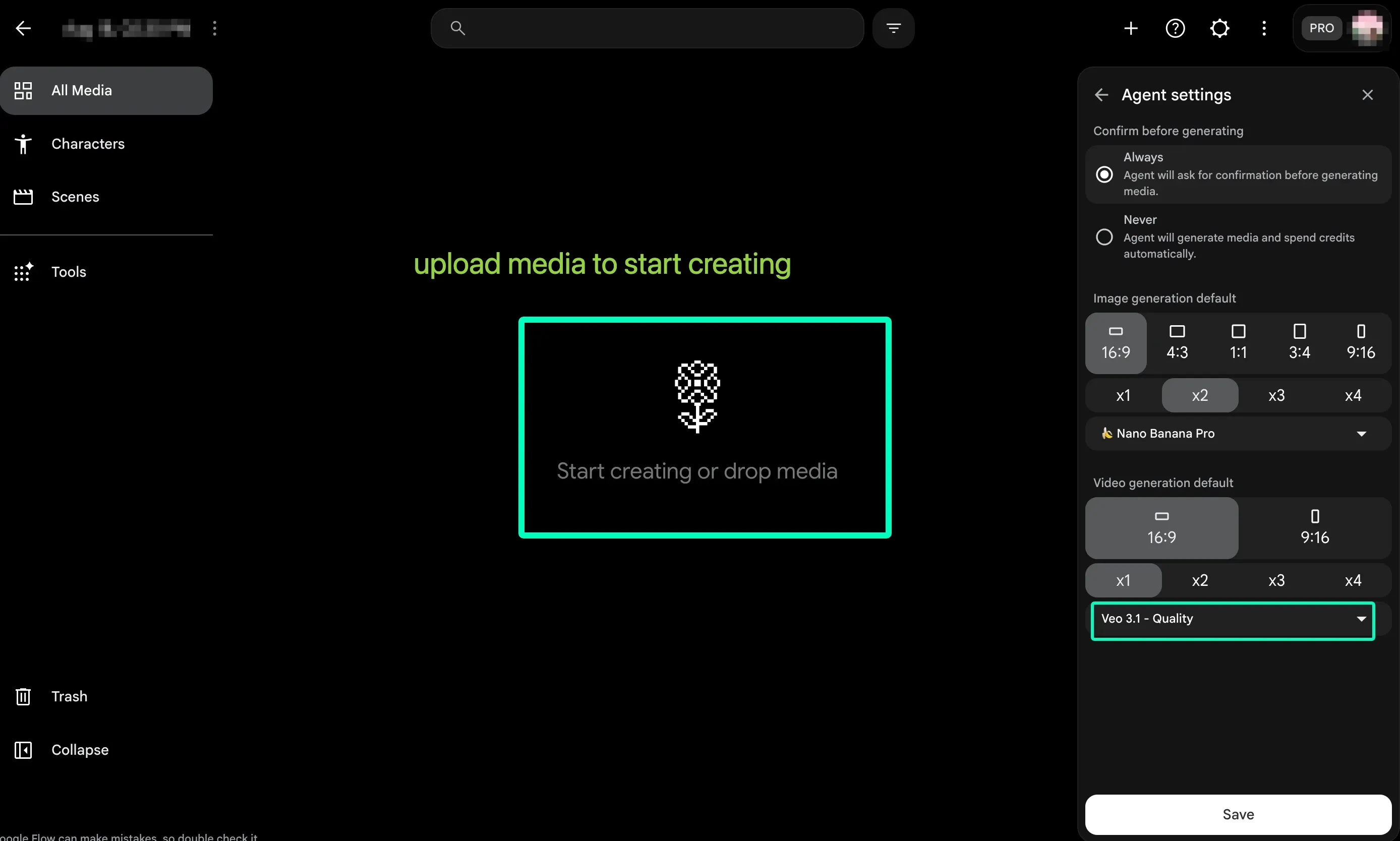
Flow suits scene building when references, audiovisual generation, and continuity matter together. Some controls remain experimental, so confirm regional and plan access.
Runway for Production Control and Iteration
Runway’s current Gen-4.5 guide supports text-to-video and image-to-video. Prompts can describe sequenced action, camera choreography, composition, and timing. Outputs can continue into another iteration.
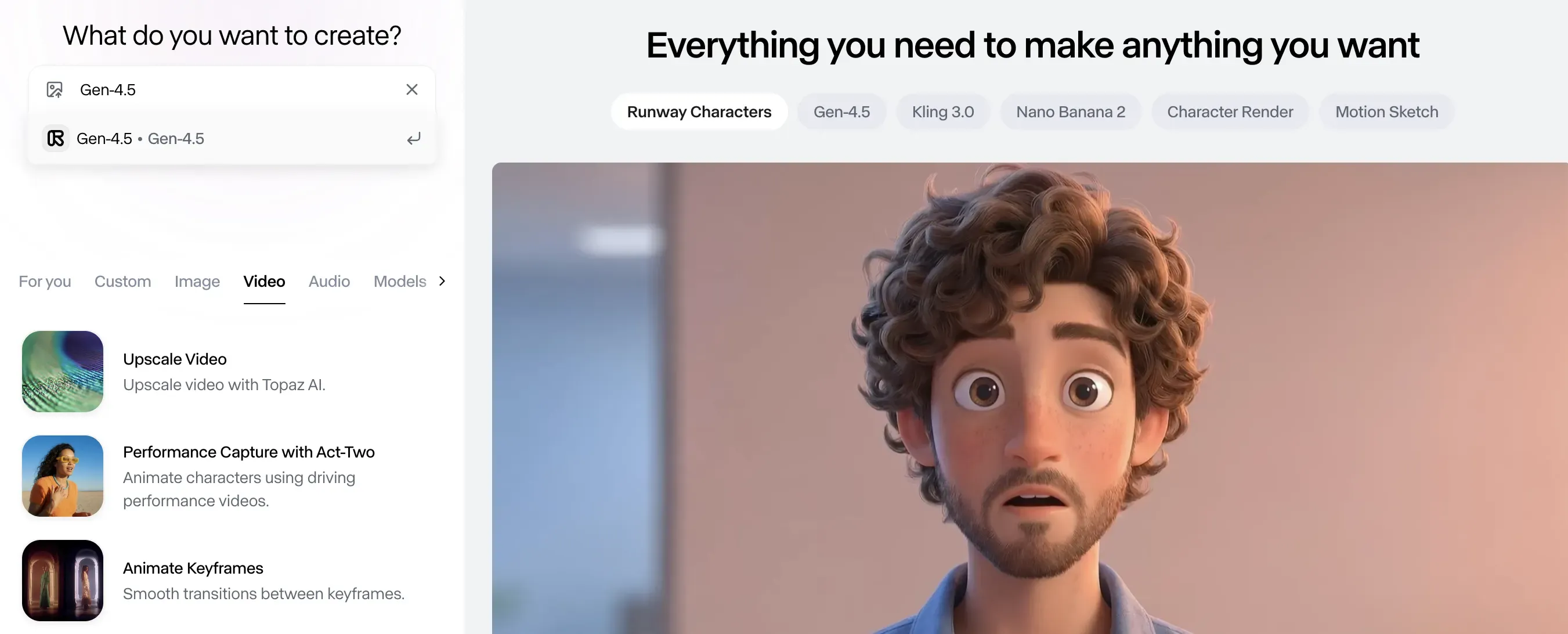
Runway fits creators who want generation and revision in one production environment. Its other models have different controls, so match the model to the required input.
Kling AI for Reference-Driven Motion
Kuaishou’s Kling 3.0 announcement describes text, image, audio, and video inputs across generation and editing. It also documents multiple references, native audio, clips up to 15 seconds, and shot-level storyboards in Video 3.0 Omni.
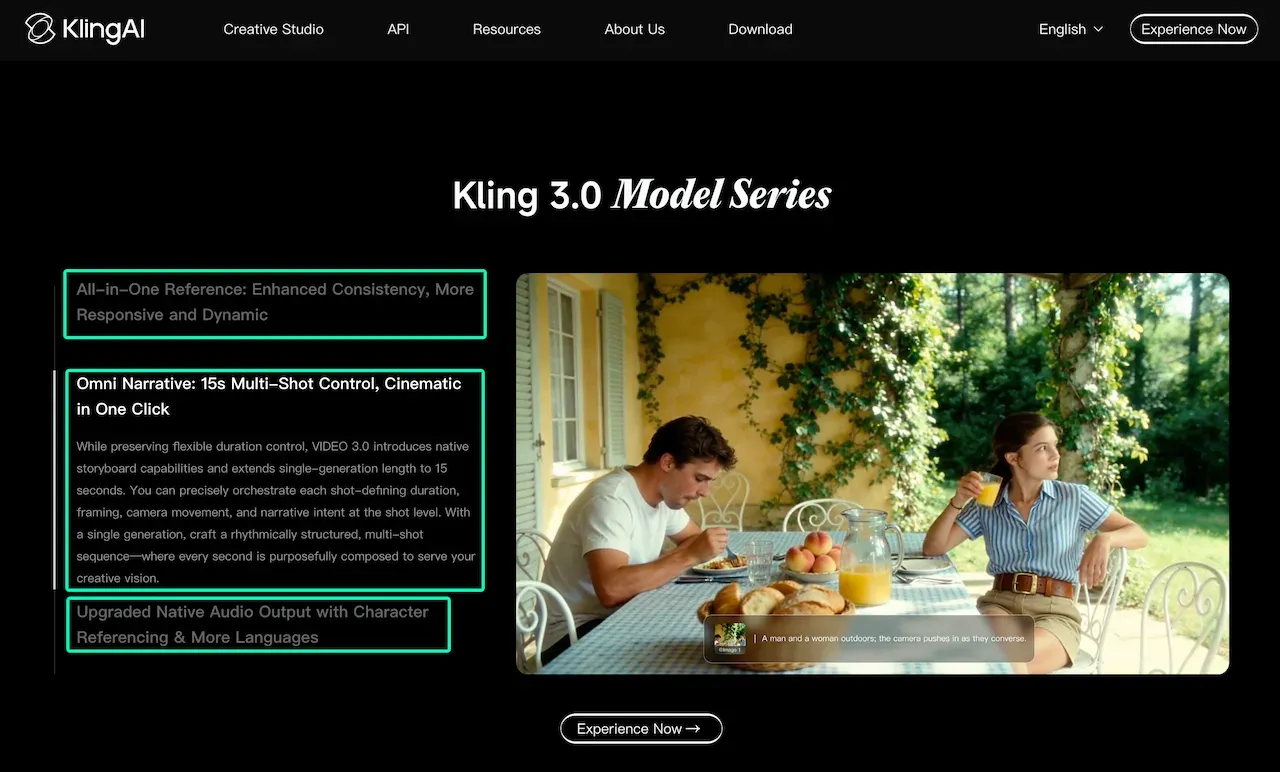
Kling fits work where a character, object, scene, or movement needs a visible reference. Give each asset one job, then verify that the selected mode supports it.
Adobe Firefly for Creative Cloud Workflows
Adobe’s current Firefly direction connects video and image generation with editing, audio, color controls, partner models, and Creative Cloud. Adobe has also announced storyboard and short product-video workflows.
Firefly suits footage that must continue into Premiere, Photoshop, or Frame.io. Previewed features may not be generally available. Users still need rights to uploaded assets and should verify the chosen model’s terms.
Pika for Creator Effects and Fast Experiments
Pika’s current tool list includes text-to-video, image-to-video, Pikaframes, Pikascenes, Pikaffects, additions, swaps, and twists. The named effects suit short transformations and playful concepts.
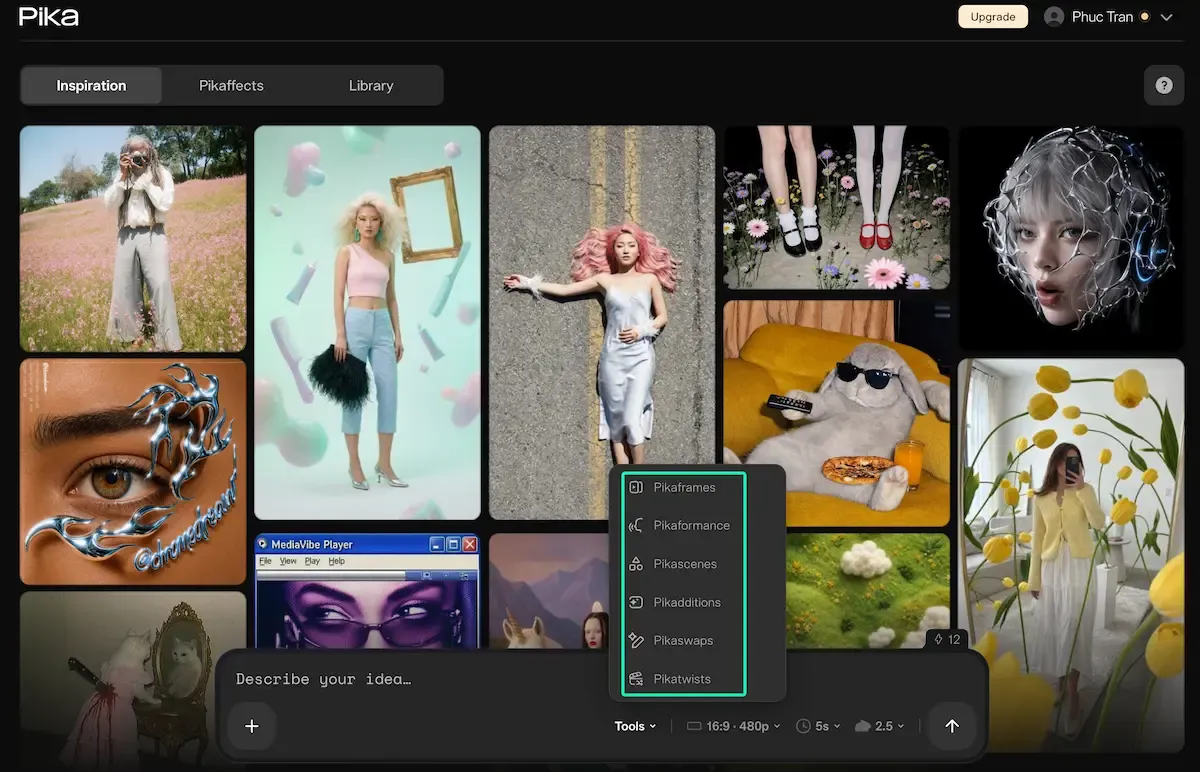
Duration, resolution, credits, and plan access vary by tool. Choose the effect first, then check export conditions before building a series.
Luma for Rapid Visual Ideation
Luma’s Dream Machine combines generation, keyframes, references, and video modification. The Ray3 Modify guide documents character references with input video and keyframes.
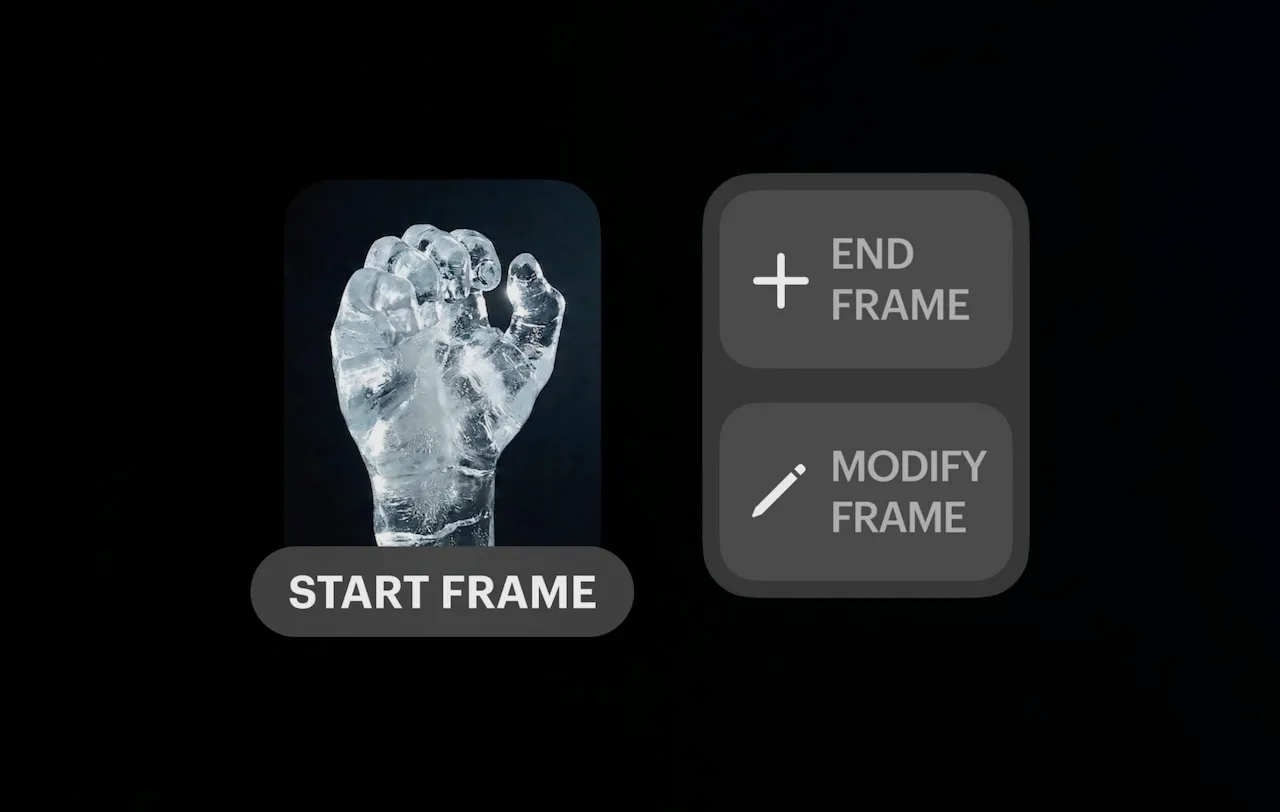
Luma suits visual exploration from a frame or existing shot. Version checking matters: Ray3.14 does not support Character References, although other Ray3 workflows do.
Side-by-Side Task Comparison
| Tool | Workflow strength | Main caution |
|---|---|---|
| Loova AI | Multiple model routes | Controls vary by model |
| Flow / Veo | References, scenes, and audio | Access and experiments change |
| Runway | Shot direction and iteration | Controls differ across models |
| Kling AI | Multimodal reference direction | Mode rules vary |
| Firefly | Adobe production handoff | Previews may not be live |
| Pika | Named effects and experiments | Limits vary by feature |
| Luma | Frames, references, and modification | Ray capabilities differ |
How to Choose Between a Multi-Model Platform and Separate Tools
A multi-model AI video platform is useful when briefs change often. It reduces account switching, but does not make settings, pricing, moderation, or output behavior identical.
Separate native accounts work better when one provider’s controls, team features, API, asset library, or editor is central to production.
Use one small decision test before subscribing widely:
- Pick a representative text prompt or approved reference image.
- Write down one non-negotiable detail, such as product shape or character clothing.
- Define the delivery ratio, duration, audio need, and finishing app.
- Compare the available controls and one first output.
- Keep the platform that makes the next useful revision easiest to explain.
Only upload material you may use. Identifiable people, private footage, unreleased assets, and cloned voices need extra review before entering a cloud workflow.
Compare One Controlled Video Brief
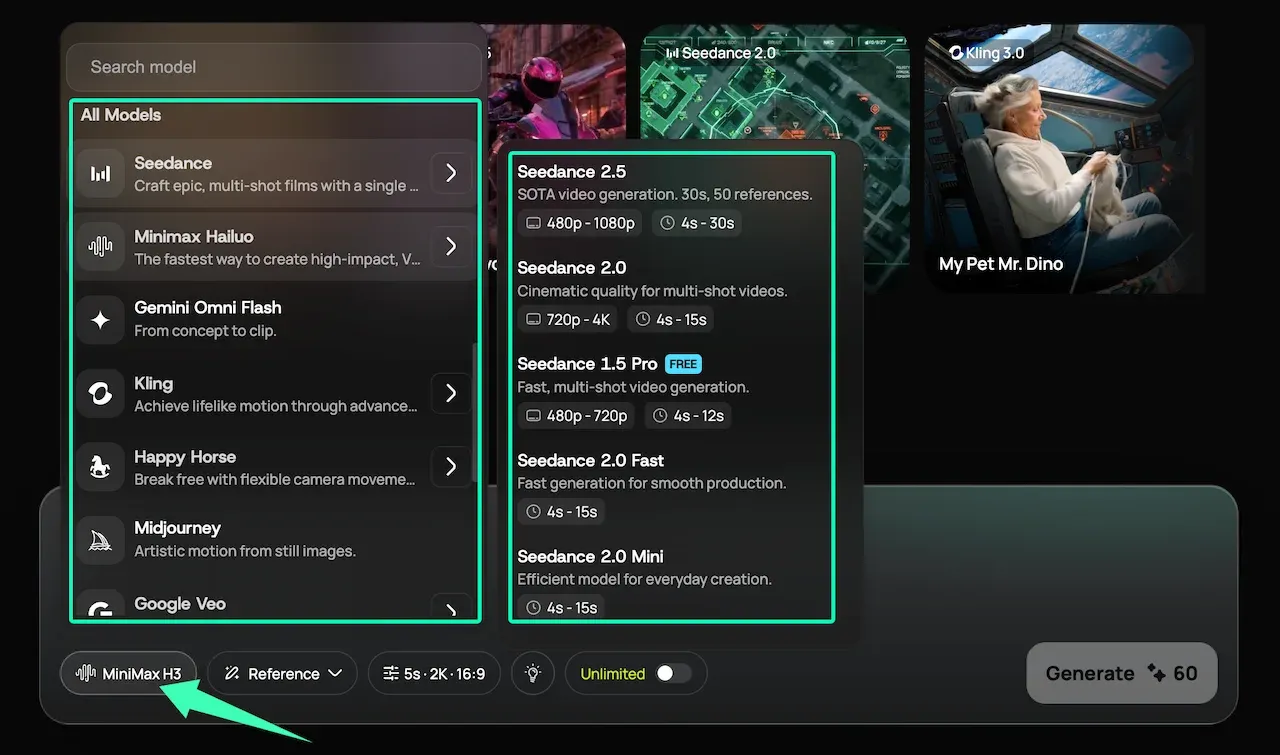
Open the Loova AI Video Generator, choose an available model, and use one approved prompt or reference. Keep that first output unchanged while you decide whether the next revision needs another model or a more specific instruction.
Comparison Limitations
Models, plans, regions, resolutions, watermarks, and controls can change. This August 2026 comparison does not rank quality, speed, reliability, prompt adherence, or cost. Those claims require matching inputs, settings, and repeated outputs.
The best AI video generators comparison 2026 is a decision map, not a permanent leaderboard. Documentation can confirm a control; a project test shows whether it protects the required detail.
FAQ
Can one platform provide access to several video models?
Yes. Loova AI lists several model families in one video workspace, and Adobe Firefly offers Adobe and partner models. Their controls still differ, so check the selected model’s inputs, settings, credits, and terms.
Which AI video generator is usually easiest for beginners?
The easiest option matches the starting asset. Pika is direct for a named effect, while a multi-model workspace reduces account switching. Other tools become clearer once the job needs text, frames, references, editing, or finishing.
Can I move reference assets between different models?
Often, but the file’s role may change. An image may become a first frame, character reference, or style ingredient. Recheck crop, file limits, consent, and prompt wording after each switch.
Should I choose a multi-model platform or separate model accounts?
Choose a multi-model platform for variety and one shared starting point. Choose separate accounts for essential native controls, collaboration, API access, or finishing. Let one approved asset and its first revision reveal which route the project needs.