How to Use GPT Image 2: Beginner’s Guide
On this page
A poster can look polished at full size and fall apart as a thumbnail. The headline may pick up an extra letter, the product label may change, or the subject may crowd the copy. GPT Image 2 is easier to direct when the prompt separates the scene, layout, exact text, and details that must stay unchanged.
This guide shows how to use GPT Image 2 to generate and edit images, from the first brief to the final review. You’ll create an image, fix one visible problem at a time, and check the result at its intended size.
What Is GPT Image 2?
GPT Image 2 is OpenAI’s current image generation and editing model. The official GPT Image 2 model page lists text and image input, plus image output. Its API model ID is gpt-image-2.
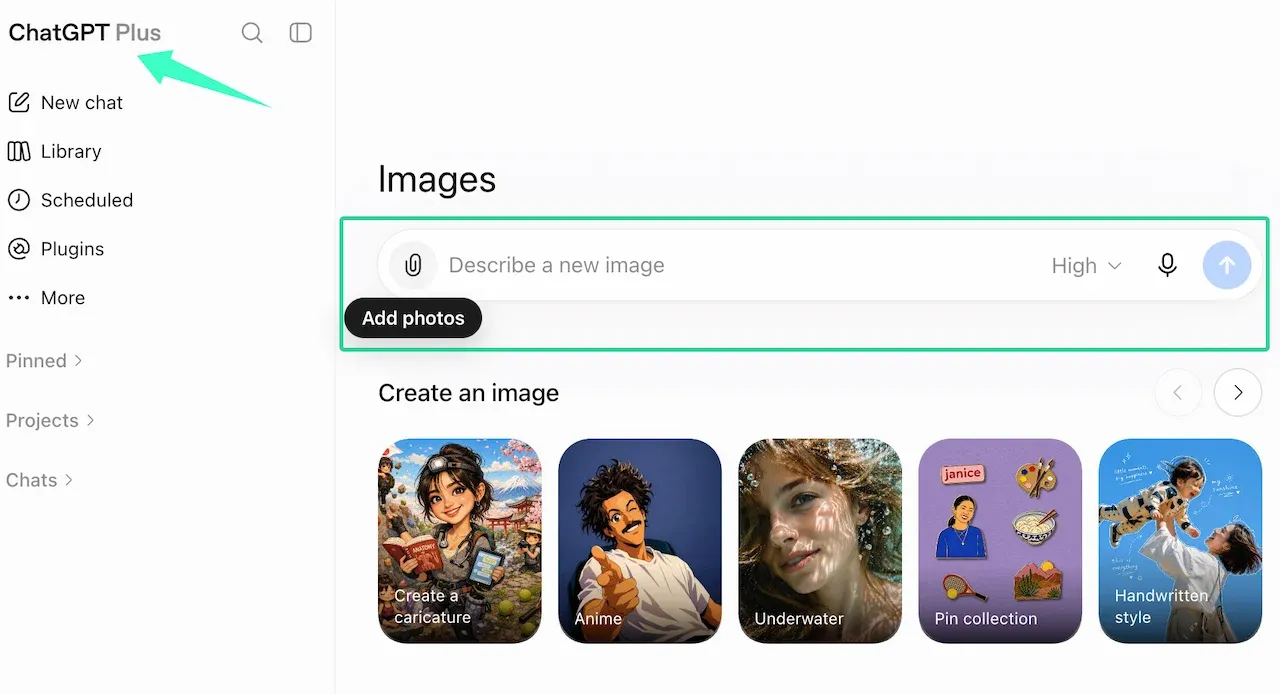
The model is separate from its interface. The Loova AI Image Generator currently includes GPT Image 2. There, you can select the model, enter a prompt, and add a reference when needed.
What You Can Create with GPT Image 2
GPT Image 2 can create an image from text or transform an image you provide. Uses include product concepts, social graphics, posters, illustrations, storyboards, and marketing variations. It can also replace backgrounds, adjust lighting, change objects, and revise text.
The model can combine visual direction with readable text, but results still need review. Check logos, small type, repeated characters, and exact product details.
How to Use GPT Image 2 Step by Step
Start with a Clear Image Brief
Begin with the job the image must perform. Identify the audience, placement, aspect ratio, subject, message, and main visual constraint.
For example, “make a skincare ad” leaves too many decisions open. A clearer brief asks for a vertical social ad, names the audience, and places the bottle, headline, and empty space. For GPT Image 2 image editing, list what can change and what must remain exact.
Generate an Image from Text
Open the Loova AI image workspace, select GPT Image 2, and start with one clear scene. Describe the subject and action before adding camera, lighting, texture, or style directions.
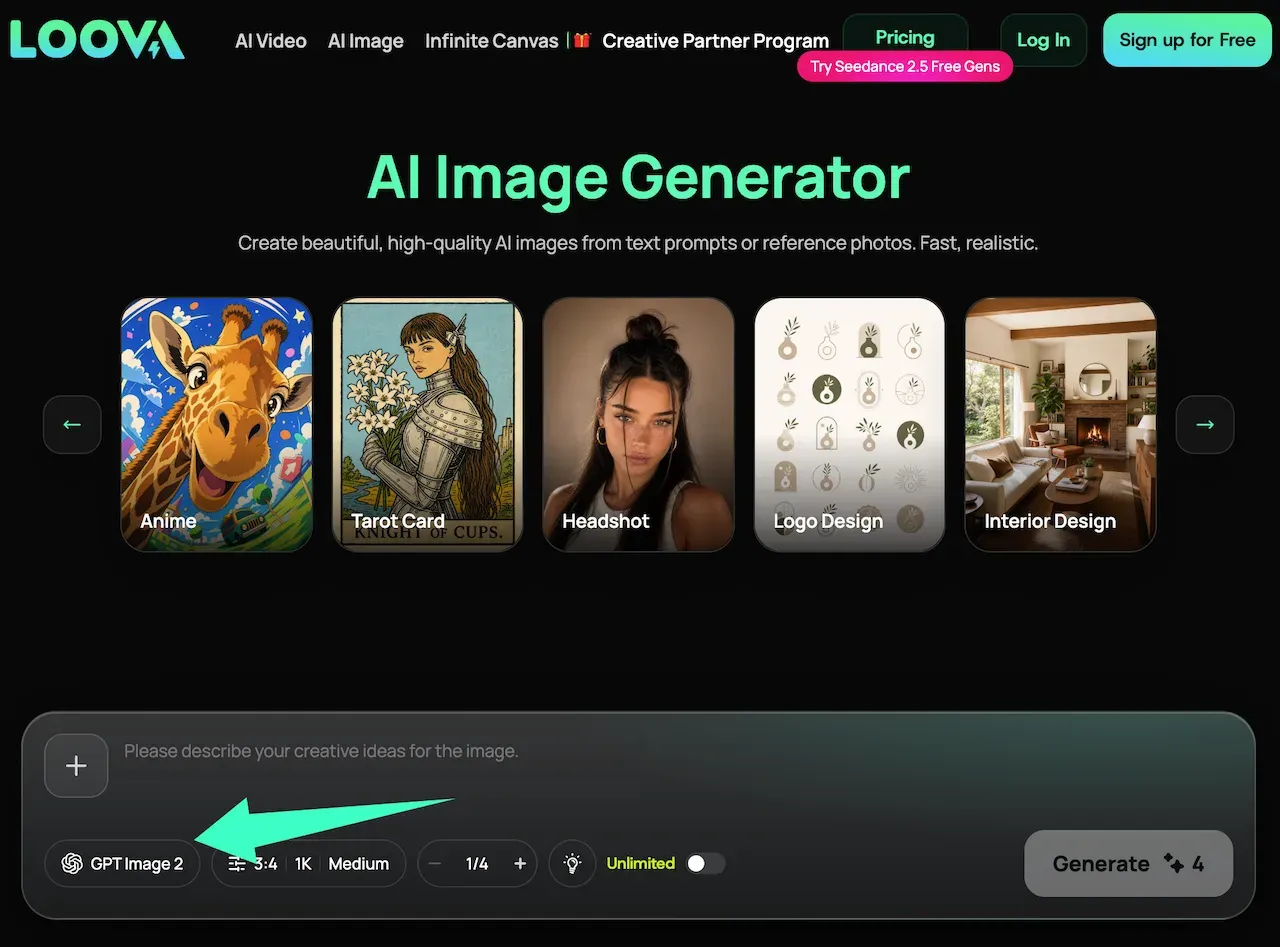
Keep the first generation simple enough to diagnose. Fix the framing before adding decorative detail. If the layout works but the mood does not, change only the lighting or palette. Rewriting everything hides which instructions already worked.
Upload and Edit an Existing Image
Use a reference when the task depends on an existing product, person, composition, or visual identity. Upload only material you may submit and edit. Keep confidential files and unapproved assets out of the workflow.
State both the change and the protected details: “Replace only the beige background with a pale blue studio wall. Keep the bottle shape, label text, cap, camera angle, and crop unchanged.” Avoid broad requests such as “make this better.”
Refine the Result Through Conversation
OpenAI’s image tools can support multi-turn editing, but the interface determines the exact experience. If the selected image remains in context, give one focused follow-up instruction. Otherwise, upload the chosen result again and repeat the invariants.
Use visible edits that are easy to verify:
- Move the headline upward by about 10 percent.
- Reduce the shadow beneath the bottle.
- Change only the background from blue to warm gray.
- Correct the word “SERUM” and preserve all other text.
Small revisions reduce drift and keep the comparison useful.
Export and Review the Final Image
Inspect the image at full size and its destination size. Check spelling, logos, product geometry, faces, hands, edges, shadows, crop, and text space. Save the selected output before another edit. Add exact legal copy or a source logo in design software when pixel-perfect reproduction matters.
A Practical GPT Image 2 Prompt Structure
The official OpenAI image prompting guide recommends explicit composition, lighting, text, and edit constraints. A practical version looks like this:
Goal and placement:
Main subject and action:
Composition and camera:
Environment, lighting, and style:
Exact visible text:
Change for this edit:
Details to preserve:
Details to avoid:
Aspect ratio or output format:
Use only the fields that help the model make a visual decision. During an edit, repeat the protected details.
Two Complete GPT Image 2 Examples
Product Marketing Image
This prompt assumes you have permission to use the uploaded product photograph:
Create a 4:5 product marketing image for a lightweight face moisturizer.
Use the uploaded bottle as the exact product reference. Place it upright on a
warm limestone shelf, slightly right of center, with soft morning light from
the left. Add a small water reflection beneath it and leave clean space in the
upper-left corner for campaign copy. Change only the environment and lighting.
Preserve the bottle shape, cap, label layout, label wording, colors, and camera
angle. Do not add extra products, ingredients, badges, or claims.
Review the bottle before judging the background. If its label changed, correct that issue before changing the crop or lighting.
Poster with Readable Text
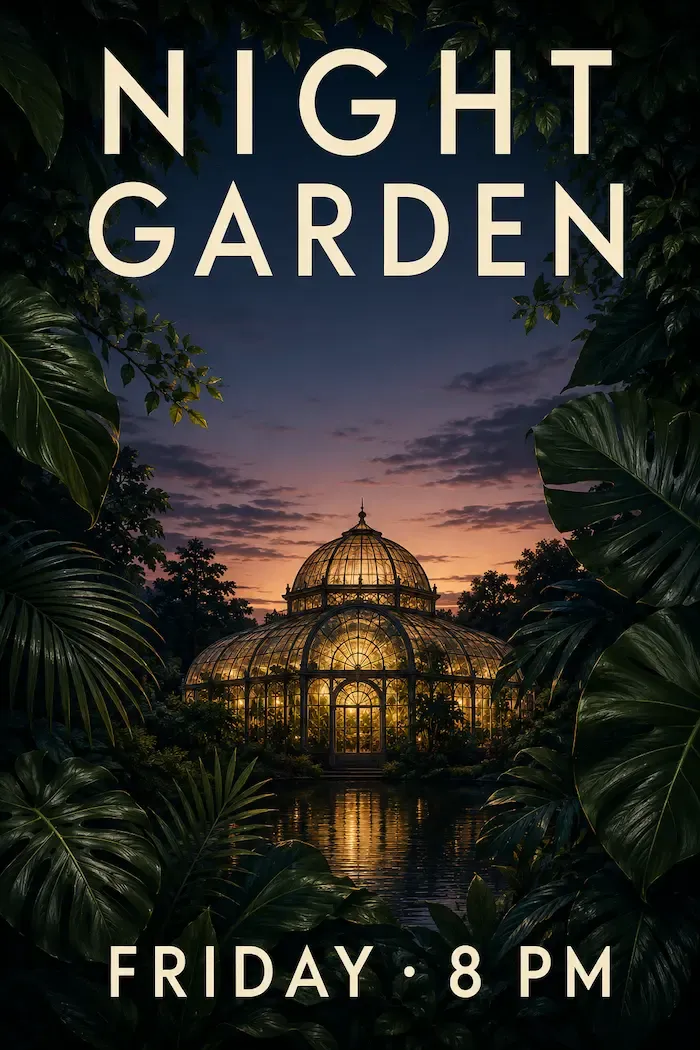
Create a vertical 2:3 poster for an evening botanical exhibition. Show dark
green leaves framing a glowing glasshouse at dusk. Keep the center uncluttered.
Add exactly this headline at the top: “NIGHT GARDEN”. Add exactly this line at
the bottom: “FRIDAY · 8 PM”. Use large cream sans-serif letters with generous
spacing and strong contrast. Do not add any other words, logos, dates, or icons.
Check the words before refining the artwork. Correct one faulty line at a time and repeat the approved wording.
Create one reviewable GPT Image 2 result
Open Loova AI Image Generator, select GPT Image 2, and test one of the structures above. Keep the first acceptable result as your control before changing another variable.
Common GPT Image 2 Problems and Fixes
| Problem | Likely cause | Focused fix |
|---|---|---|
| Misspelled or extra text | Too many text blocks or weak placement instructions | Quote the exact copy, define its position, and remove nonessential wording. |
| Product or face changes during editing | The prompt describes the change but not the invariants | Restate what must remain unchanged and edit one area at a time. |
| Crowded composition | The prompt lists objects without assigning space | Define the focal point, object positions, and required negative space. |
| Style overwhelms the subject | Several broad style labels compete | Keep one visual direction and remove decorative adjectives. |
| A revision fixes one detail but breaks another | The follow-up asks for multiple changes | Return to the last approved version and make one smaller edit. |
Limitations and Responsible Use
OpenAI’s current image generation documentation notes limits with text placement, recurring elements, and precise composition. A polished image can still contain invented details. Review text, logos, product claims, faces, and factual diagrams.
Generated edits may change areas outside the requested region. Keep an untouched source and compare every revision against it. Do not present inferred details as an exact record.
Use only assets you have permission to upload and transform. If an image contains a recognizable person, protected character, client product, or licensed artwork, confirm the relevant rights before publishing the result.
FAQ
Is GPT Image 2 the same as ChatGPT Images 2.0?
Not as an official model identifier. Current OpenAI Docs use GPT Image 2 as the name and gpt-image-2 as the API ID. They do not list “ChatGPT Images 2.0” as that ID. In a model picker, choose GPT Image 2.
Why does GPT Image 2 change details during editing?
Image editing remains generative, so the model may redraw more than the requested area. Broad instructions and several simultaneous changes increase that risk. Return to the last approved image, state the protected details again, and request one visible change.
Can GPT Image 2 preserve text and logos exactly?
It can generate and edit text, but exact preservation is not guaranteed. Inspect every letter and compare logos with the approved source. For brand-critical work, add the final logo or legal copy in a design editor after the generated composition is approved.
Is GPT Image 2 available through Loova AI?
Yes. Loova AI currently lists GPT Image 2 in its image generator. Availability and exposed controls can change, so confirm the model name in the current picker before starting a project.
A good GPT Image 2 workflow leaves you with an image you can refine without losing the details you already approved.