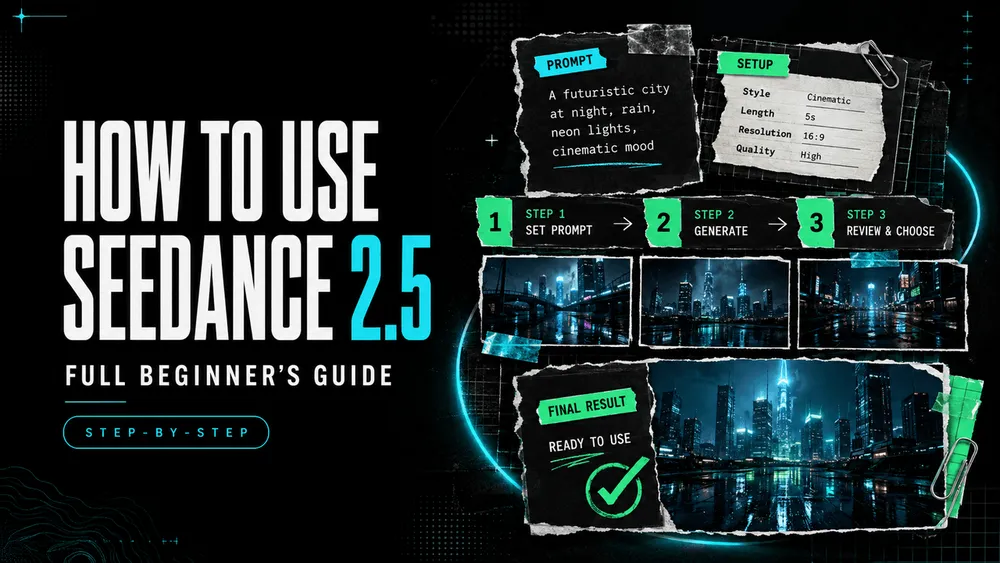
How to Use Seedance 2.5: Full Beginner's Guide
On this page
Seedance 2.5 can accept more material than beginners need. The useful question is not how many references you can upload, but whether each one has a clear job.
I’m Mira, and my rule for a first generation is simple: define one visual goal, give every reference a role, and make the result easy to diagnose. This guide shows how to use Seedance 2.5 without treating a long prompt as a shortcut to a better video.
What Is Seedance 2.5?
Seedance 2.5 is an AI video model from ByteDance Seed. It works from text and multimodal references to generate synchronized visuals and audio. According to the official announcement, one-pass generation can run for up to 30 seconds, with longer sequences supported through extension.
The model can accept up to 30 images, 10 video clips, and 10 audio clips in one generation—a total of 50 assets. That is a capacity limit, not a recommendation. A beginner gets a clearer test by using only the files needed for the subject, scene, motion, or sound.
What You Need Before You Start
Choose Your Video Goal and Format
Describe the intended video in one sentence before opening the generator. Include the destination, subject, and main action: “A vertical six-second product reveal for a social feed, with the bottle unchanged during one slow camera push-in.”
Then decide the aspect ratio and approximate duration. A 9:16 short, 16:9 scene, and 1:1 product loop need different framing. Start with one shot so you can judge the central idea before attempting a sequence.
Prepare Your Prompt and Reference Assets
Collect only assets you can assign a purpose to. For example:
- Use one image to preserve a person’s or product’s appearance.
- Use a second image to guide composition, setting, or lighting.
- Use a short video to communicate motion or camera behavior.
- Use audio only when voice, ambience, music, or timing matters.
Make sure you have permission to upload every file. Avoid private client material, unreleased assets, or personal information unless you have the necessary rights and consent.
How to Use Seedance 2.5 on Loova
Open the Seedance 2.5 Generator
Sign in, open the dedicated Seedance 2.5 generator, and confirm that the selected model is Seedance 2.5. If you used another model earlier, do not assume the workspace has kept the model you want.
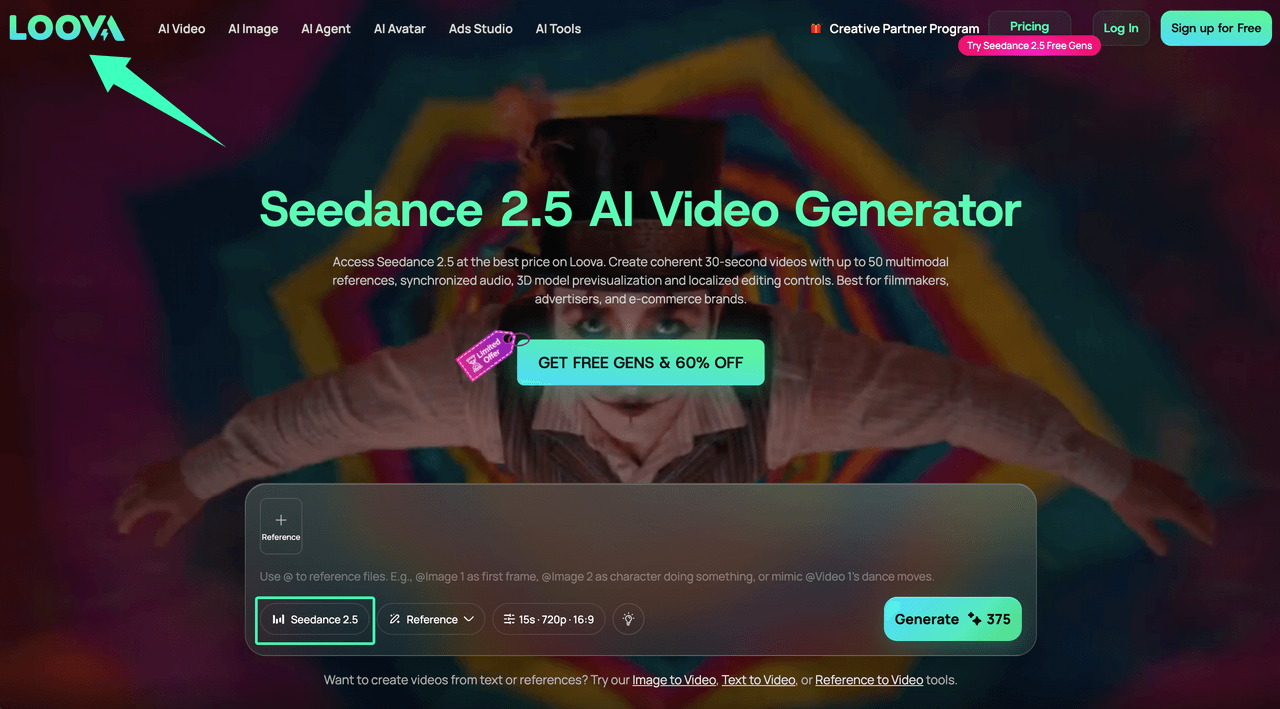
Choose an Input Method
Start with text when the idea does not depend on a specific person, product, composition, or motion. Add references when an existing visual or sound must guide the result.
Choose the simplest method that can express the goal. Text plus one subject image may be enough for a product reveal. A directed scene might need a subject image, location reference, and motion clip. More inputs give the model more instructions to reconcile.
The official Dreamina Seedance 2.5 workflow also shows text, image, video, and audio references, although the controls and labels in your current workspace may differ.
Upload and Assign References
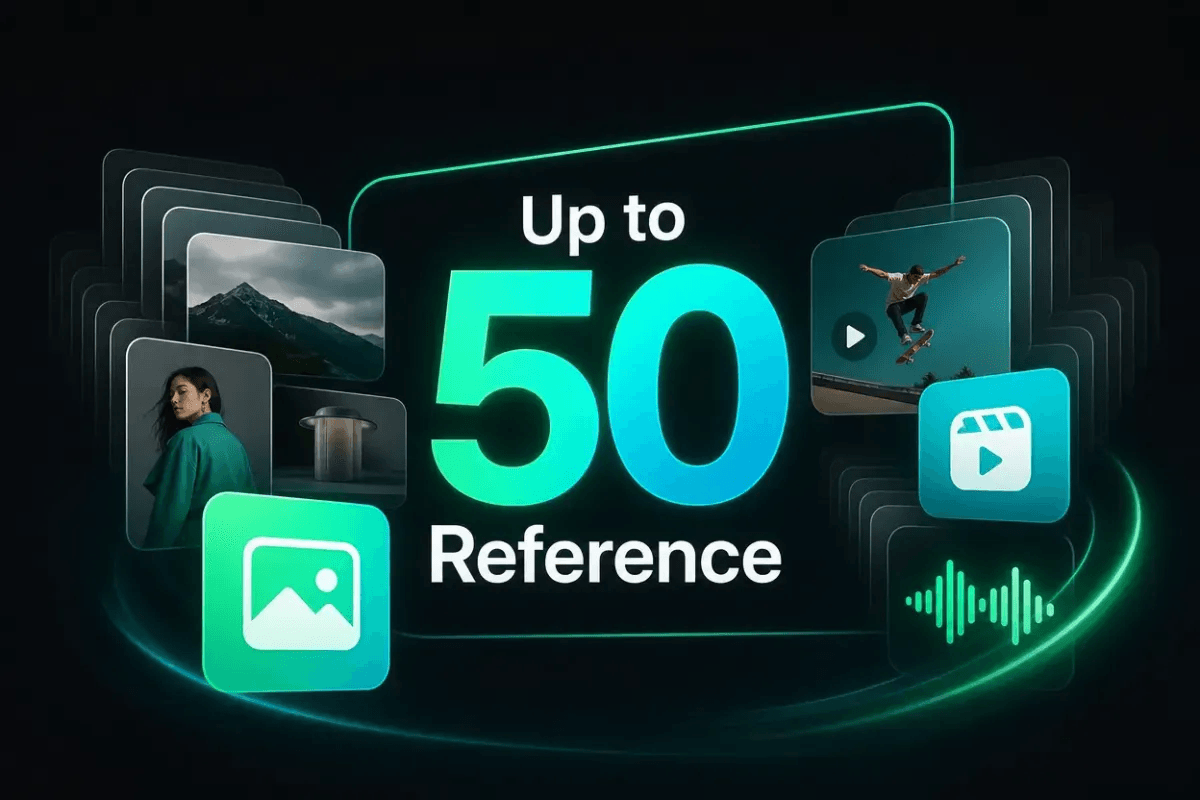
Upload the smallest useful set and identify files by the labels shown. State what to take from each: appearance from an image, camera motion from a clip, or timing from audio.
Do not depend on upload order. Avoid assigning two conflicting references to the same feature. If one shows a matte black bottle and another shows reflective silver, “keep the product consistent” does not say which finish should win.
Write Your Prompt and Select the Settings
A practical prompt moves from the main requirement to supporting details:
Create a 9:16 product video. Keep the bottle design, label, cap, and proportions consistent with @Image 1. Follow the clean studio composition from @Image 2. Use one slow camera push-in while soft side light moves across the glass. Keep the background still. Do not add objects, text, or label changes.
Adapt reference labels to those displayed in your workspace. Choose the available duration, aspect ratio, resolution, and other settings for the destination. Review the displayed credit cost because access and consumption can change by plan.
Generate, Preview and Download the Video
Submit once and wait for the task to finish. Watch the preview with sound, then muted. Check identity, action, camera movement, object consistency, unwanted text, audio timing, and the final frame.
Download a usable result and keep the first output as your comparison point. The model page indicates that a completed video can continue into an editing workflow inside the platform.
How to Improve Your First Result
Identify the Unsuccessful Element
Replace “it looks wrong” with one observable problem. “The label changes when the camera starts moving” is actionable. “The movement feels messy” becomes clearer when you specify whether the subject, background, or camera is moving incorrectly.
Review identity, action, camera, composition, timing, audio, and then style. A color adjustment will not solve a product that changes shape halfway through.
Change One Variable at a Time
Keep the assets and settings fixed while changing one instruction. If the camera is too active, remove one movement. If the subject drifts, strengthen the preservation instruction. If two references compete, remove the less important one instead of adding more detail everywhere.
Compare the revision with your saved result. This shows which change helped and gives you a reusable lesson for the next prompt.
Create Your First Seedance 2.5 Video
Use this compact brief for a first attempt:
- One destination and aspect ratio.
- One subject that must remain recognizable.
- One primary action or camera move.
- A small reference set with one job per asset.
- A short list of details that must not change.
Use the Seedance 2.5 video creation workspace, submit the smallest workable idea, and save the output before revising. The goal is a readable answer to one question: did the subject, action, and camera behave well enough to justify a second pass?
Seedance 2.5 Limitations
Large reference capacity does not guarantee that every instruction will receive equal weight. Long clips, dense scenes, conflicting assets, readable typography, complex physics, and interactions between multiple subjects can still produce inconsistencies. ByteDance Seed specifically acknowledges room for improvement in complex-motion plausibility and multi-subject interaction.
Human review remains necessary. Check faces, hands, products, logos, spoken content, continuity, and publication rights. Availability, controls, exports, and credit terms can change, so verify your account instead of assuming every tutorial screenshot is current.
FAQ
Why Isn’t Seedance 2.5 Showing Up in My Loova Model List?
Open the current Seedance 2.5 model page and check your signed-in account. Refresh the model selector, confirm that your plan includes access, and contact support if the dedicated page still does not expose the generator.
Does Seedance 2.5 Add a Watermark, and Does a Failed Generation Still Cost Credits?
The public model page does not clearly promise watermark-free exports or automatic credit restoration for failures. Check the export and credit notices in your account. If a task fails, record its ID, error, shown cost, and balance; refunds or credits follow current platform policy, not a guaranteed Seedance-specific rule.
Can I Download the Video and Continue Editing It in CapCut or Premiere?
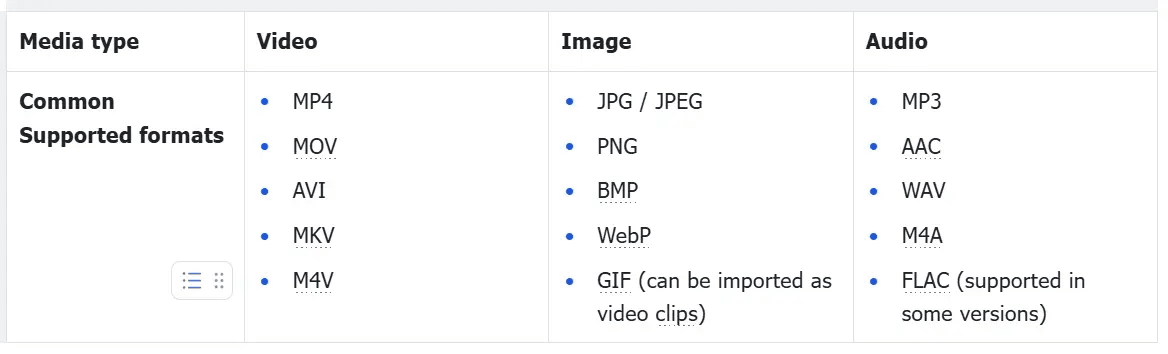
Yes. The current model page says completed videos can be downloaded. Import success in CapCut or Premiere depends on the container and codec. CapCut’s import guidance recommends transcoding unsupported files instead of renaming their extension. You can also continue editing inside the current platform when that option is available.
What Should I Do If the Generation Fails or Stops Halfway?
Do not queue several identical retries. Save the task ID, error text, selected settings, displayed credit cost, and account balance. Check the connection and account access, remove conflicting references, reduce the prompt to one main action, and retry once. If it fails again, send the evidence to support. That gives support enough context to review the task.