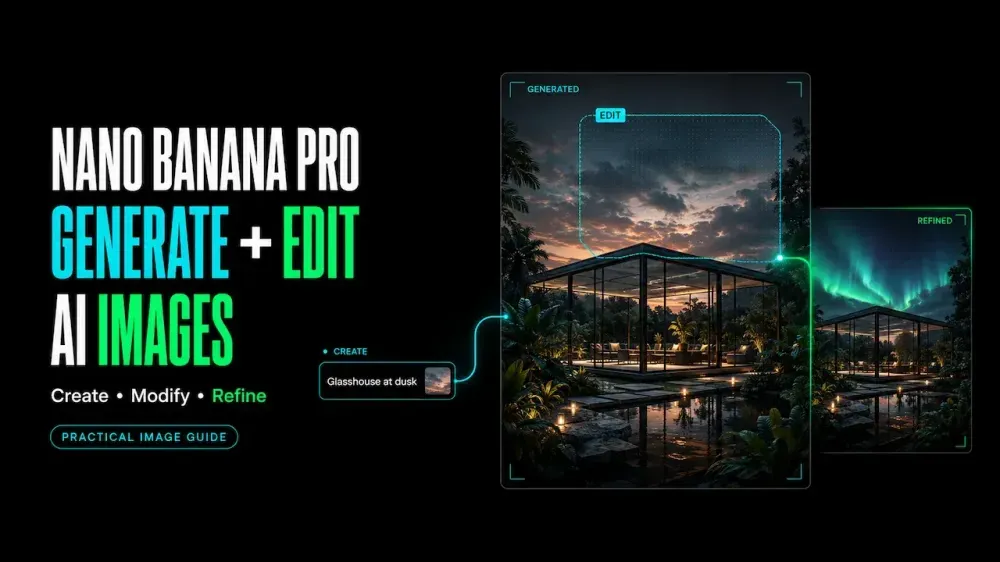
Nano Banana Pro Guide: Generate and Edit AI Images
On this page
Replacing a sky is a fairly simple edit. Rebuilding a campaign image from several references, product details, and text blocks asks much more of the model. With Nano Banana Pro, you need to keep composition, consistency, and written instructions aligned.
This guide shows how to generate and edit images with Nano Banana Pro, give each reference a clear role, and review what changed. It also explains when Nano Banana 2 may be the more practical choice.
What Is Nano Banana Pro?
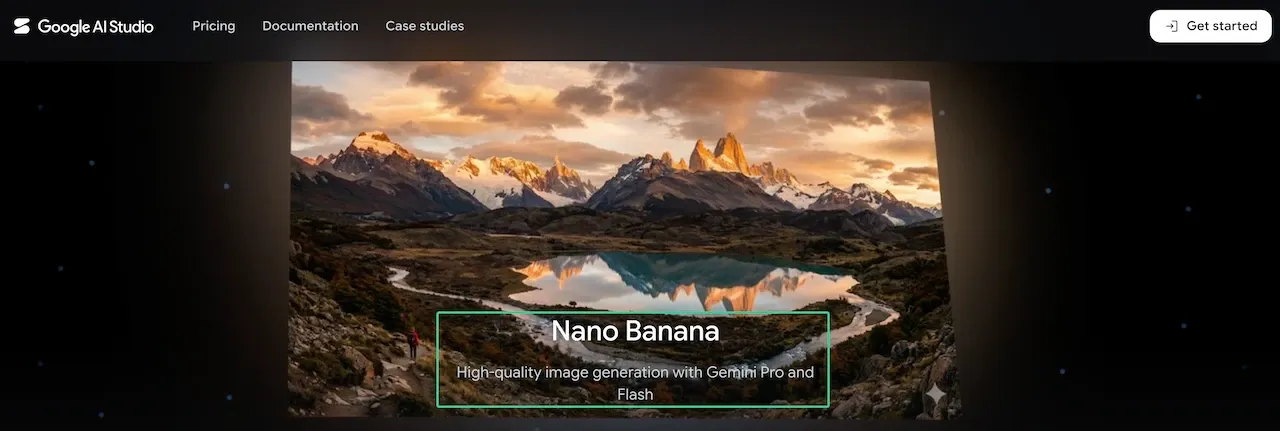
Nano Banana Pro is Google DeepMind’s image generation and editing model built on Gemini 3 Pro. Its official API name is Gemini 3 Pro Image, with the model code gemini-3-pro-image. Google’s Gemini 3 Pro Image documentation lists text and image input, image output, search grounding, and thinking support.
When Should You Use Nano Banana Pro?
Nano Banana Pro fits work where several visual requirements must stay coordinated.
Complex Image Generation
Choose Pro for dense scenes, diagrams, localized graphics, or layouts with several connected instructions. Google positions it for complex work that benefits from stronger reasoning, world knowledge, and precise creative control.
Professional Image Editing
It suits edits where an existing product, person, or composition must survive a meaningful change. During Nano Banana Pro image editing, the brief must identify protected details; the model cannot guess what already has approval.
Product, Marketing and Text-Heavy Visuals
Product mockups, posters, menus, and campaign graphics benefit from its text and layout abilities. Treat every label, price, disclaimer, and logo as reviewable content.
When Nano Banana 2 May Be Enough
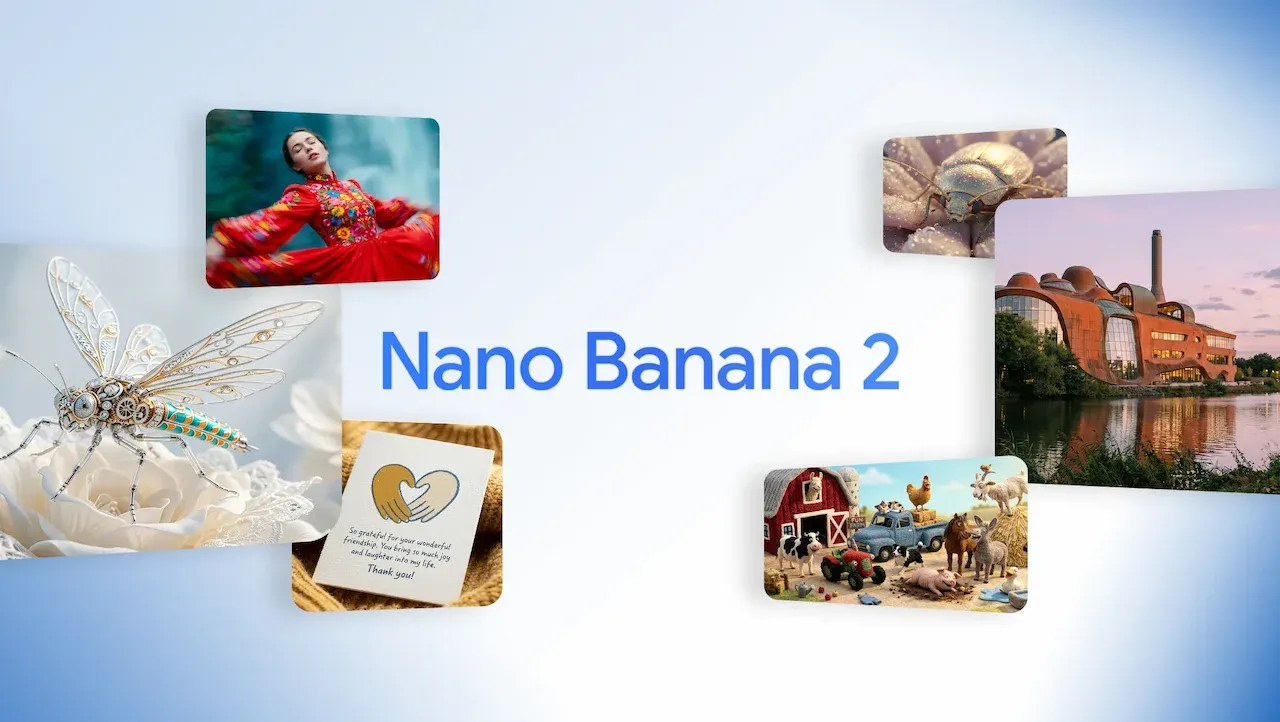
Google describes Nano Banana 2 as a faster generalist for generation, editing, text, and multiple references. It may be enough for everyday changes and rapid iteration. Use Pro when the brief demands more complex reasoning or specialized control.
How to Generate Images with Nano Banana Pro
Start with a Clear Visual Brief
Useful Nano Banana Pro prompts name the asset, audience, placement, and one primary message. They also separate flexible creative choices from facts or brand details that require approval.
Structure the Prompt Around the Final Use
“Create a product image” leaves the model to choose the hierarchy. “Create a 4:5 launch image with the bottle centered and headline space above it” connects the prompt to a real destination.
Set Composition, Style and Output Format
Describe the subject, action, framing, lighting, environment, and intended style. Google’s Nano Banana Pro prompting tips use the same practical categories. Add the aspect ratio and required resolution only after the layout goal is clear.
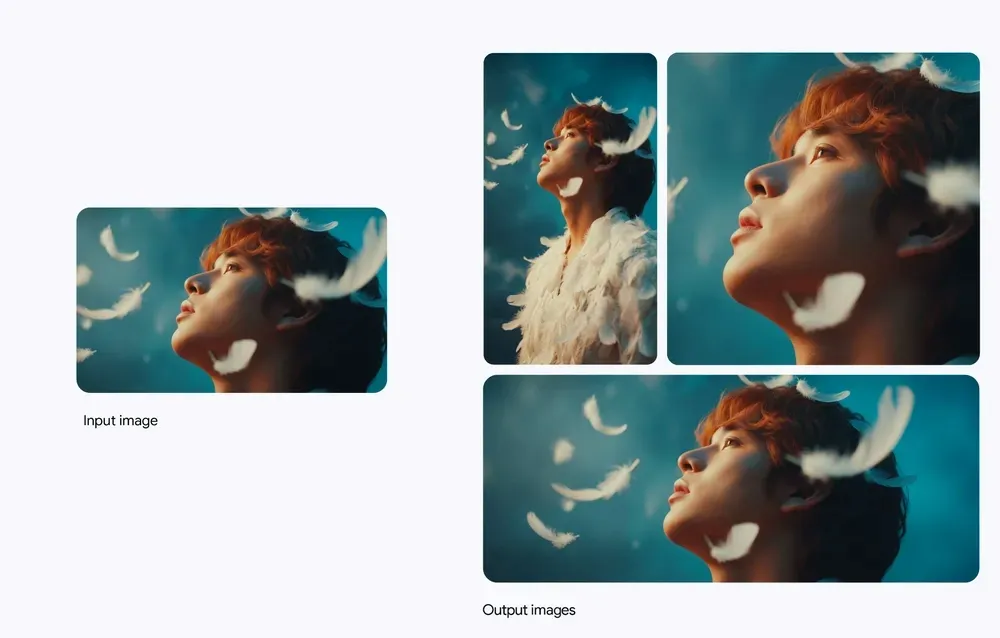
Generate and Evaluate Variations
Compare variations against one short checklist: focal point, composition, text, protected details, and destination crop. A more dramatic version is not more useful when it weakens the product or message.
How to Edit Images with Nano Banana Pro
Upload a Clear Source Image
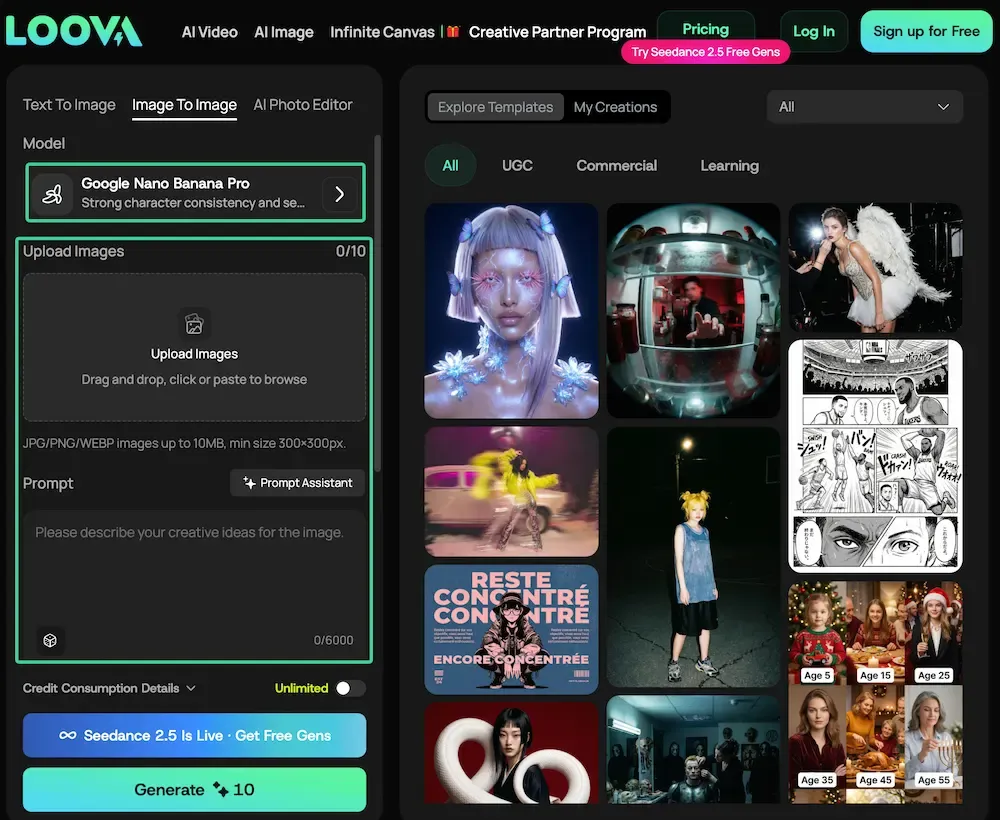
Open the Loova AI image editing workspace, select Nano Banana Pro, and upload the strongest available source. Use material you may submit and modify. Keep confidential or unapproved assets offline.
Specify What Must Remain Unchanged
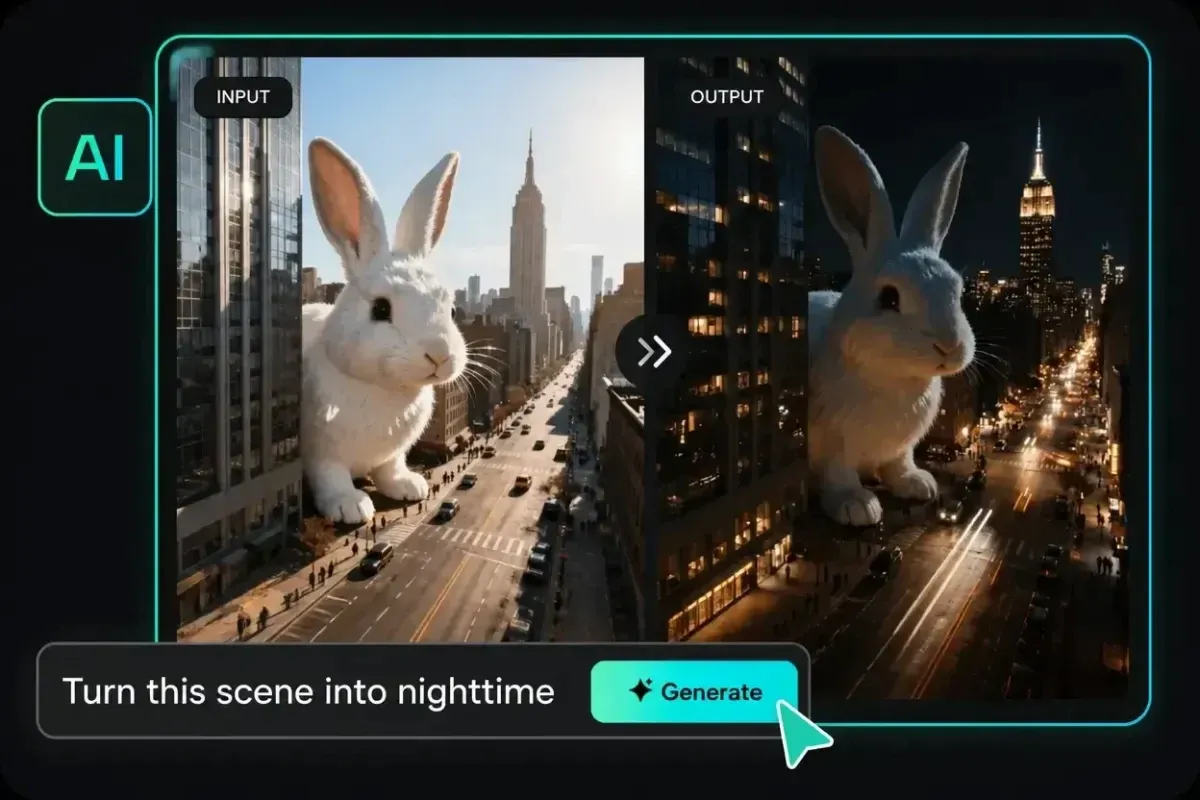
An edit prompt needs a change list and a preserve list. Name the face, product shape, label, pose, crop, colors, or background elements that already work.
Make One Material Change at a Time
Change the background before revising the headline or camera angle. If one request changes three major elements, the next image cannot show which instruction caused the drift.
Refine the Image Through Multiple Turns
Google’s image generation guide recommends conversational, multi-turn editing. Keep the last approved image in context and make a focused follow-up request. If the interface starts a new task, upload that approved version again.
Review Faces, Products, Text and Logos
Check the edited image beside its source, not from memory. Zoom in on facial features, package geometry, small text, logos, hands, and repeated objects. Add exact legal copy or source logos later when pixel-level accuracy matters.
How to Use Reference Images Effectively
Choose References by Purpose
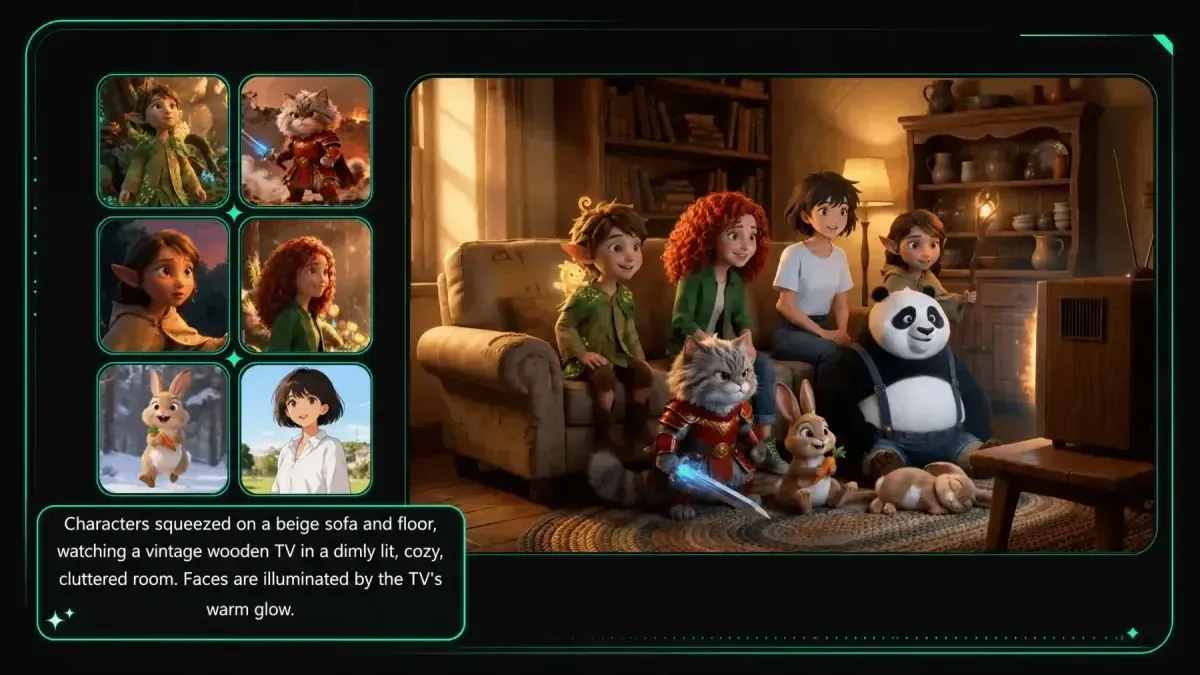
Every reference should answer one question. A source may define the subject, product, pose, composition, palette, texture, or style. Remove images that do not have a clear role.
Separate Subject, Product and Style References
Label references by number in the prompt: “Image 1 defines the bottle; Image 2 defines the hand pose; Image 3 supplies color and lighting only.” Google documents multiple-reference support, while Loova AI Image to Image currently provides a multi-image workflow.
Resolve Conflicting Reference Details
When two sources disagree about color, shape, camera angle, or typography, state which one wins. A hierarchy is more useful than another descriptive adjective.
Two Practical Nano Banana Pro Examples
Create a Product Marketing Image
Create a 4:5 launch visual for the uploaded sparkling-water can.
Place the can upright on pale stone with soft morning light from the left.
Leave clean headline space in the upper third. Use Image 1 as the exact product
reference and Image 2 only for the warm color palette. Preserve the can shape,
logo placement, flavor name, type layout, and camera angle. Add no new claims.
Edit a Campaign Visual with Text
Edit the uploaded campaign image for a Spanish-language version. Replace only
the headline with “SABOR PARA COMPARTIR” in the same position, size, cream color,
and sans-serif style. Keep the people, product, background, crop, shadows, logo,
and all other text unchanged. Do not translate the registered product name.
Create one controlled Nano Banana Pro edit
Open Loova AI Image to Image, upload one approved source, and give each reference a single role. Save the first acceptable image before requesting another change.
Common Nano Banana Pro Problems and Fixes
| Problem | Focused fix |
|---|---|
| Protected details drift | Repeat the preserve list and return to the last approved image. |
| Text is wrong or crowded | Supply exact copy in quotation marks and define its position. |
| References compete | Label each source, assign one role, and state which source wins conflicts. |
| The scene feels overworked | Remove secondary style instructions before adding new detail. |
| A later edit breaks the layout | Split the revision into one material change per turn. |
Limitations, SynthID and Usage Rights
Complex prompts can still produce incorrect text, altered products, or invented factual detail. Review every production asset, especially diagrams, prices, labels, faces, and logos.
Google says generated Gemini images include SynthID. The SynthID system embeds an invisible watermark that Google’s technology can detect, including through a Gemini verification check. A detected mark indicates Google AI involvement; it does not establish authorship, accuracy, or permission to use every depicted element.
Use only references you have the right to upload and transform. Loova AI’s current Terms of Use make users responsible for submitted User Content. Before commercial publication, confirm source licenses, likeness consent, trademark use, and the rules of the destination platform.
FAQ
Can Nano Banana Pro edit more than one reference image?
Yes. Google’s API documentation describes up to 14 total reference images for Gemini 3 Pro Image, with separate caps for objects, characters, and styles. Product interfaces may expose fewer inputs, so plan around the controls available in the workspace you use.
Why does Nano Banana Pro change parts I asked it to preserve?
The model regenerates an image rather than locking every unchanged pixel. Drift becomes more likely when the preserve list is vague or one prompt requests several major changes. Return to the last approved version and restate the protected details.
Does Nano Banana Pro understand prompts in different languages?
Yes. Google’s current guide lists English, Chinese, Japanese, Korean, Spanish, Portuguese, and several other languages for best performance. For text-heavy images, provide the exact copy in its final language and review spelling before changing the artwork.
Do Nano Banana Pro images contain a detectable AI watermark or SynthID mark?
Google says all generated images include an invisible SynthID watermark. It is not meant to be visible to viewers, but Google’s detection tools can check for it. Detection supports provenance; it does not prove a claim, license, or image is otherwise authentic.
One polished result shows that the Nano Banana Pro prompt can work. It does not show how reliably every protected detail will survive the next edit.