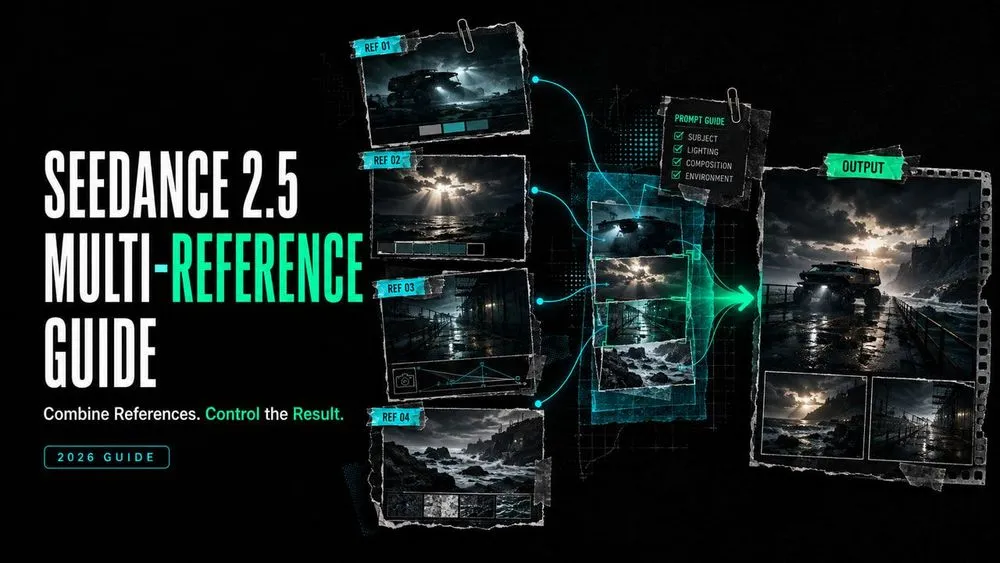
Seedance 2.5 Multi-Reference Guide
On this page
A clear portrait, a polished location still, and a fast camera clip can each pull the same video in a different direction. The problem is rarely that one reference is weak. It is that the set has no hierarchy.
I’m Mira. Before combining references, I want to know which file owns the face, which owns the setting, and which is allowed to influence motion. This Seedance 2.5 multi reference guide shows how to build that small role map before you generate.
What Is Multi-Reference in Seedance 2.5?
Multi-reference generation uses several assets as one video brief. Images can define subjects and locations, video can demonstrate motion, and audio can guide voice or rhythm. The prompt states what to borrow from each.
ByteDance says Seedance 2.5 accepts up to 30 images, 10 video clips, and 10 audio clips per generation. Its official multi-reference examples assign images to performers, instruments, venues, and audience areas. Platform access may be narrower.
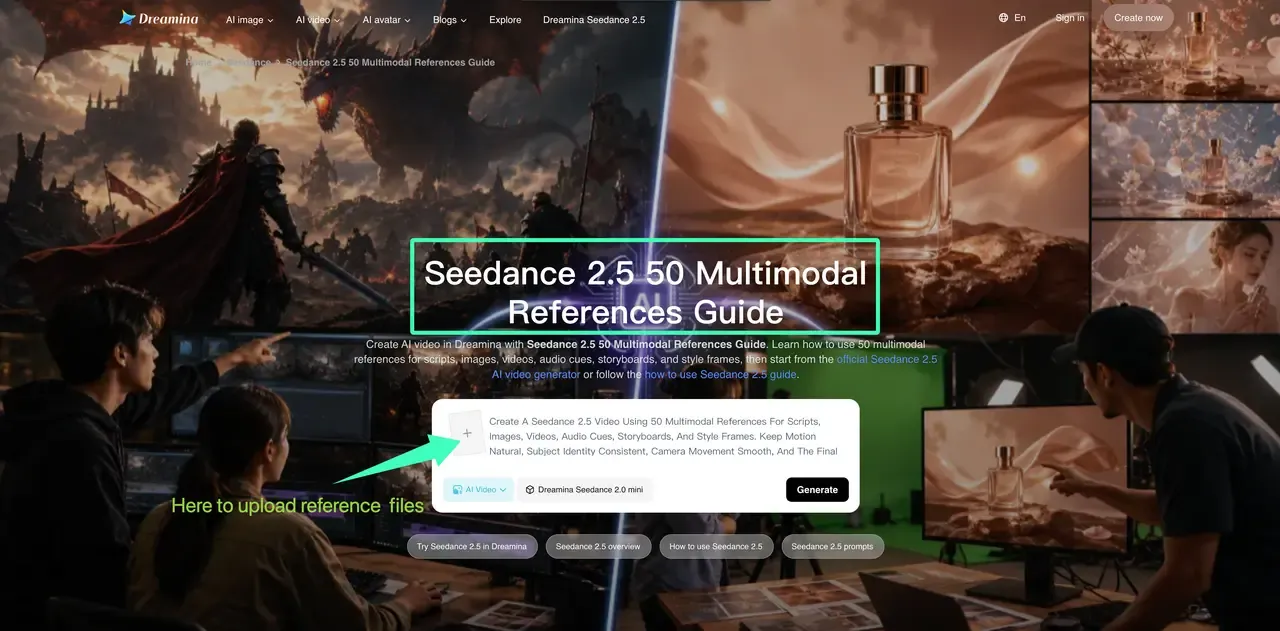
The current Loova AI Reference to Video workspace publicly shows multiple-image upload, but not every Seedance 2.5 video or audio option. Treat your signed-in controls as the operational boundary.
Choose the Right Reference for Each Job
Start with the smallest set covering appearance, place, motion, and sound. If two files control one feature, choose one or explain their relationship.
| Reference | Give it this job | Keep outside its job |
|---|---|---|
@Image 1 |
Character face, hair, wardrobe | Background and pose |
@Image 2 |
Product shape, label, color | Lighting and camera angle |
@Image 3 |
Location and time of day | Character identity |
@Video 1 |
Movement and camera pace | Subject appearance |
@Audio 1 |
Voice or rhythm | Visual style |
Character and Product References
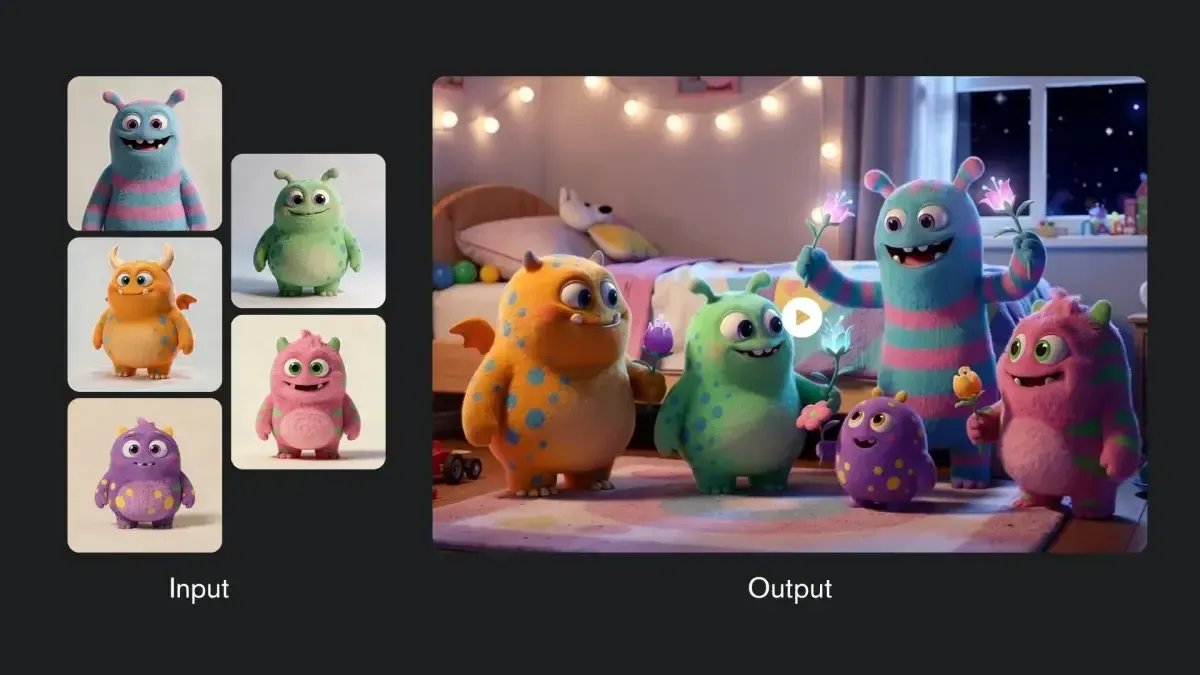
Use views where defining details are visible. If several images show one subject, say so: @Images 1–3 show the same bottle from the front, side, and back. Generate only one bottle. Name only the character traits that must persist.
Do not let one image control identity, pose, location, light, and style unless all should travel together.
Location and Style References
A location reference can establish layout, weather, or light; a style reference can establish palette or texture. If one image does both, narrow its role: @Image 4 defines the café counter, window layout, and warm morning light only.
Avoid “copy this image” when you need only its color mood.
Motion and Camera References
Where supported, use video for action rhythm, camera path, transition, or blocking: @Video 1 defines the slow clockwise orbit and pacing only; apply it to @Image 1’s product.
The footage need not contain the same subject if its only job is motion. Trim it to the relevant move.
Voice and Audio References
Where available, audio can define voice, ambience, or timing. Assign one purpose: @Audio 1 defines the speaker’s voice only. State dialogue language separately.
Use audio you are authorized to provide. A recognizable voice can raise consent and impersonation concerns even when the visual character is fictional.
How to Create a Multi-Reference Video on Loova AI
The public page lists multiple-image upload, a prompt field, and additional settings. Available controls can depend on your account.
Select the Necessary Assets
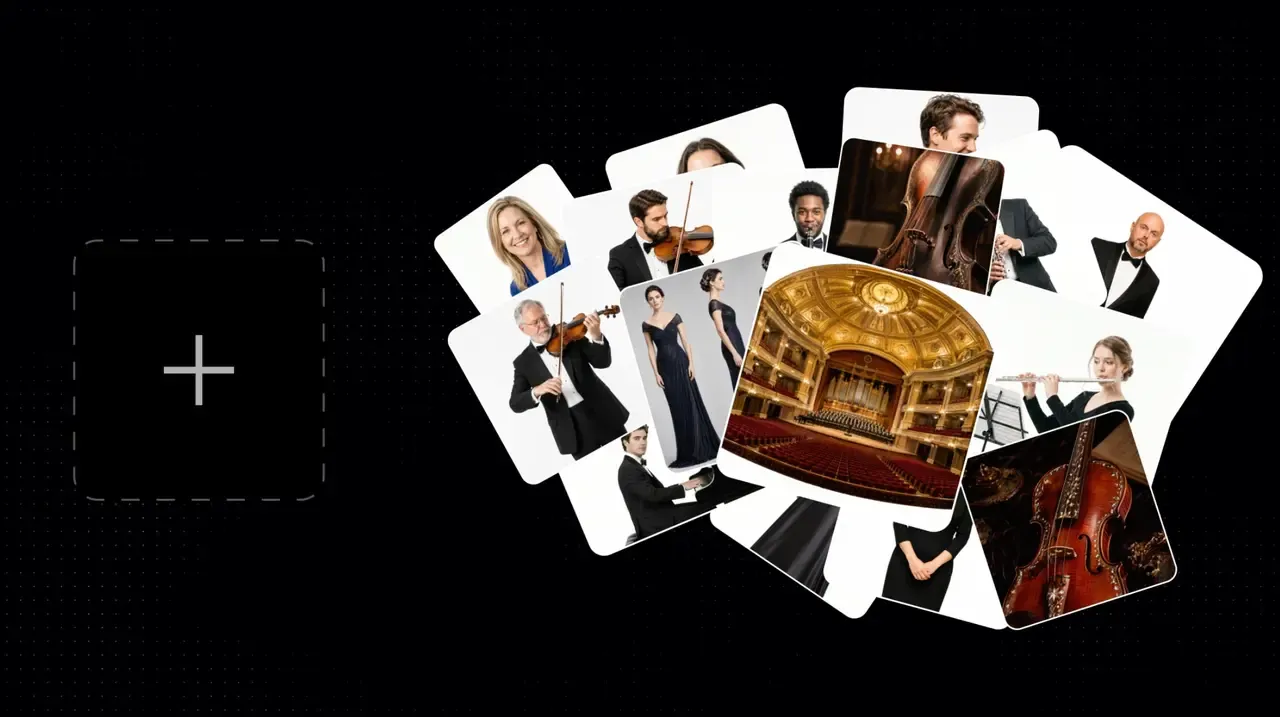
Begin with one primary subject and add only what text cannot describe reliably. A product scene may need the product, location, and second angle—not a full mood board. Confirm permission for client work, faces, or voices, remove confidential or sensitive personal data, and review the current Terms of Use and Privacy Policy before uploading.
Assign a Role to Each Reference
Write the role map before the scene direction. For example:
@Image 1 defines the same character’s face, hair, and green jacket in every shot. @Image 2 defines the bookstore shelves and window light only. @Image 3 defines the red notebook only. The character enters the bookstore, finds the notebook on a table, and holds it against her jacket. Keep her identity, wardrobe, and the notebook design unchanged.
Use the interface’s file labels; preserve the one-to-one connection between each file and job.
Define What Must Stay Consistent
End with a short preservation list covering only details whose drift would make the result unusable.
Once the map is clear, build your first multi-image video in Loova AI Reference to Video. Submit the smallest viable reference set, then judge consistency before adding another asset.
How to Keep Characters and Products Consistent
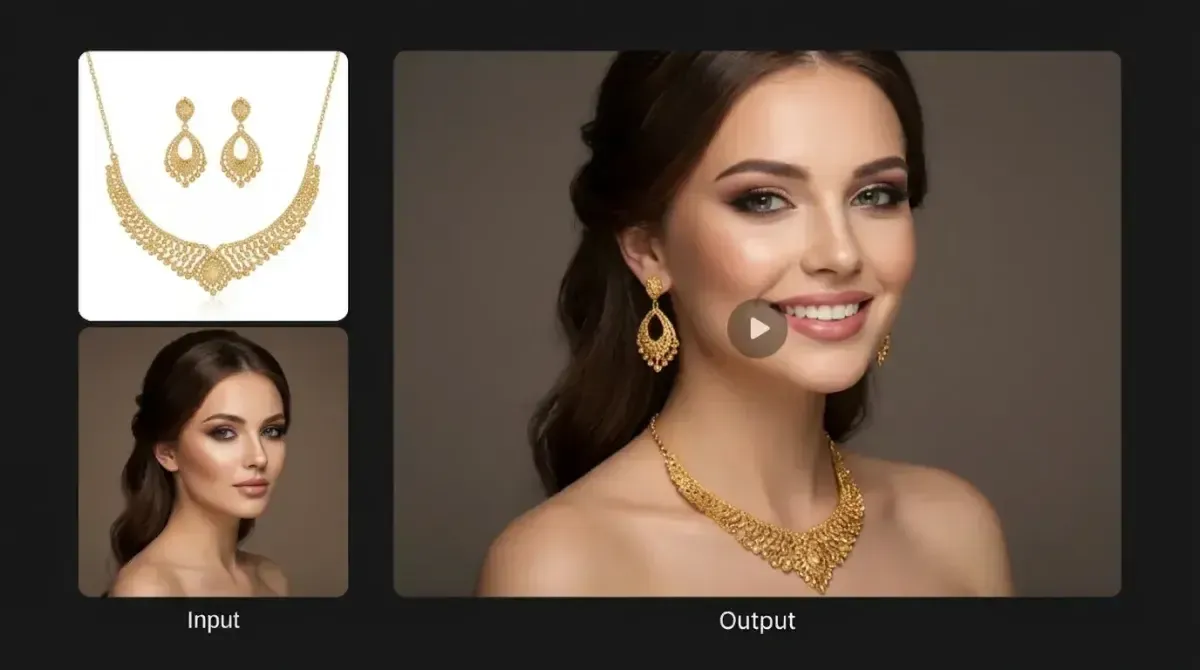
Consistency begins before prompting. References should agree on hair, clothing, packaging, proportions, and color. Different labels or accessories create a design conflict, not extra evidence.
Use the same core reference set across connected shots, keep names and file roles stable, and describe changes as actions rather than redesigns. For products, avoid transformations when exact geometry or text matters. For characters, state who holds which object and where each person stands so identity is not the only stable feature.
How to Fix Conflicting or Ignored References
First diagnose the ignored job, not the ignored file. If the location is wrong, keep the character references unchanged and narrow the location instruction. If the face drifts, remove redundant style images and strengthen the character role.
Use this repair order:
- Remove any reference with no unique job.
- Resolve visual contradictions between files.
- Put the primary subject first and label it precisely.
- Change one role instruction, then regenerate with the same settings.
An under-weighted reference may simply be competing with more prominent instructions. More repetition is not always the fix; clearer priority often is.
Multi-Reference Limits and Trade-Offs
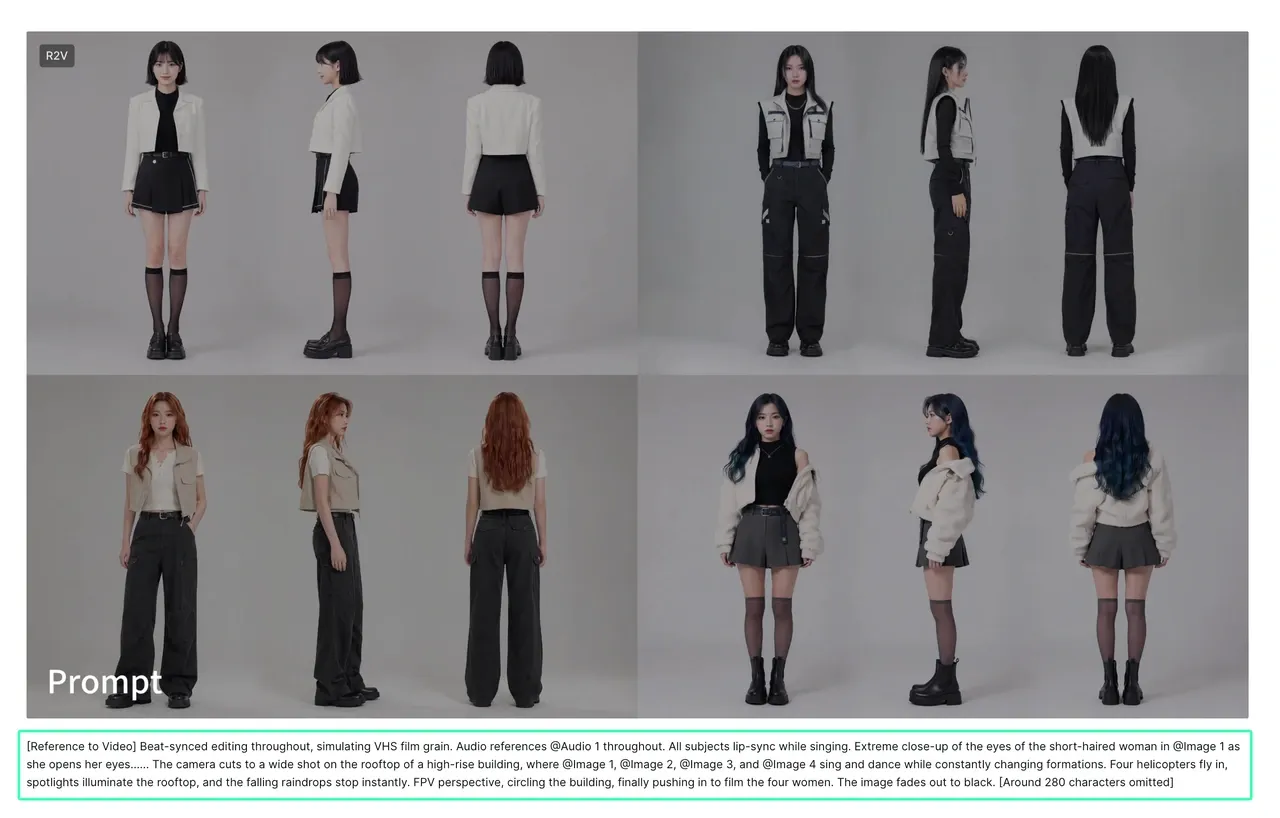
The model’s maximum capacity is not a recommended target. More assets increase setup time and create more chances for contradictory faces, palettes, backgrounds, or motion cues. A focused set is easier to debug and reuse.
Platform limits can also differ from ByteDance’s model specification. Loova AI’s current public Reference to Video page lists JPG, PNG, and WEBP images up to 10MB each, with a minimum size of 300×300px. It does not publicly list video/audio formats or their size limits there; check the live uploader before preparing those assets.
FAQ
Which File Formats and Size Limits Does Seedance 2.5 Accept for References?
At model level, ByteDance confirms image, video, and audio references. On Loova AI’s current Reference to Video page, the published image rules are JPG, PNG, or WEBP, up to 10MB each, with a minimum 300×300px size. Video and audio format limits are not stated on that public page, so follow the live uploader’s validation message.
Can I Reuse Reference Files from Previous Loova AI Projects?
The public Loova AI reference workspace does not currently document cross-project asset reuse. Check whether your signed-in project or asset picker exposes earlier uploads. If it does not, keep an organized local reference pack with stable filenames and re-upload only the approved files needed for the new scene.
Why Is One of My Uploaded References Being Ignored or Under-Weighted?
It may duplicate another reference, conflict with a stronger instruction, or lack a named role. Remove files without unique jobs, state exactly what to take from the neglected asset, and keep unrelated background or style elements outside its role. Then rerun with the other settings unchanged.
Do Reference Videos Need to Match the Final Aspect Ratio and Duration?
Not necessarily at the model level, because a clip may supply only movement or camera pacing. However, closer framing can reduce ambiguity when composition matters. Trim the reference to the useful motion, state which part to follow, and set the final aspect ratio and duration in the generation interface rather than assuming the source clip will decide them.
The reference worth keeping is the one with a clear job. If removing a file changes nothing in your brief, leave it out of the next generation.