How to Create AI Anime with Seedance 2.5
On this page
A character sheet can look perfectly stable until the first frame moves. Then the face narrows, a sleeve changes color, or clean ink lines soften into a different drawing style. Before opening the Loova AI Anime Generator, define which visual details must remain unchanged. To create AI anime with Seedance 2.5, treat those details as production rules before adding motion.
Mira here. The detail I would protect first is not the dramatic action. It is the uneven fringe, red cuff, or eye shape that keeps the character recognizable when the camera moves. That is the central check in this Seedance 2.5 anime workflow.
Design an Original Anime Concept
Create a Character Sheet
Begin with a character you designed or have permission to use. Show front, three-quarter, and side views, a few expressions, and close-ups of details that are easy to lose, such as hair clips or a patterned collar.
Keep the poses simple and the lighting consistent. Multiple costumes or unrelated backgrounds give the model competing answers. A clean drawing can become the starting frame when you animate an original character sheet.
Define the Palette, Clothing and Visual Rules
Create a short visual lock before writing Seedance 2.5 animation prompts. Record exact colors, the outfit layers, line weight, shadow treatment, and two or three features that cannot change. “Anime style” is too broad to protect any of them.
Use a compact rule block:
CHARACTER LOCK: short black bob, amber eyes, red cuff on left sleeve
PALETTE: charcoal, muted teal, warm red accent
LINE ART: clean dark-brown ink, consistent thin outer contour
SHADING: two-tone cel shading, no painterly texture
DO NOT CHANGE: face proportions, jacket design, hair length
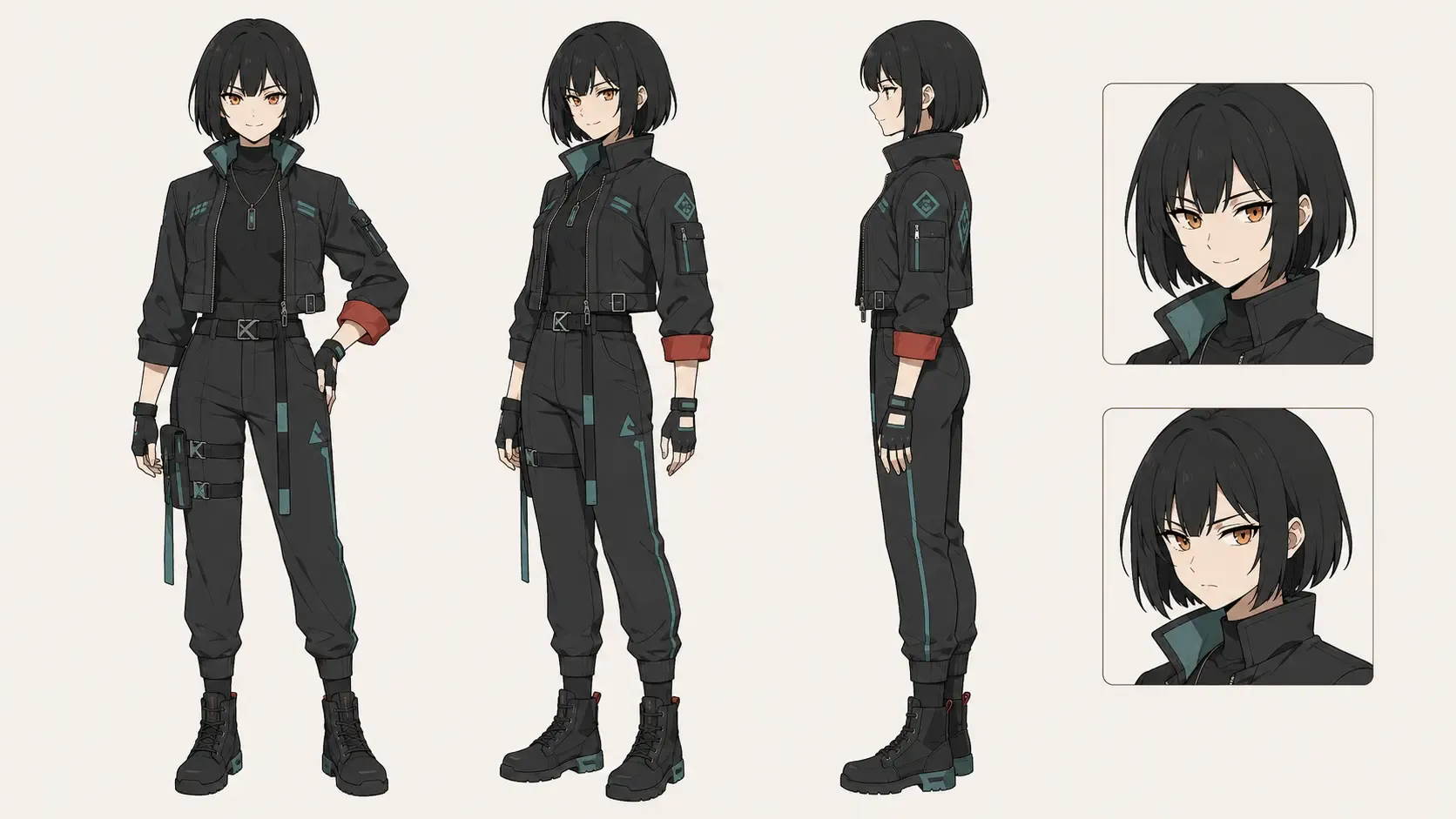
List what may move—hair tips, coat hem, eyes, mouth, and hands—separately from the fixed design.
Plan an Animation-Ready Scene
Storyboard the Key Actions
Choose one action that reads in three beats: a start pose, one visible change, and an end pose. For example, a courier sees a glowing envelope and grips it as train doors open.
The storyboard needs framing, screen direction, character position, and prop state—not polished art. Make the final pose clear enough to guide the next shot.
Prepare Character, Location and Motion References
Give every reference one job:
- character sheet: identity, clothing, and line language;
- location image: architecture, palette, and light direction;
- motion clip: body movement only;
- storyboard: composition and end state;
- audio: approved voice or ambience only.
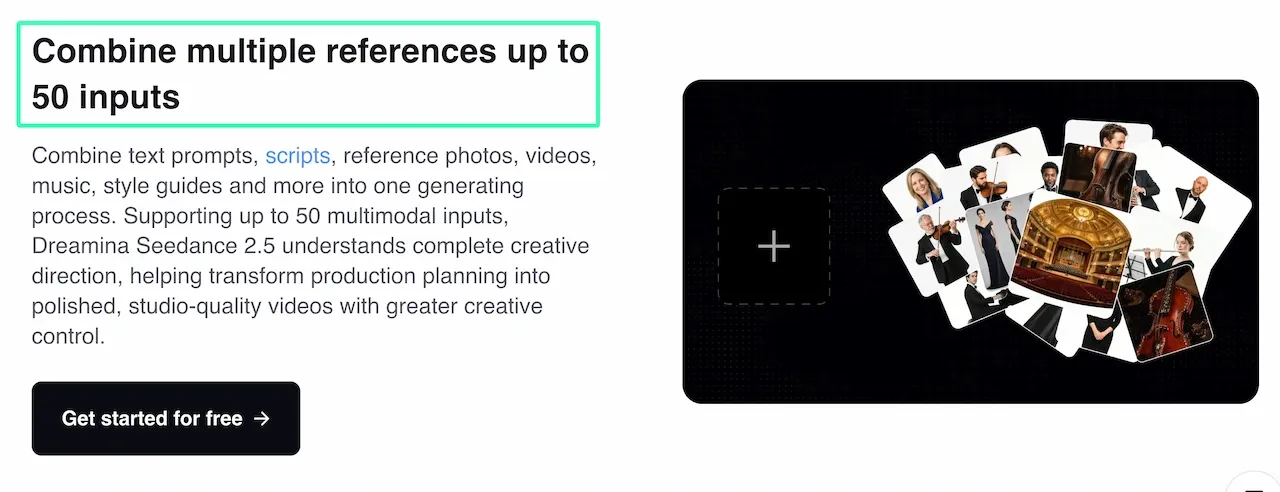
ByteDance’s Seedance 2.5 launch documentation says the model supports up to 30 images, 10 videos, and 10 audio clips as references in one pass. That is capacity, not a target. Remove a reference when it introduces a second face design, incompatible costume, or conflicting lighting scheme.
Generate the Anime Sequence
Write Motion-Focused Prompts
Describe what changes over time instead of redescribing every pixel in the sheet. A usable prompt separates references, timing, camera, motion, and locked details:
FORMAT: 9:16, short 2D anime sequence, two-tone cel shading
REFERENCE: @Character defines face, hair, jacket, and line art
REFERENCE: @Station defines platform layout and evening light
0–2s: Medium shot. The courier holds a sealed envelope at chest height.
2–4s: The envelope glows softly. She lowers her eyes, then tightens her grip.
4–6s: Slow push-in. Her hair tips move in the arriving train's wind.
AUDIO: low station ambience; no dialogue
KEEP UNCHANGED: face proportions, red left cuff, jacket pattern, eye color
Use one main action and one supporting motion. A spin, costume change, flying camera, and location transformation in one clip make drift difficult to diagnose.
Direct Camera, Dialogue and Sound
Name the shot size and one camera move: locked close-up, lateral track, or restrained push-in. Complex camera motion adds another source of variation.
For dialogue, identify the speaker, exact line, delivery, and timing. Review generated voice and lip movement for pronunciation, sync, and rights; keep detailed lines out of busy action shots.
Connect Multiple Shots
Carry the accepted final pose, gaze, prop position, lighting, and costume into the next prompt. When supported, use the last frame as the next visual reference instead of switching to a different drawing.
Use names such as station_01_T03_SELECT, and save the prompt and references beside each selected take.
Maintain Character and Style Consistency
Control Faces, Clothes and Line Art
Prioritize what viewers notice first. In a close-up, protect face shape, eyes, fringe, and line weight; in a full-body shot, protect silhouette and outfit blocks.
Repeat only immutable details. If the jacket changes, specify its construction and color placement; if the image becomes painterly, restate the line and shading rules.
Correct Flicker and Visual Drift
First decide whether the problem is local or global. A changing eye shape is local; a clip that shifts from cel shading to painted texture is global. Then change one variable:
- shorten or simplify the movement;
- reduce camera motion;
- remove a conflicting reference;
- strengthen the one relevant lock;
- regenerate only the unstable shot.
For a repair, return to the accepted drawing or frame in the image-to-video workspace instead of asking a weak output to define the next shot. The goal is not to freeze every line. It is to keep the character recognizable while the animation still breathes.
Copyright and Production Limitations
Use original or authorized characters, backgrounds, music, voices, and reference art. Changing a prompt does not automatically clear a protected character, logo, or someone else’s drawing. Instead of naming a living artist’s distinctive style, define line weight, palette, shading, and camera language.
Copyright treatment varies by jurisdiction and human contribution. The U.S. Copyright Office’s AI report says AI-assisted work is not automatically excluded from protection, but prompts alone do not provide sufficient human control; human selection, arrangement, or modification may matter. Keep source licenses and production records, and seek qualified advice when ownership or clearance is material.
Seedance 2.5 is still a generative model, not a rigged animation system. ByteDance notes remaining room for improvement in complex physical motion and multi-subject interactions. Expect to select takes, repair transitions, replace text, and finish the sequence in an editor.
FAQ
Can Seedance 2.5 Animate from a Hand-Drawn Character Sketch or Sheet?
Yes. Use a clean scan or photo, crop desk clutter, correct perspective, and include extra views when the action reveals an unseen side. Export to a supported raster format and check the live upload requirements.
Can I Mix 2D Anime Characters with Realistic Backgrounds?
Yes, but define how they meet. Assign separate character and location references, then specify whether the background stays photographic or adopts cel-shaded lighting. Match light direction, scale, and camera perspective.
Why Do Character Faces, Clothes or Line Art Change Between Shots?
Each clip is synthesized rather than animated from a fixed rig. Missing views, conflicting references, large pose changes, and vague “anime style” instructions leave design decisions open. Lock key identity features, use the accepted previous frame, and simplify the shot.
How Do I Reduce Face Drift and Flickering in Multi-Shot Anime Sequences?
Use shorter shots, smaller pose changes, steadier framing, and the same approved references. Replace only the unstable shot and hide unavoidable seams with a purposeful cut. If a face changes during dialogue, test mouth movement in a simple close-up first.
Start with one original sheet, animate one modest action, and inspect the face and line art before you ask the character to perform again.
Animate One Original Character Sheet
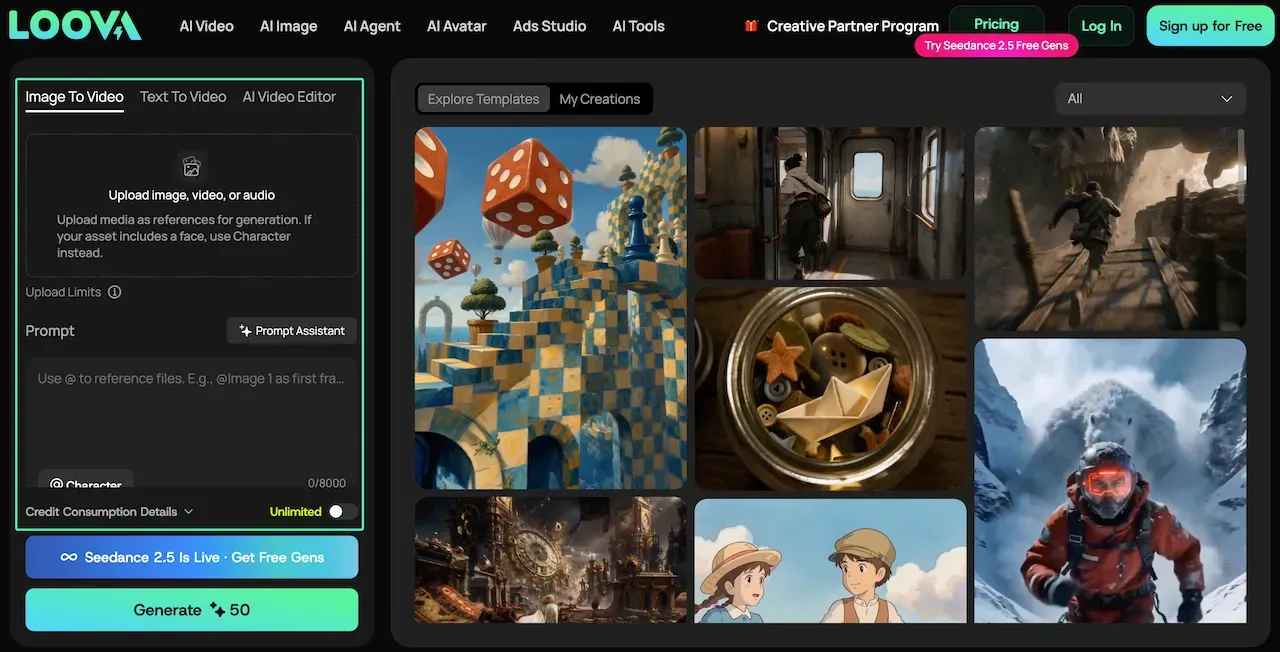
Open the Loova AI Image to Video Generator, upload a character sheet or clean character frame you are authorized to use, and describe one visible movement. Review identity, clothing, and line art before expanding the idea into a second shot.