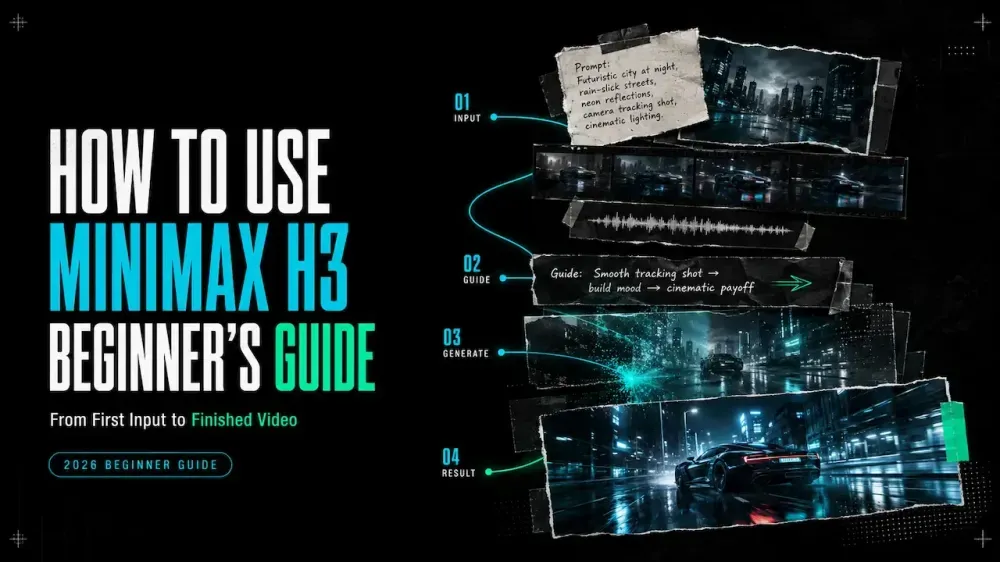
How to Use MiniMax H3: A Beginner's Guide
On this page
A MiniMax H3 video combines two timelines: visuals and sound. Make the scene clear without audio, then use sound to enhance it.
This beginner guide covers a practical workflow: choose a mode, assign each reference a role, describe what should appear on screen, and refine one element at a time.
What Is MiniMax H3?
MiniMax H3 is a general-purpose multimodal generation model from MiniMax. The official MiniMax H3 announcement says it can understand text, images, video, and audio in one context, then generate up to 15 seconds of video at 2K resolution with native stereo sound.
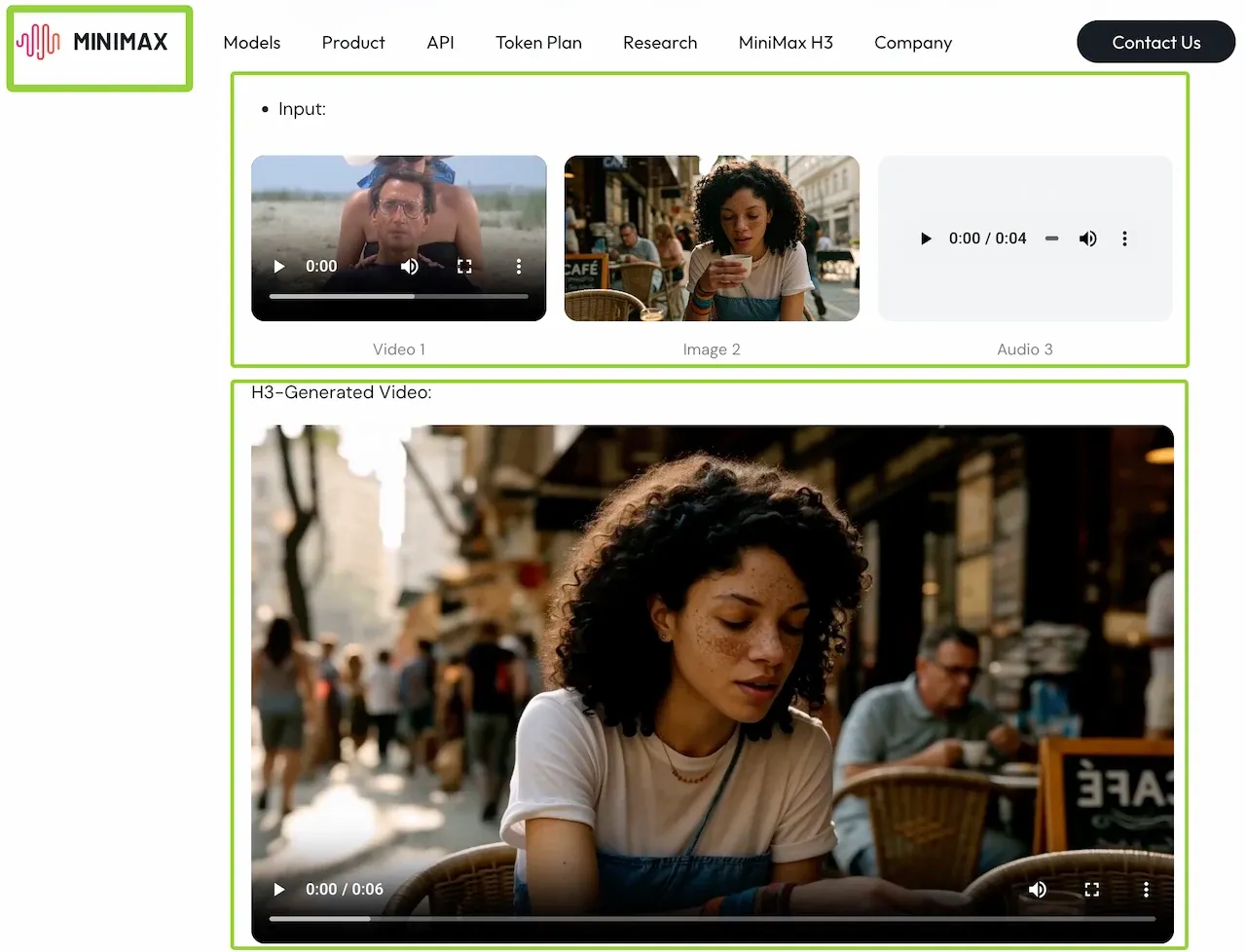
An image can define a character, a video can demonstrate camera movement, and audio can guide a voice or rhythm. Written instructions tell H3 how those sources relate to the new video.
What You Need Before Using MiniMax H3
Define Your Scene and Output Goal
Describe one finished shot before collecting files. Include the subject, action, camera, format, and sound goal. “A six-second vertical clip of a ceramic cup rotating slowly on a table, with a locked camera and soft room tone” is easier to evaluate than “make a cinematic product video.”
Choose one success condition: a readable label, stable face, specific camera move, or matching dialogue. The first generation should answer one question, not attempt an entire campaign.
Prepare Text, Image, Video or Audio Assets
Use only sources that have a clear role. A simple asset map keeps one file from accidentally controlling the wrong part of the result:
| Asset | Assigned job | Ignore for |
|---|---|---|
| Image 1 | Subject appearance and clothing | Camera motion |
| Video 1 | Camera path and pacing | Subject identity |
| Audio 1 | Voice or musical rhythm | Visual style |
 |
||
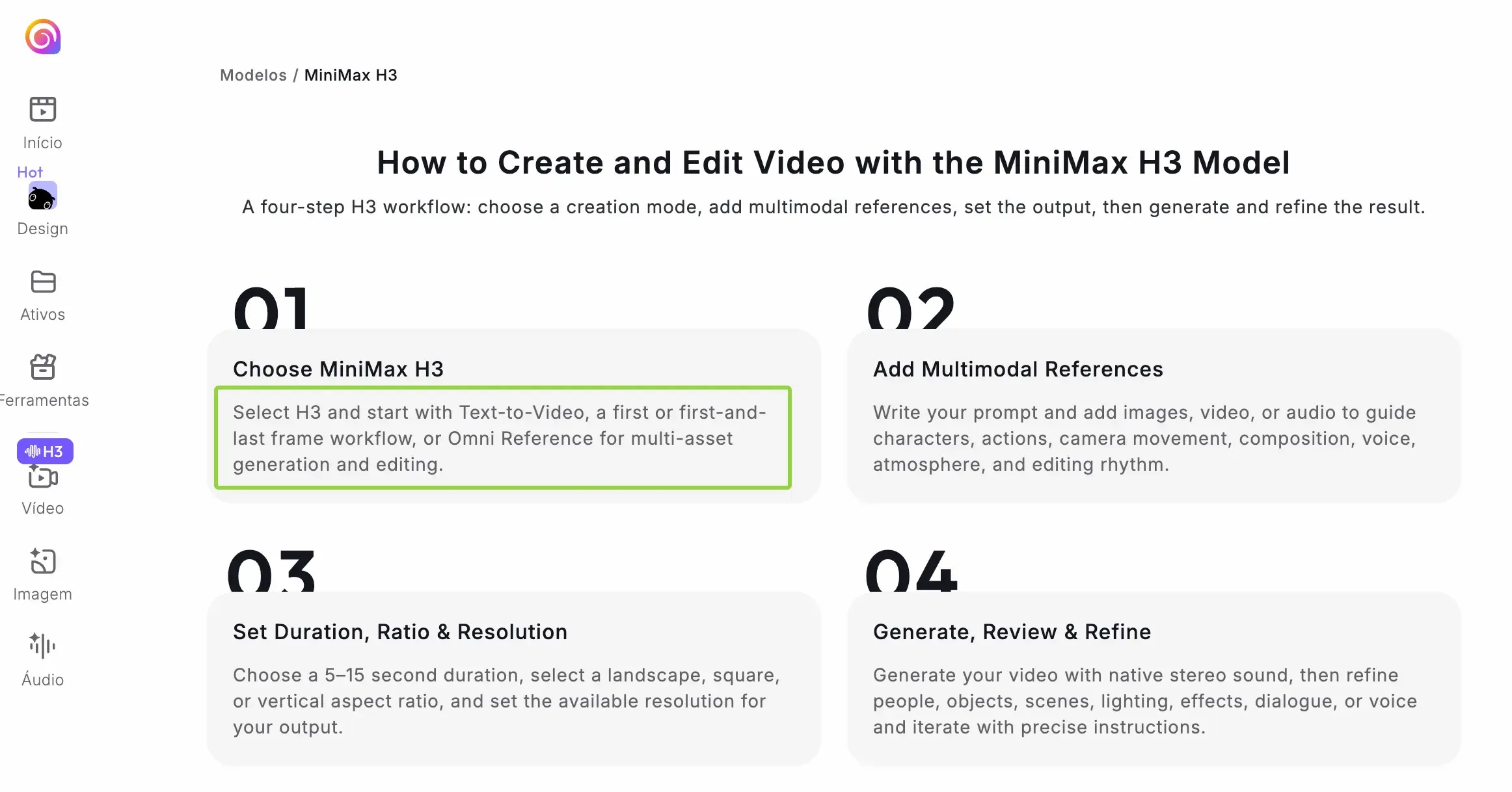
| Hailuo AI’s current MiniMax H3 model page documents text-to-video, first-frame, first-and-last-frame, and Omni Reference workflows. It supports multiple media references, but use the signed-in Loova AI interface as the source for current file limits. |
Only upload material you have permission to use, and keep confidential assets or sensitive personal data out of the workflow. Voices, private footage, and identifiable people need the appropriate consent before they become reference material.
How to Use MiniMax H3 on Loova
Open the MiniMax H3 Generator
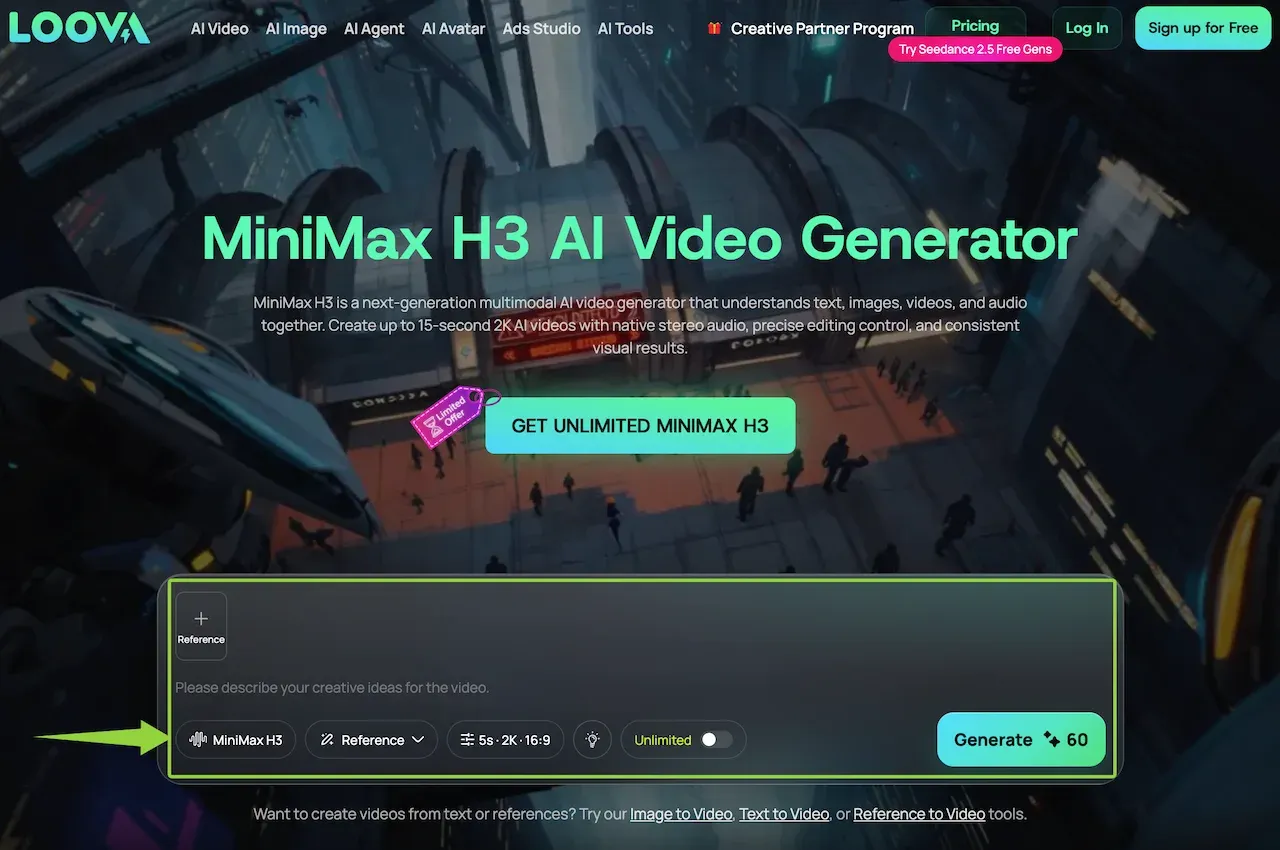
Open the MiniMax H3 generator on Loova AI. Confirm that MiniMax H3 is selected before adding media, because another model may expose different modes, settings, or reference limits.
Choose a Generation Mode
Match the mode to the job. Use text-to-video for prompt-only generation; use first-frame or first-and-last-frame when an image must be a boundary frame. Choose the reference workflow when media supplies identity, motion, voice, atmosphere, or editing direction.
Add and Assign References
Add the smallest set that covers the shot. Use the interface labels and state each role: “Image 1 defines the cup shape and glaze only; Video 1 defines the slow clockwise camera move.” If two sources compete, remove one or state the priority.
Write the Scene Instructions
Write what should be visible and audible over time. Assign every reference a specific job, and direct sound as deliberately as the picture.
Use this starter structure:
OUTPUT: 6 seconds, 9:16
SUBJECT: [who or what must remain recognizable]
SCENE: [location, lighting and composition]
0-2s: [first visible action]
2-6s: [camera and subject movement]
REFERENCES: Image 1 controls [job]; Video 1 controls [job]
SOUND: [dialogue, ambience, effects or music]
KEEP UNCHANGED: [critical face, product, text or color]
Prefer visible directions. “The camera moves forward while the label remains front-facing” defines a shot; “make it premium and engaging” does not.
Select the Settings and Generate
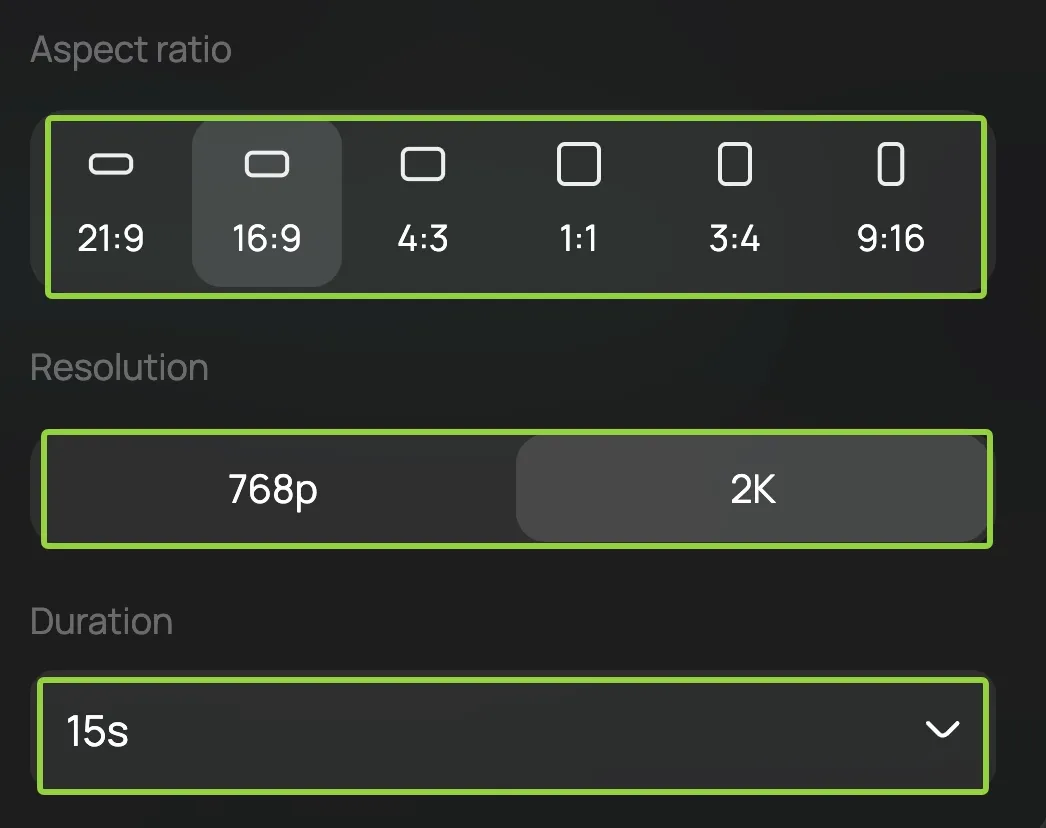
Choose the shortest useful duration, destination ratio, and available resolution. MiniMax describes output up to 15 seconds and 2K, but the controls visible on the model page are the limit for your account and mode.
Remove conflicting directions, generate, and keep the first output as a control. Do not change the mode, references, duration, and prompt together.
How to Review and Refine the Result
Check Visual, Motion and Sound Accuracy
Watch the clip three ways: normally, muted, and with attention on the final frame. Check subject identity, hands, product text, background stability, camera path, cuts, dialogue, sound effects, and stereo balance. A clip that feels lively with audio may still have an unclear action when muted; a strong first frame can still drift by the end.
Compare the result with your one success condition. Record one mismatch in concrete language, such as “the cup handle changes shape after three seconds,” rather than “the video looks wrong.”
Revise the Unsuccessful Element
Change the instruction responsible for that mismatch and keep the rest fixed. Shorten a crowded motion description, clarify one reference role, reduce camera movement, or state the detail that must remain unchanged. Return to the same MiniMax H3 workflow so the second version remains comparable to the first.
Create Your First MiniMax H3 Video
Start with one shot, no more than the references needed to define it, and one condition you can inspect. Save the prompt and asset-role map before generating. After the first result, revise only the element that failed and compare both versions from the same opening frame through the final sound.
Create with MiniMax H3 on Loova AI
Bring one real scene idea to the MiniMax H3 AI video generator, assign each reference a specific job, and generate the smallest version you can judge clearly.
MiniMax H3 Limits and Trade-Offs
Multimodal flexibility also creates more ways for instructions to compete. More references do not automatically produce more control, and 2K output does not guarantee stable text, identity, physics, or editing across every shot. Native stereo sound can reduce the need for a separate audio-generation step, but it adds dialogue, rhythm, ambience, and mix accuracy to the review.
Generation time, available modes, file limits, and account access can vary with the current interface. Treat model and platform pages as first-party descriptions, not proof that a particular prompt will repeat reliably. For client or public work, review the exported video frame by frame, confirm input rights, and check the current platform rules before publishing.
FAQ
Why Is MiniMax H3 Taking Longer Than Expected to Generate?
Longer, higher-resolution, or multi-reference requests require more processing, and queues vary. Do not submit identical jobs immediately. If a task remains pending beyond the interface estimate, save the prompt and settings, capture the status and time, then contact support before trying again.
Can I Download the Original Stereo Audio Track Separately?
MiniMax documents native stereo sound in the video, while the public model page currently describes downloading the result, not a separate original audio track. Check the signed-in export menu. If no audio-only option appears, extract the track from the downloaded video in an editor when your rights allow it.
Are Unfinished MiniMax H3 Projects Automatically Saved on Loova?
The public MiniMax H3 page does not promise automatic saving for unfinished drafts. Copy your prompt, reference roles, and settings locally before leaving. For a submitted job, check your signed-in generation history; if it is absent, send the saved details and a screenshot to support.
What Should I Do If the Upload or Generation Process Fails?
Check the format, size, duration, and reference count shown by the uploader. Retry with one supported file, a shorter prompt, and a simple filename. Add assets back one at a time; if the error remains, record it for support instead of repeatedly uploading private material.
The two-track check is also the cleanest way to remember how to use MiniMax H3: decide what viewers must see and what they must hear. When both are specific before generation, the first result becomes a useful draft rather than an expensive mystery.